Client and employee portals
Requesters send a ticket, follow its progress and reply in the portal, so they don’t have to email for updates. Each portal can have its own branding, form, wording and sign-in method, which lets every client have a portal of their own.
Start 14-day trialSee pricingNo card required. Sign-up is for US businesses.
What requesters can do
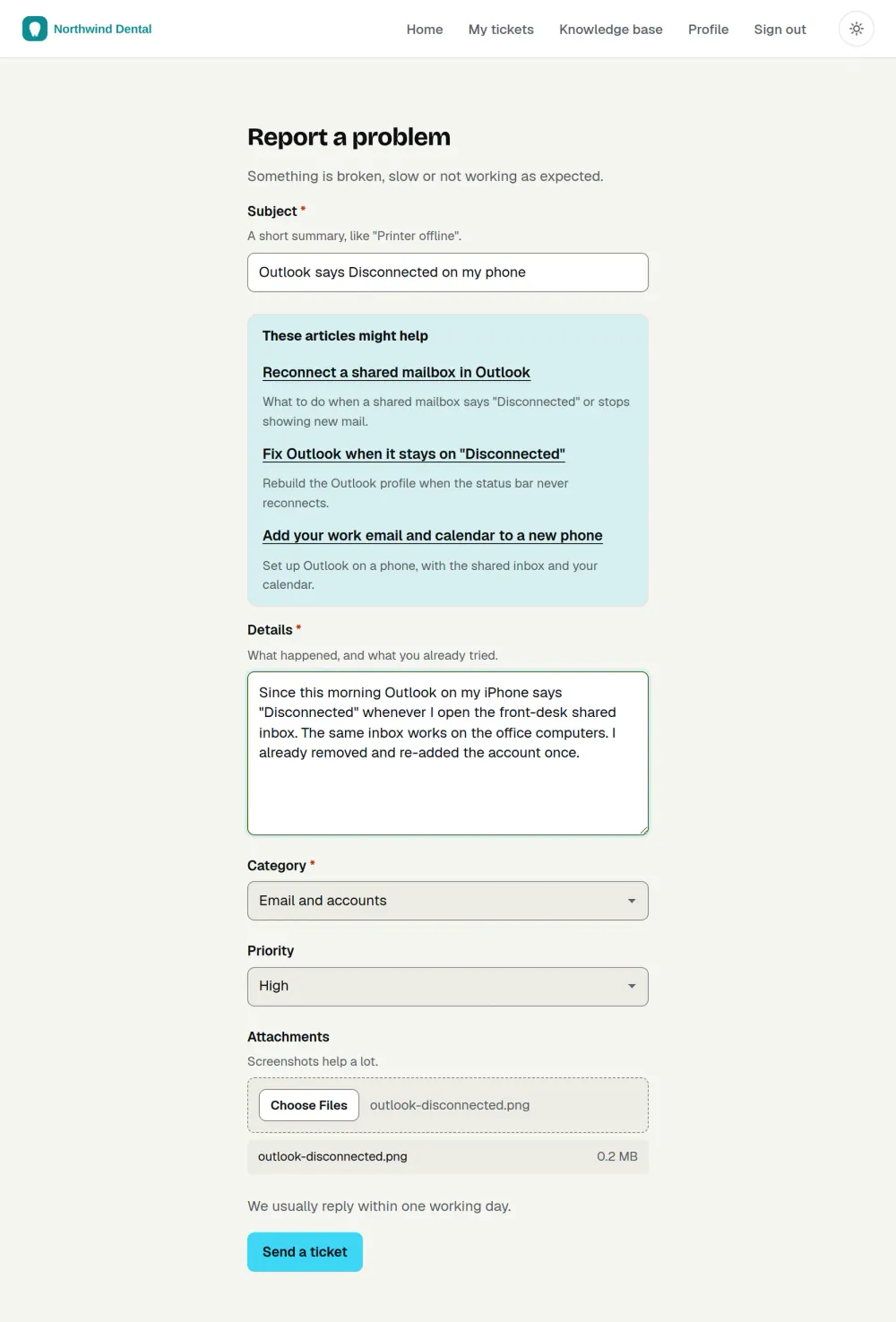
A requester sends a new request with a form you design, and attaches files if they need to. They see their open and closed requests, each with its status and the conversation so far, and they can reply, attach more files, or reopen a request they still need help with. Emails carry the reply and the earlier messages, and where the portal allows it, a link to a read-only view of the conversation that works for 72 hours.
A requester who is an organization admin sees all of their organization’s requests and can add or remove their own organization’s users.
Choose how people sign in
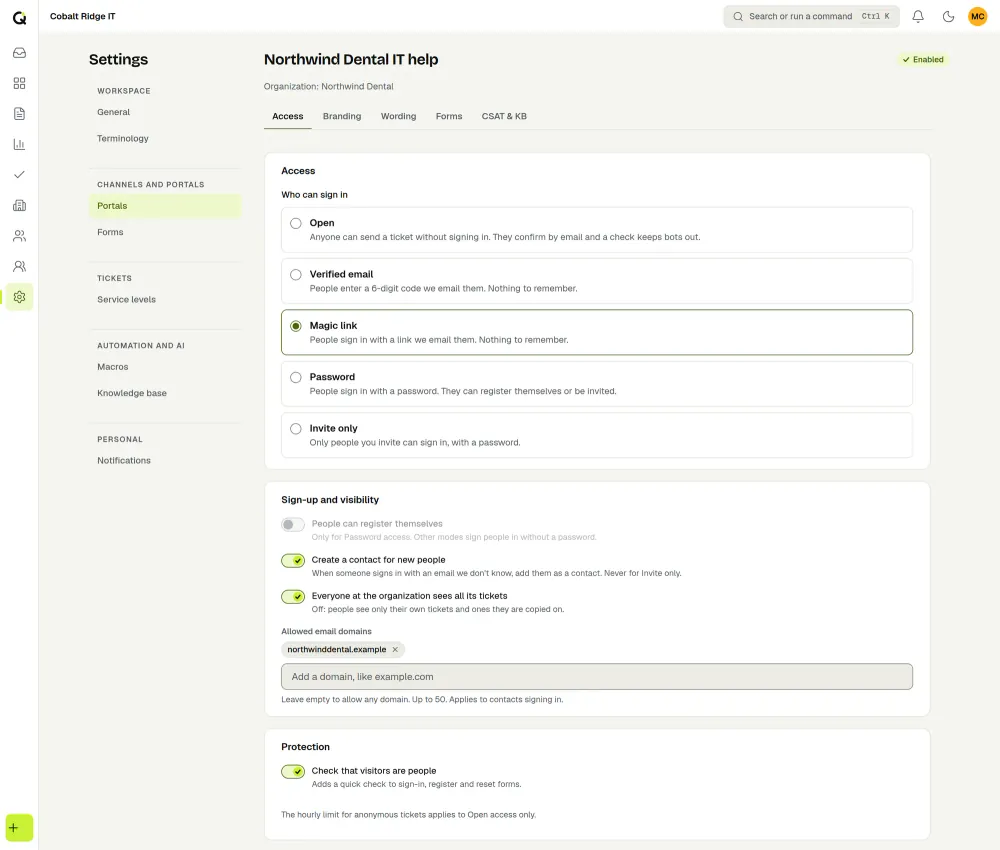
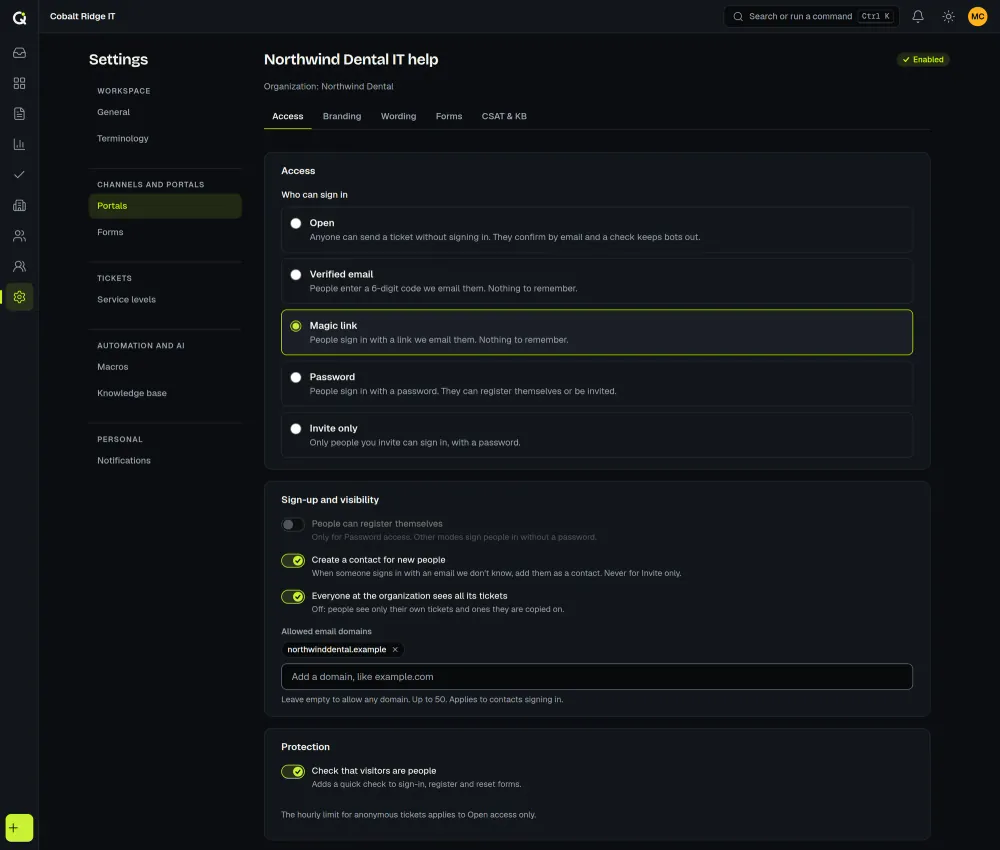
Set a sign-in method for each portal. Anyone with the link can use an open portal, so pick the method that fits the client.
| Method | How it works |
|---|---|
| Open | Anyone can send a request without signing in. They confirm by email, and a check keeps bots out. |
| Verified email | People enter a 6-digit code that is emailed to them. |
| Magic link | People sign in with a link that is emailed to them. |
| Password | People sign in with a password. They can register themselves or be invited. |
| Invite only | Only people you invite can sign in, with a password. |
One portal for the workspace, or one per client
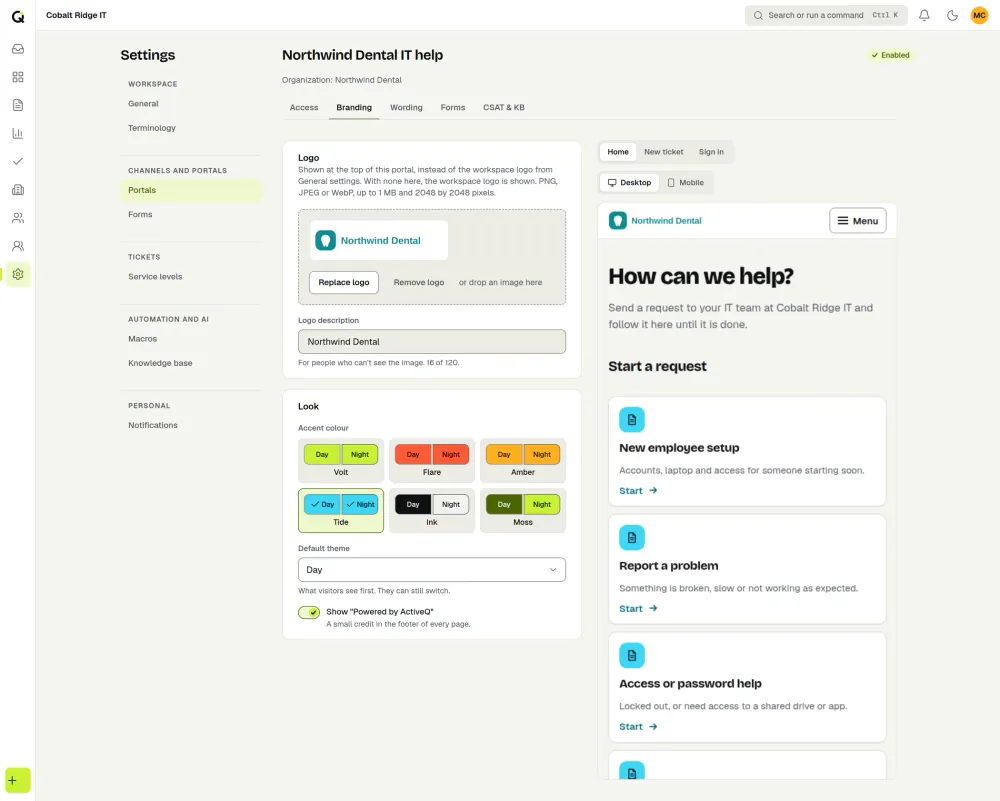
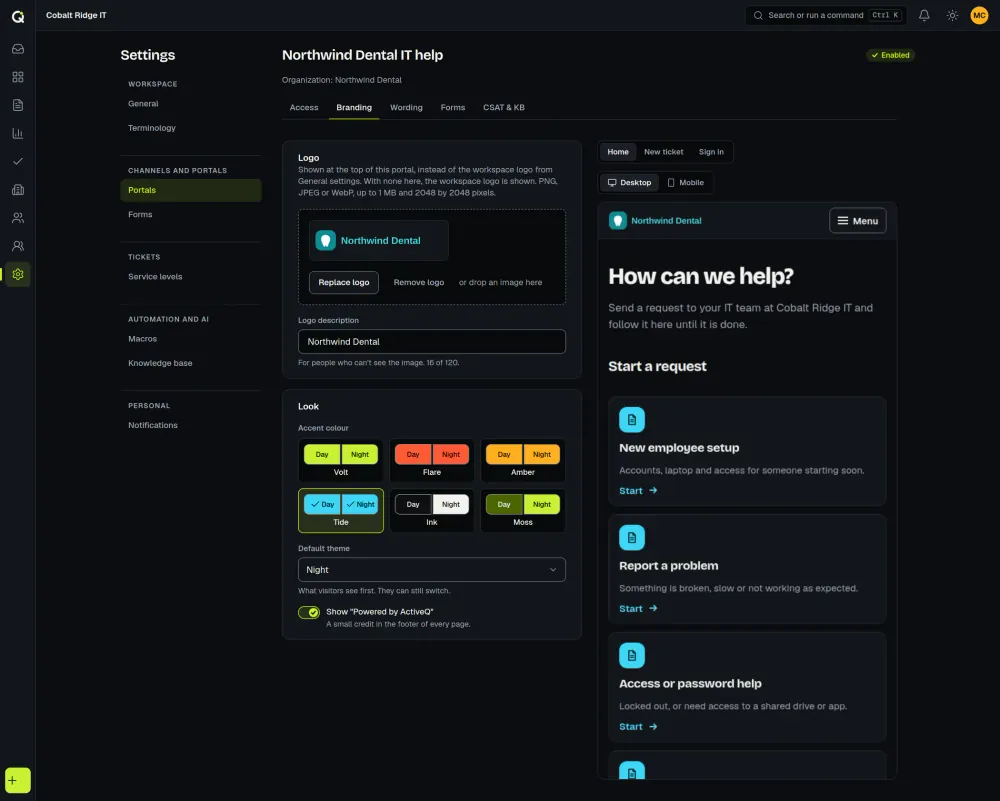
Upload a logo, pick an accent color and a default theme, and decide whether to show a small “Powered by ActiveQ” credit.
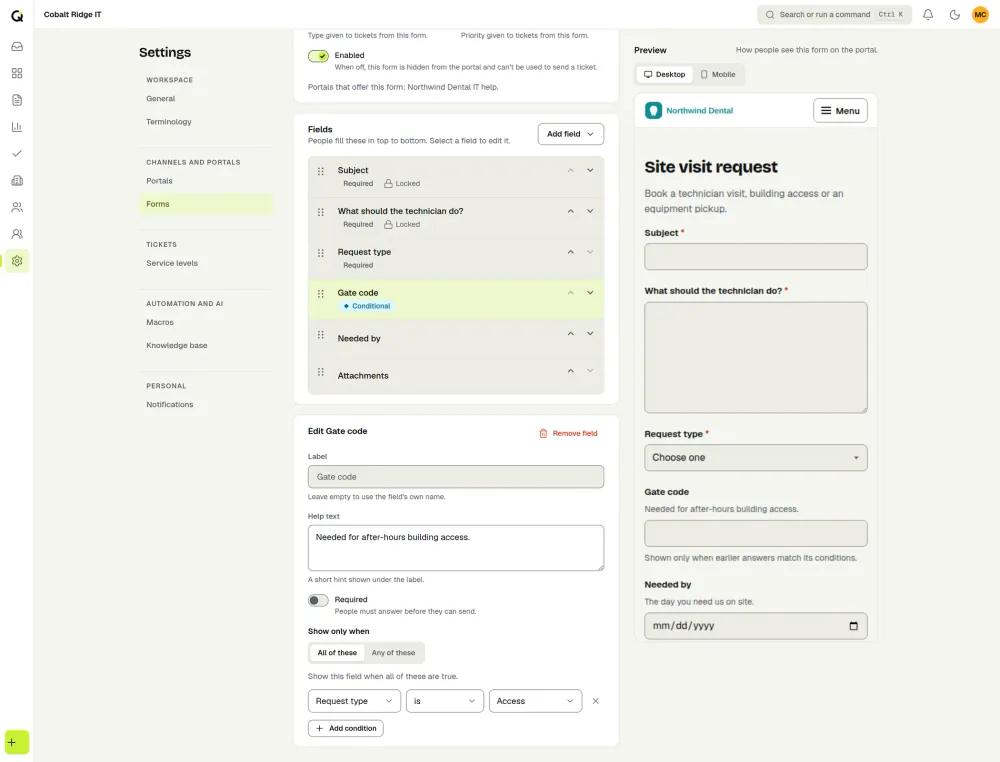
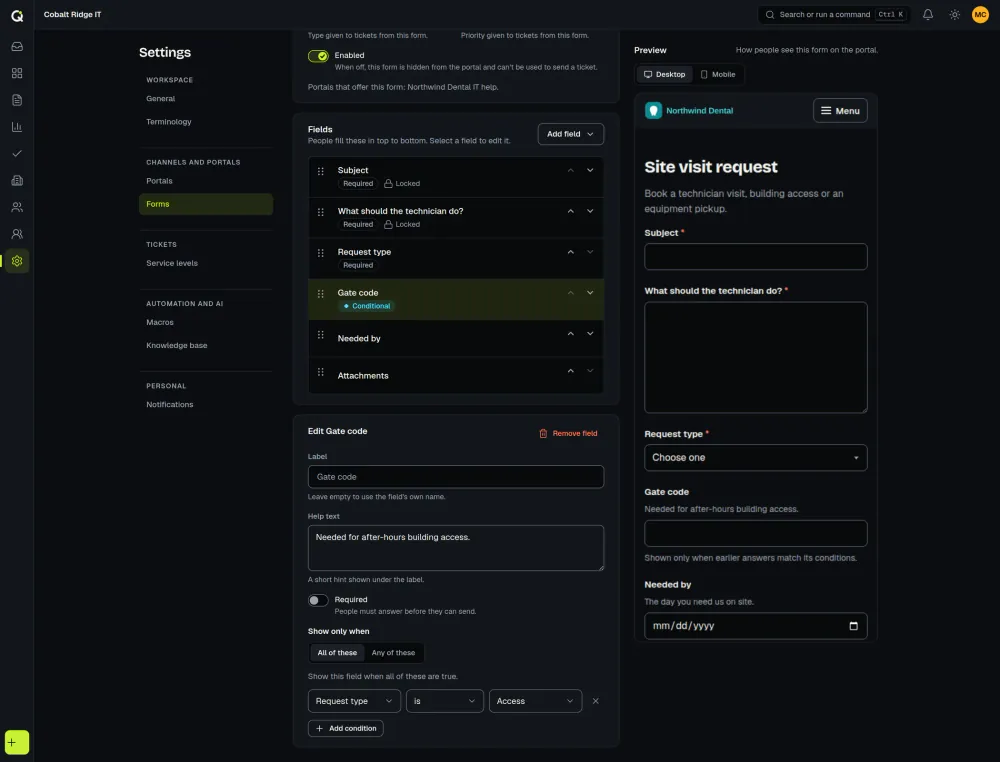
Build ticket forms with the fields you need, show or hide questions with conditions, and choose which form opens first.
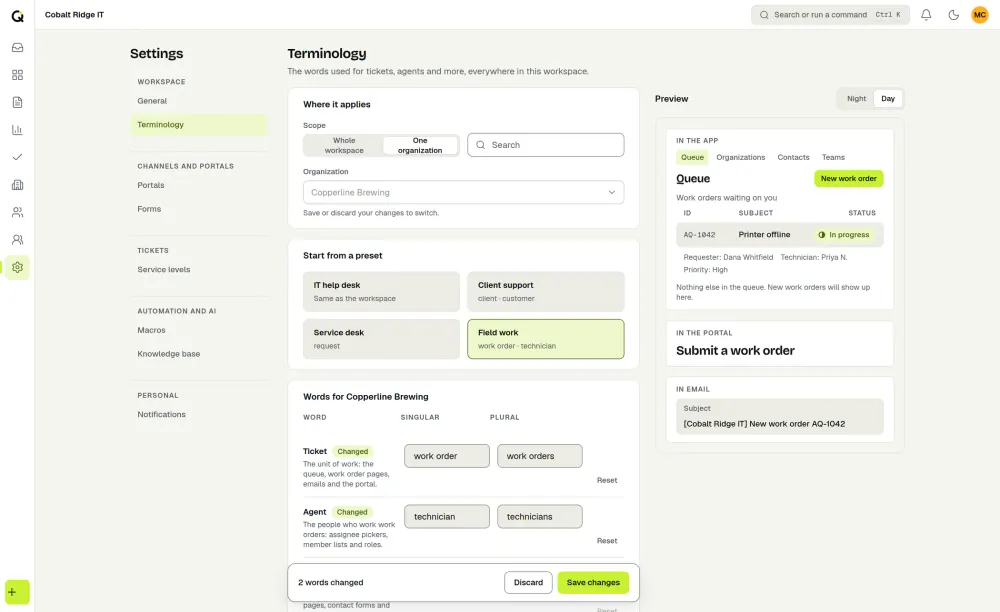
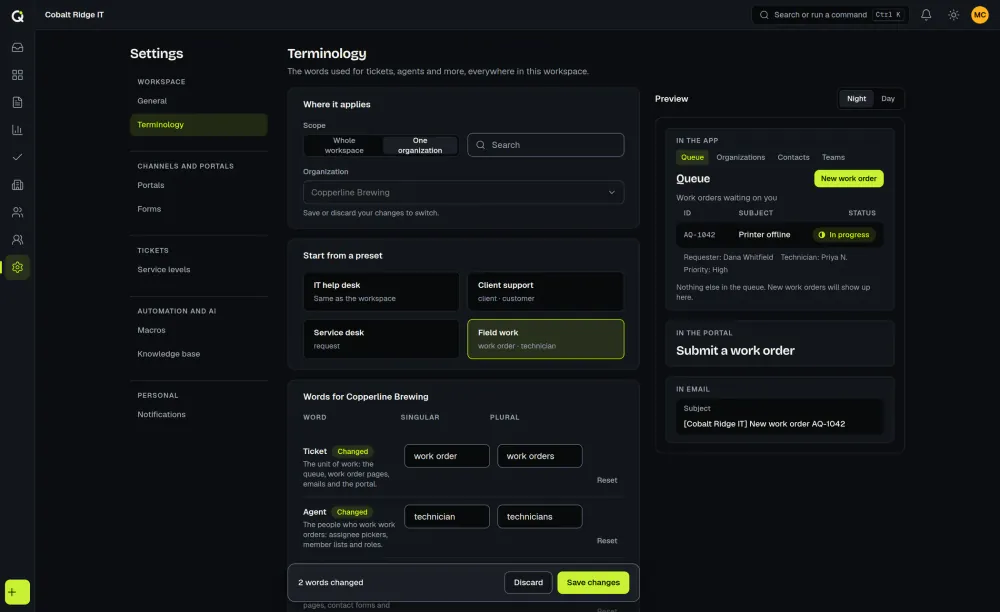
Edit the portal’s own text. You can also rename tickets, for example to requests, cases or work orders, for the whole workspace or for a single client. Start from one of four presets (IT help desk, Client support, Service desk or Field work) or type your own words.
A workspace portal serves everyone, and an organization can have its own portal with its own address path (see the MSP help desk page). The same portal works as an employee help portal for an internal IT team.
A help center for signed-in users
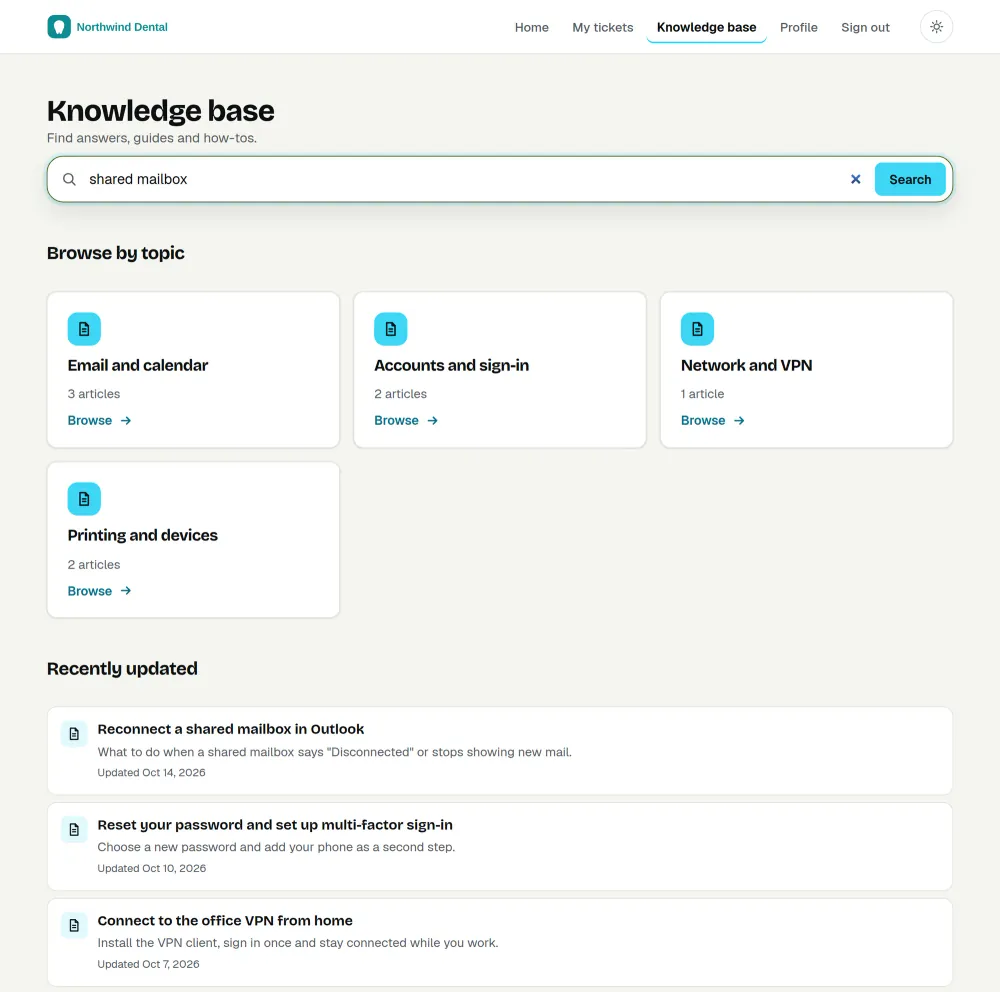
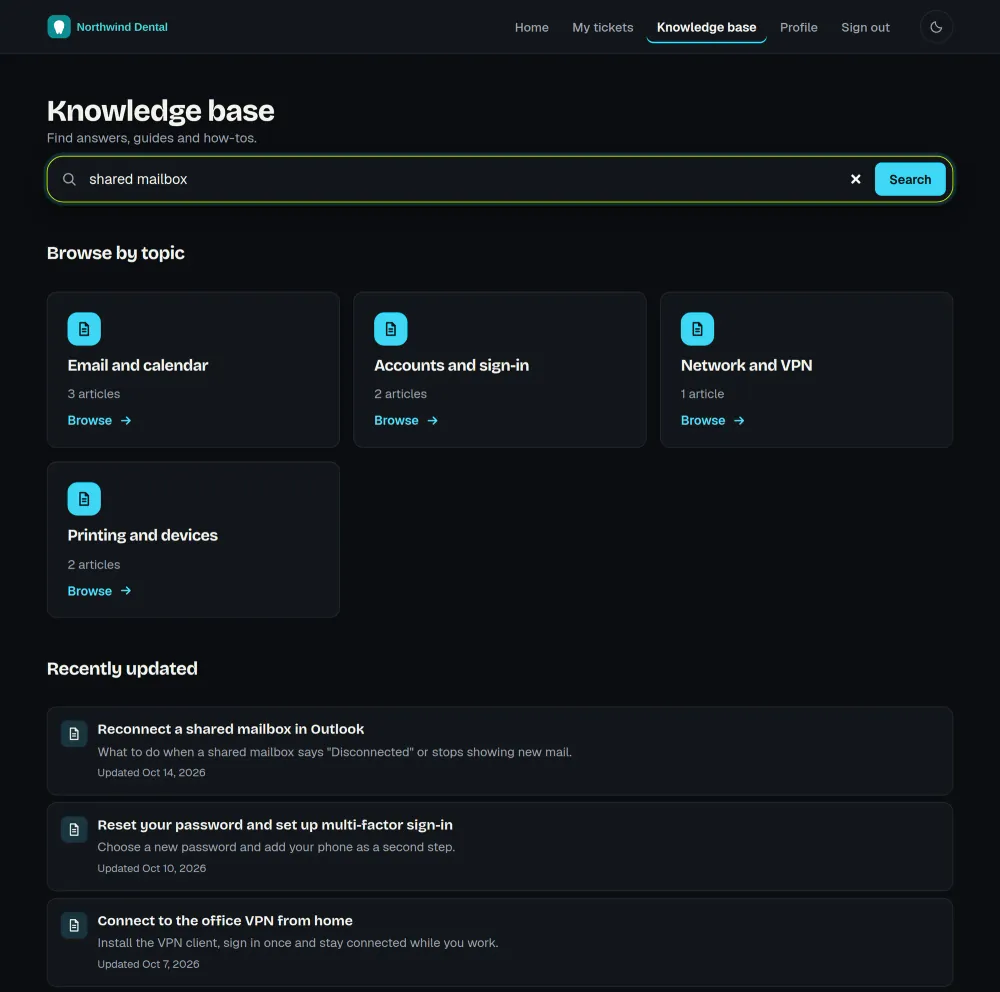
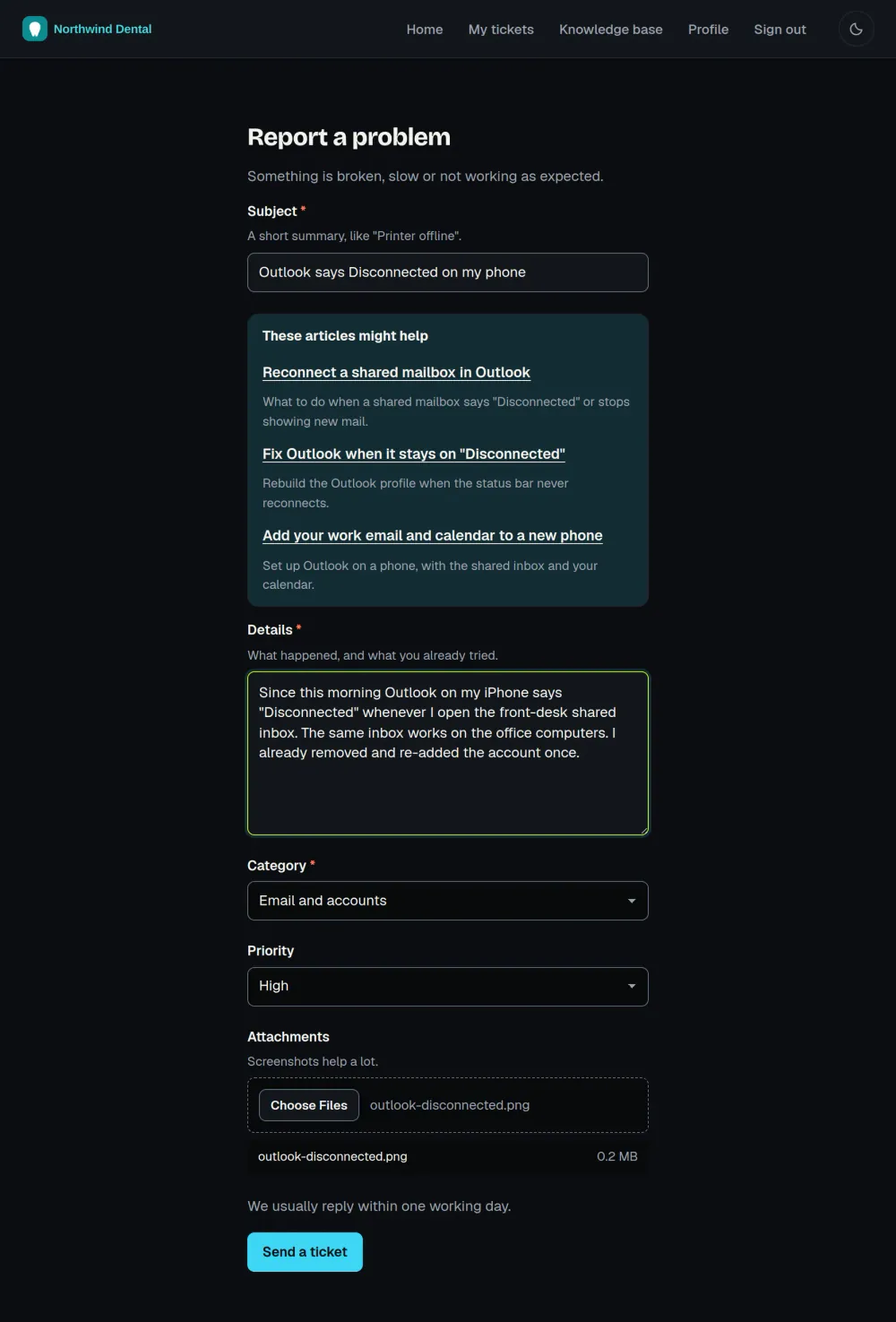
Where the knowledge base is on for a portal, signed-in users can browse and search the articles meant for them, mark an article helpful or not, and see suggested articles while they describe a new request. Articles can be for all organizations or for chosen organizations only.
What happens behind it
A portal request becomes a ticket in the queue, and its SLA targets start the moment it arrives. Customers, contacts and portal users are free, and you pay only for agents (see pricing).
How portals work today
Portals are served from your ActiveQ workspace address, an activeq.app address, because custom portal domains are not offered yet. The help center is for signed-in portal users. Reports are for your team and aren’t shown in client portals, though satisfaction results from the optional ratings appear in Reports. Requesters never see AI buttons.