Client request tracking for home service companies
If you run a landscaping, cleaning, pest control, HVAC or plumbing company, ActiveQ puts every client request in one queue and gives the client a portal to see what happened to it. It handles intake, tracking and the client portal for your office and crews; dispatch, routing and a field app aren’t part of it.
Start 14-day trialSee pricingNo card required. Sign-up is for US businesses.
Five places a client request can end up
A client texts the owner about the back gate, emails the office about mulch, leaves a voicemail about the sprinkler zone and mentions a wasp nest to whichever crew member is nearest. By Thursday nobody can say which of those are scheduled, which are done, and which were forgotten. The client, who has no way to look, calls to ask.
The work itself is rarely the hard part. Remembering what was asked, who has it, and what the client was told is, and that is what ActiveQ keeps track of for you.
Your words: work orders and technicians
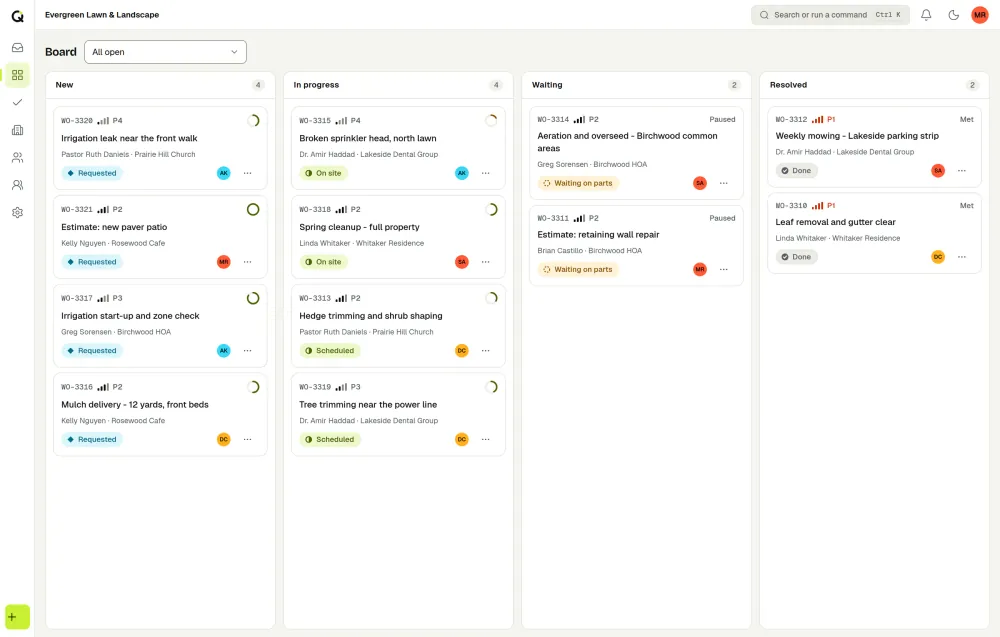
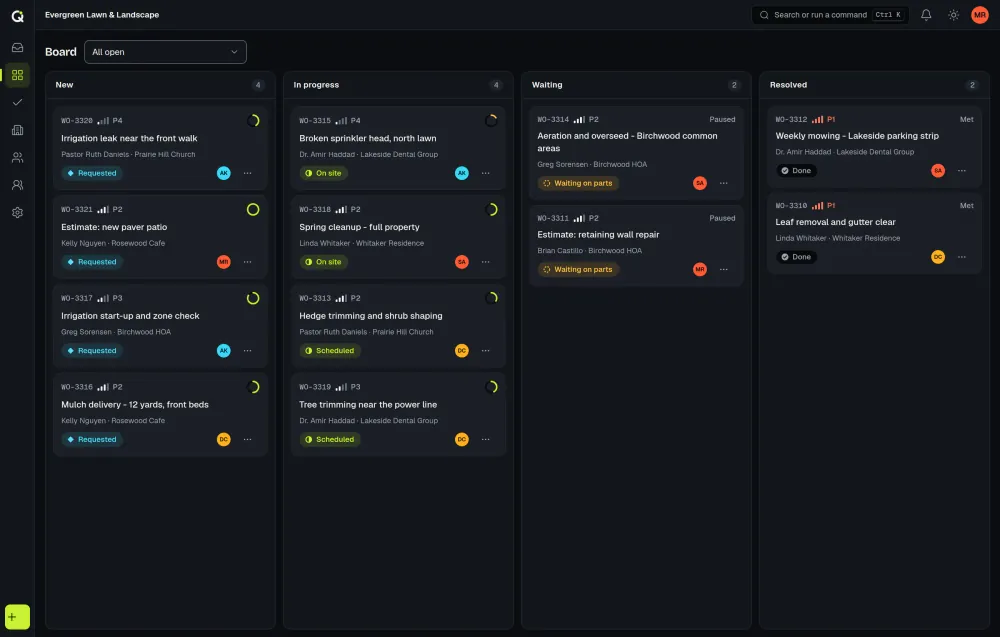
During setup you can pick the terminology preset called Field work. Tickets then read as work orders and agents as technicians everywhere: the queue, emails, and the client portal. If one client prefers another word, you can set wording for that client alone. Status names are yours too, so work orders can move through Requested, Scheduled, On site, Waiting on parts and Done without a custom build. The board groups statuses into four fixed columns, New, In progress, Waiting and Resolved, and each of your statuses sits in one of them.
Requests come in seasons
Home service work is seasonal and repeats. Clients come back for the same visit every spring, and last year’s closed work order is still there to read when the new one arrives. Each season starts with a new work order, opened by the client or your office, which keeps every season’s notes separate.
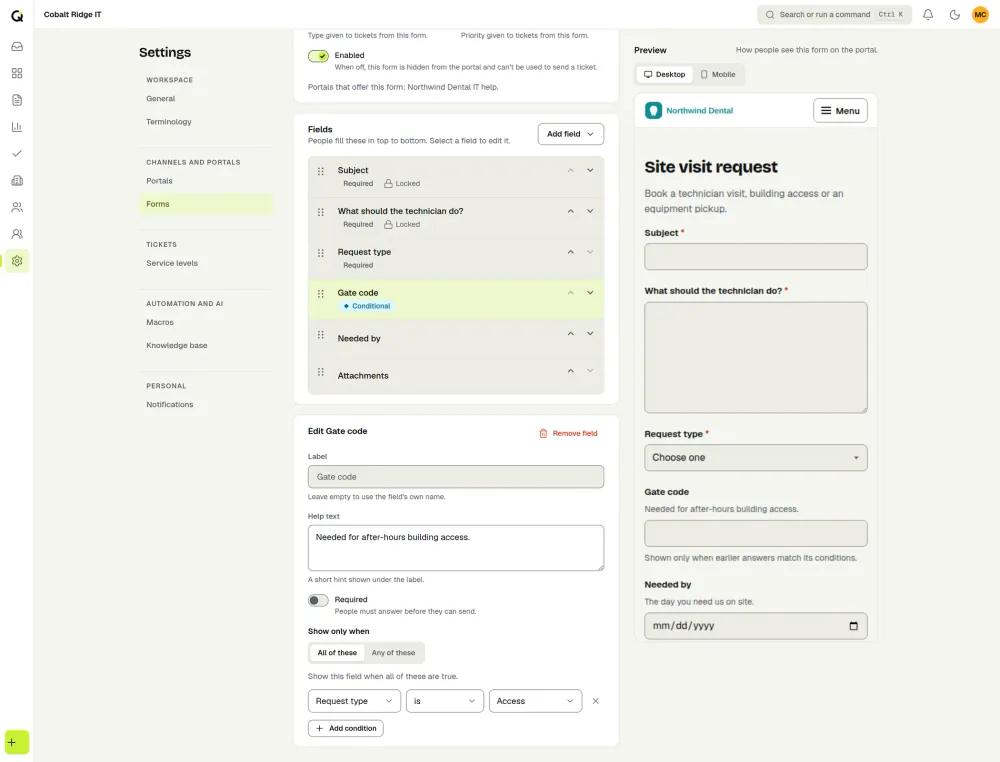
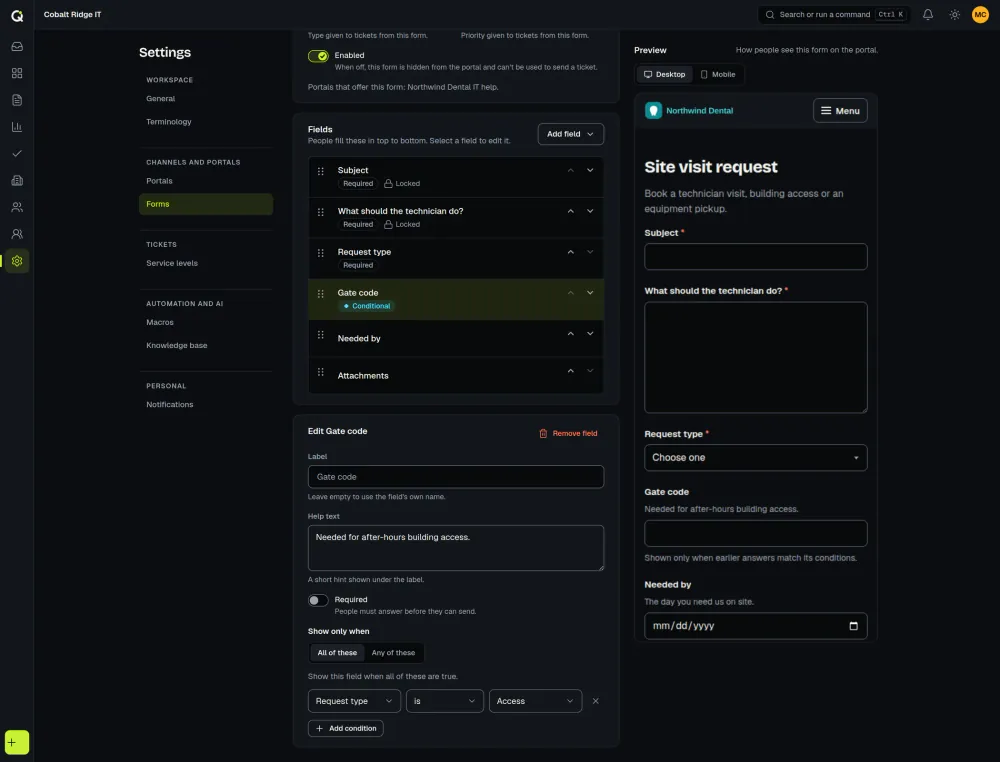
The spring and fall peaks are where requests pile up by email and voicemail. A portal form that asks the right questions up front (property address, gate access, pets in the yard, a photo of the problem patch) means the crew lead starts with the details instead of a callback.
One realistic work order, start to finish
This follows one sample request: a property manager asks for a spring cleanup and mulch at a homeowners’ association.
- 1
The client asks in the portal
Maple Court HOA’s property manager signs in to your branded portal, picks Spring cleanup and mulch, and fills your form: property address, gate access, a photo of the bed that washed out last fall. The form shows or hides questions depending on the service chosen.
- 2
A work order appears in the queue
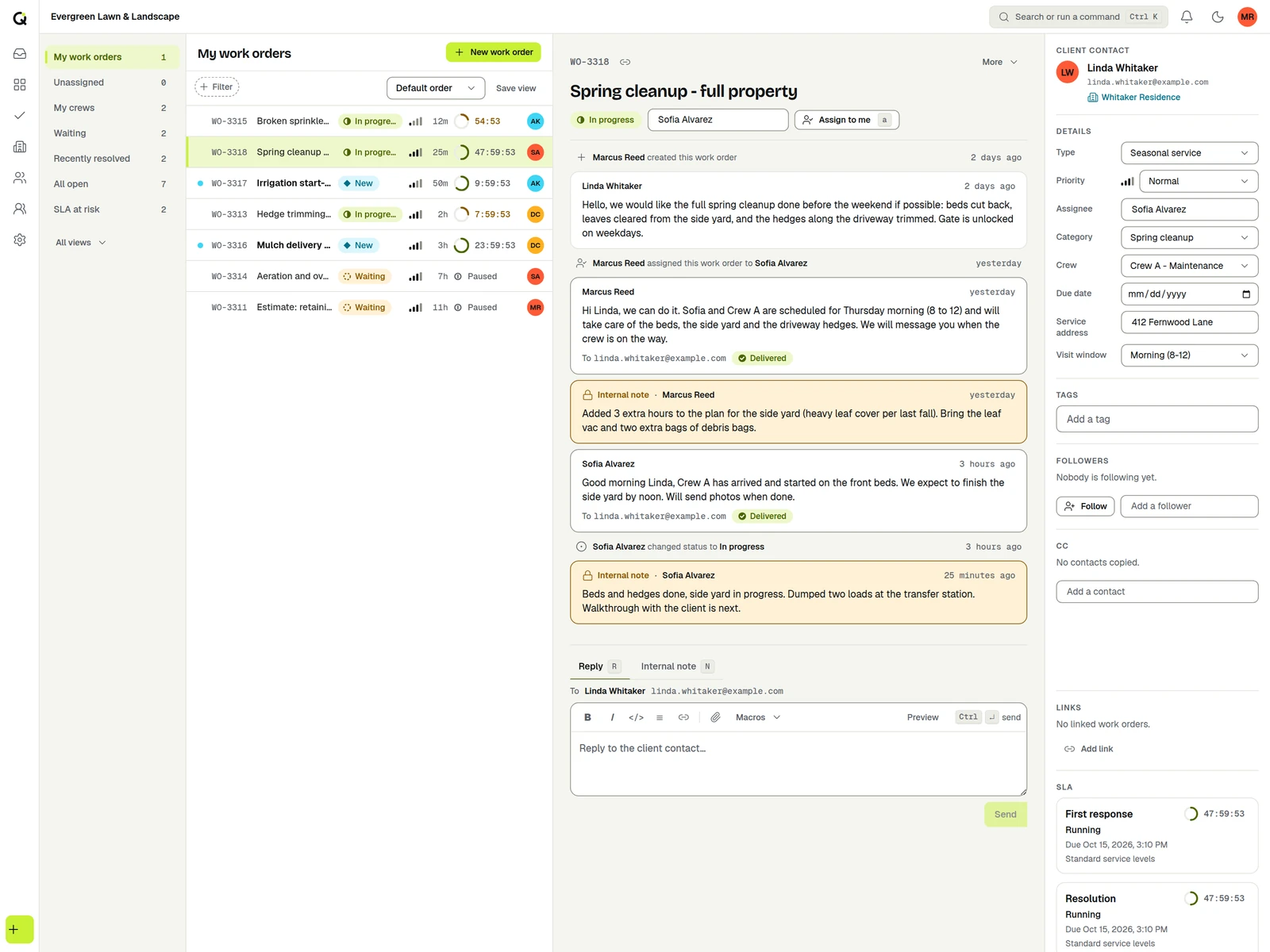
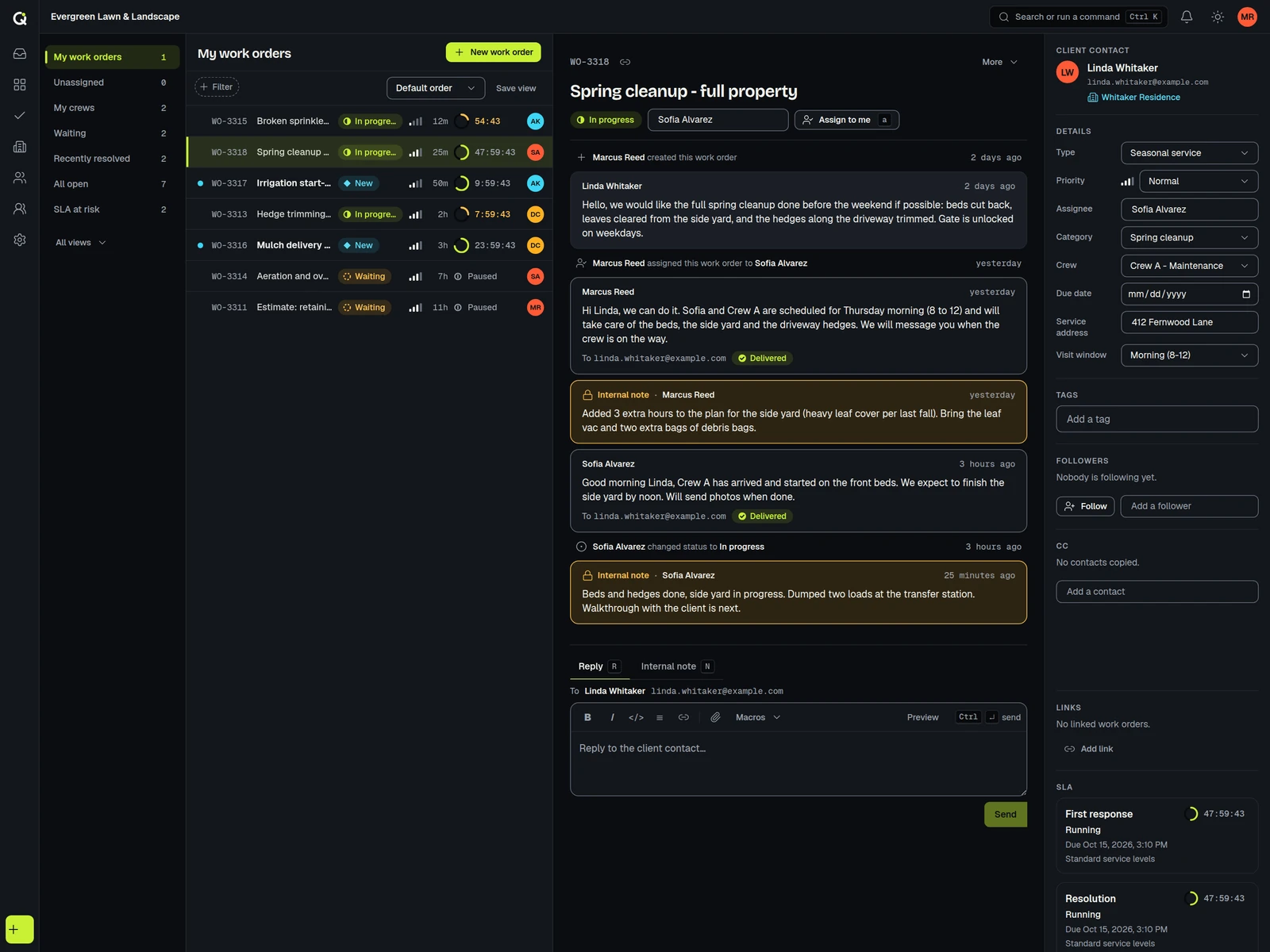
It shows up instantly with a priority and a live SLA clock for response and resolution. An automation tags it seasonal and assigns it to the Crew East team, shared by round robin.
- 3
A crew lead takes it
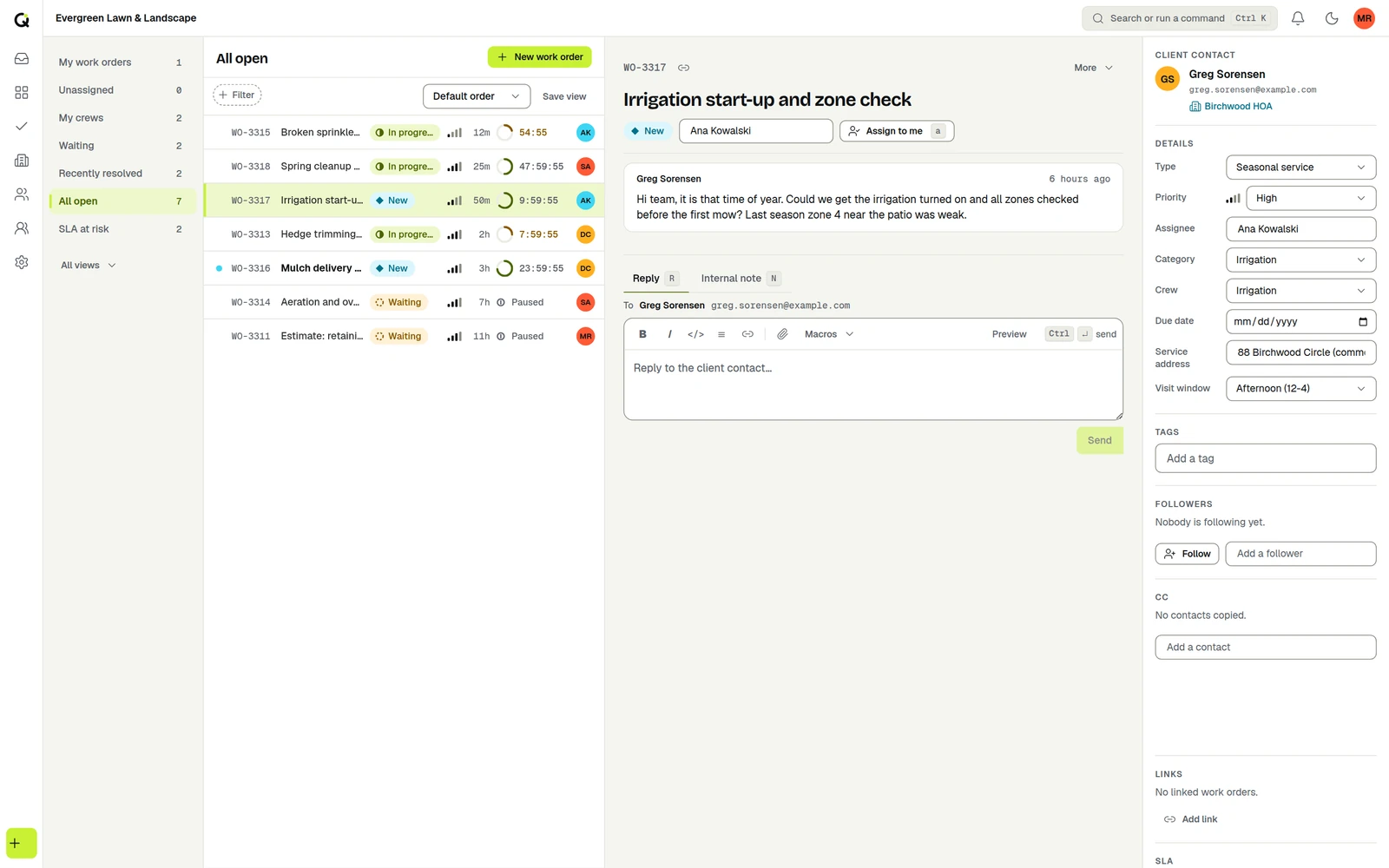
The lead adds an internal note (mulch delivery Tuesday, bring the edger) and moves the status to Scheduled. The work order shows when the office has it open or is typing a reply, and you get a warning if a new reply lands while you write, so two people do not reply with different dates.
- 4
The client watches it move
When the status changes to On site, the client sees it in the portal and gets an email. If the crew needs an answer about the side bed, the status goes to Waiting on client, and the SLA clock pauses until the reply arrives.
- 5
Closed with notes
The lead closes it with a resolution note: what was done, what to watch, what to book next. Staff can ask AI assist to draft that note from the conversation, and a person edits and approves it before it is saved. The client can reopen the work order if something was missed.
What it does today
A branded client portal
Each client sees your logo and wording, sends requests through a form you design, follows status, replies and reopens a request. Choose how clients sign in, from open to invite only. Clients can leave an optional satisfaction rating on a resolved work order, and satisfaction results appear in Reports. See client portals.
SLA clocks that fit the work
Set response and resolution targets by priority, team or client, count only business hours, and pause the clock while you wait on the client. A commercial account can have a faster promise than a residential one. See SLA management.
Automations and teams
Rules that run on events can set priority, add tags, leave a note, notify someone, or assign a work order to a team shared by round robin, so Crew East gets the east side without the office sorting each one.
A shared queue the office can trust
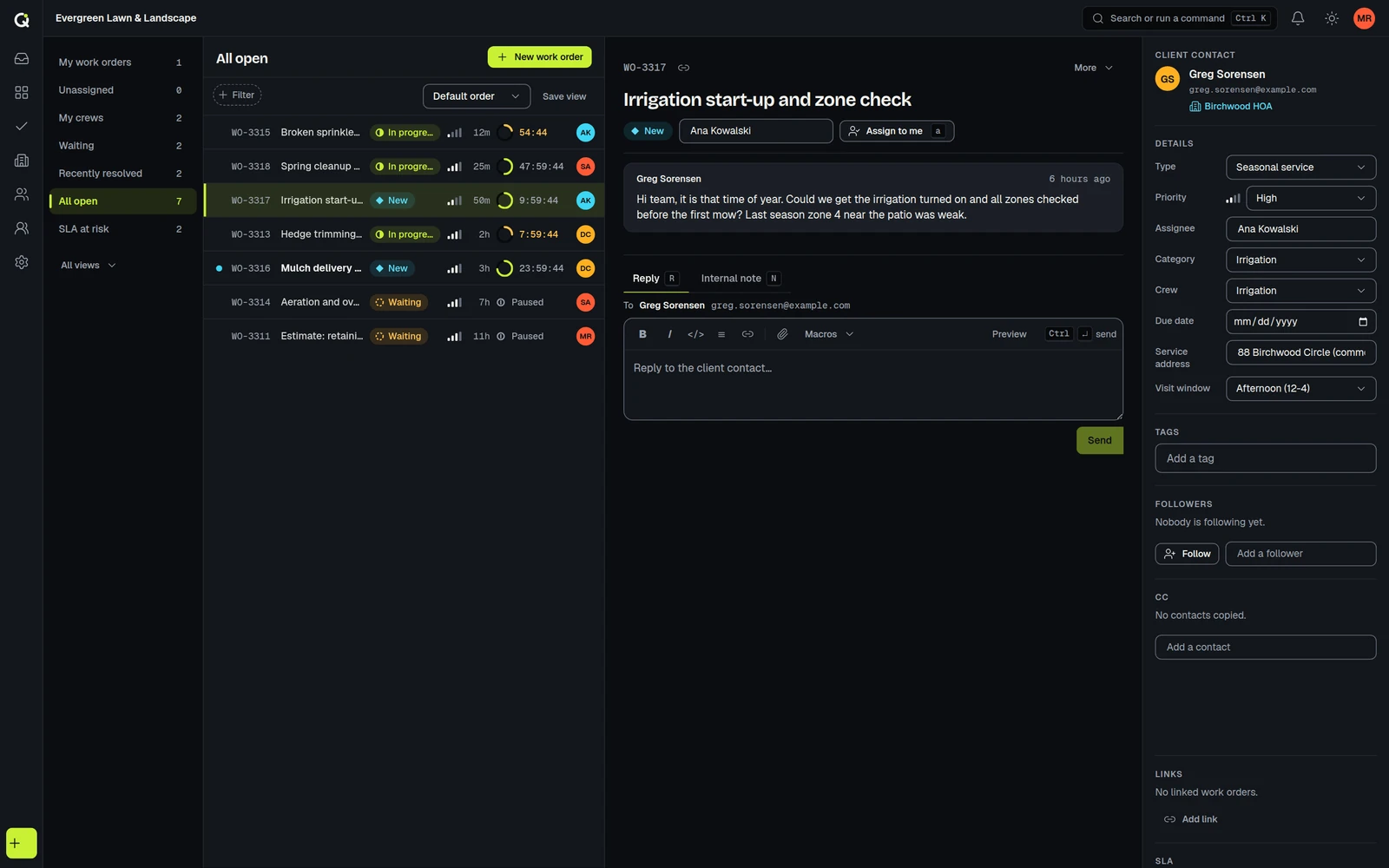
A live queue, internal notes, macros for repeat answers such as reschedule and rain delay, ticket merging for duplicates, and presence that shows who else has the work order open or is typing a reply.
AI assist, only when you click
Staff can trigger summaries, triage suggestions, reply drafts and resolution notes. A person reviews everything before it is used, and owners can switch AI off. See AI assist.
Pricing for a home service company
You pay for the people who work the queue: office staff and crew leads who reply and update work orders. Clients, contacts and portal users are free, so every homeowner, property manager and business customer can have a portal login at no cost. Every plan starts with a 14-day trial with every feature and no card required. Sign-up and billing are for US businesses. During the trial, AI includes 200 runs and 50 free credits; a paid workspace gets 1,000 included runs a month (fair use), and a workspace owner can buy a credit pack if you need more: $9 for 250 credits, $29 for 1,000 or $119 for 5,000. See the pricing page for the details.
Questions from home service owners
How do crews and schedules fit in?
ActiveQ keeps the request, the conversation and the status in one place. Status names such as Scheduled are labels you set, and the date and crew still come from whatever you use to plan the day, because ActiveQ has no calendar, dispatch board, route planning or GPS tracking.
Can my technicians use it from the truck?
ActiveQ is a web app, so a technician can open it in a browser on a mobile device. It has no native field app.
Keep reading
- Pricing, with worked examples for larger teams.
- Client portals and SLA management, the two features this page leans on most.
- Security: how data is protected, and where the database is hosted (AWS US East, N. Virginia).
- About ActiveQ.
- Running support for other companies as your business? See help desk software for MSPs.
Illustrative sample data. Not real customers or results. Companies, names and work orders on this page are made up.