SLA management in ActiveQ
Set response and resolution targets by priority, count time only while your business hours are open, and watch a live countdown on every ticket that has a policy. Warnings and escalations fire before a target is missed, and a breach is flagged the moment it happens.
Start 14-day trialSee pricingNo card required. Sign-up is for US businesses.
Set response and resolution times by priority
An SLA policy says how fast a ticket needs a first response and a resolution, for each priority, with an “Any other priority” row as the fallback. Keep one default policy for the workspace and add others where your promises differ.
A policy can be attached to a team or to an organization. An organization’s policy wins over its team’s, which wins over the workspace default, and that’s how an MSP gives each client different targets. If you give an organization a different policy, open tickets keep their clocks and new tickets use the new one.
Business hours, holidays and pauses
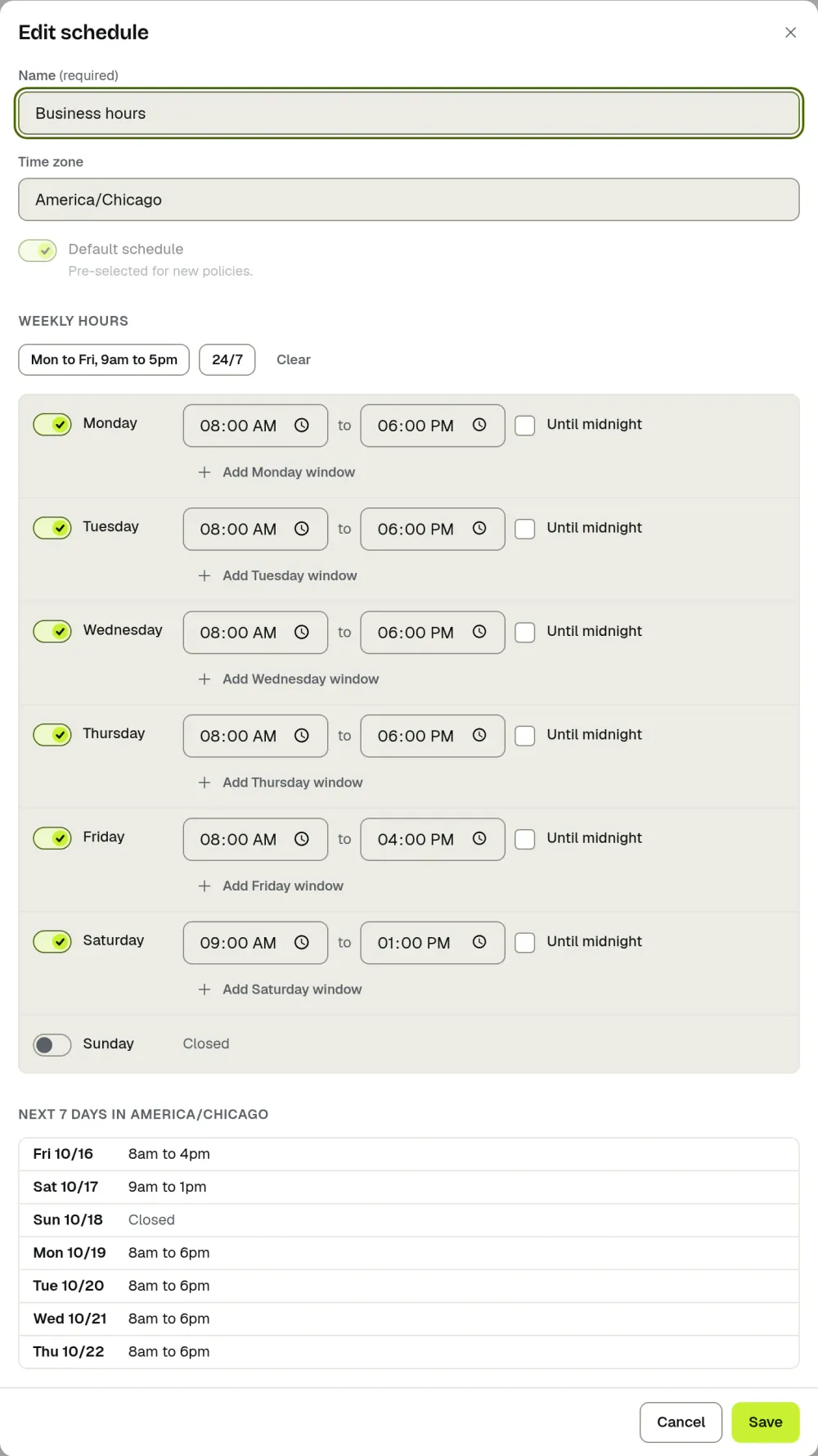
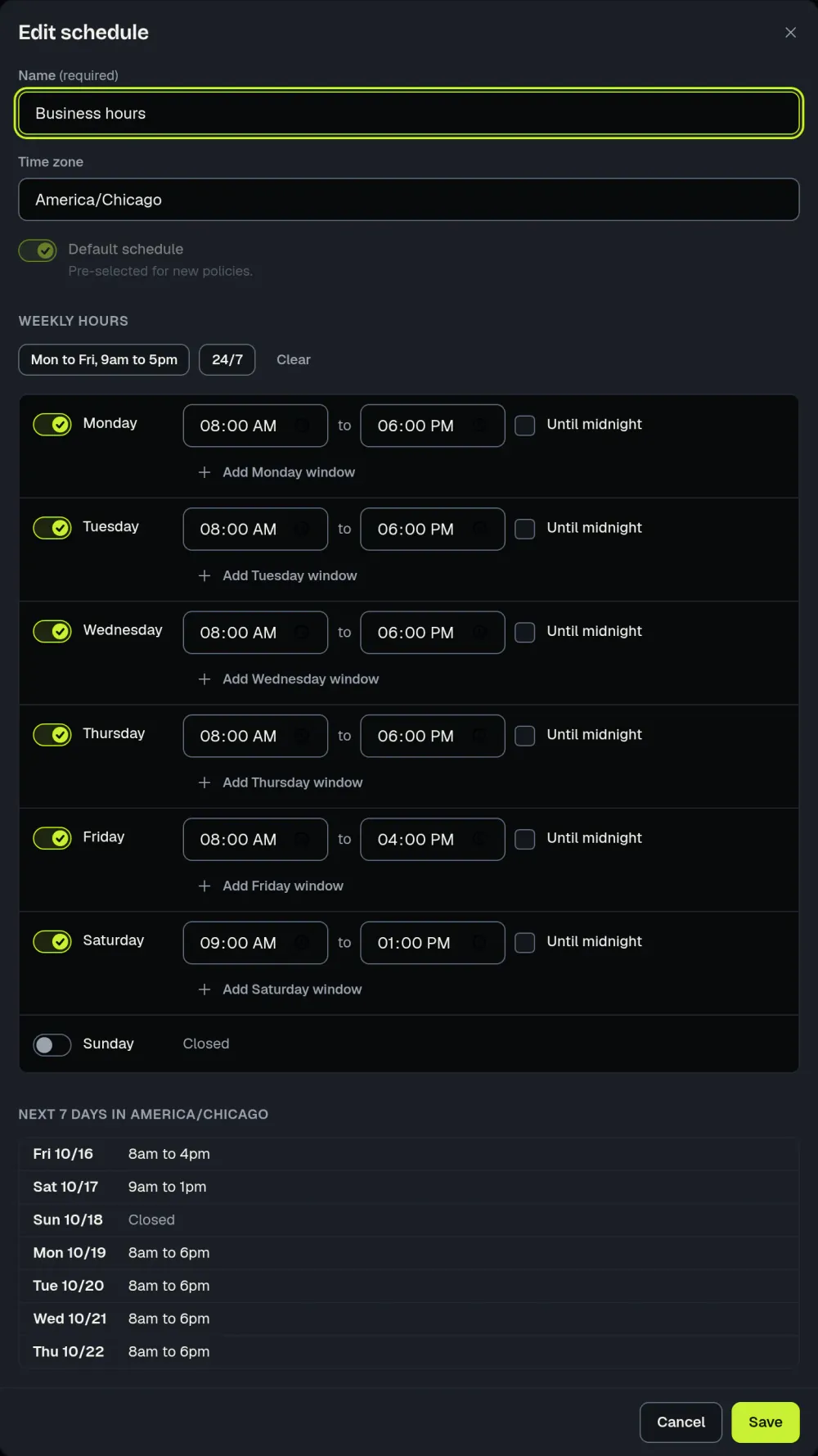
A business hours schedule has a time zone and up to two open windows a day. A policy on a schedule counts time only while the schedule is open, or it can count calendar hours, which means every hour. A schedule is closed all day on its holidays. Add your own dates, or add the US federal holidays for a year in one step.
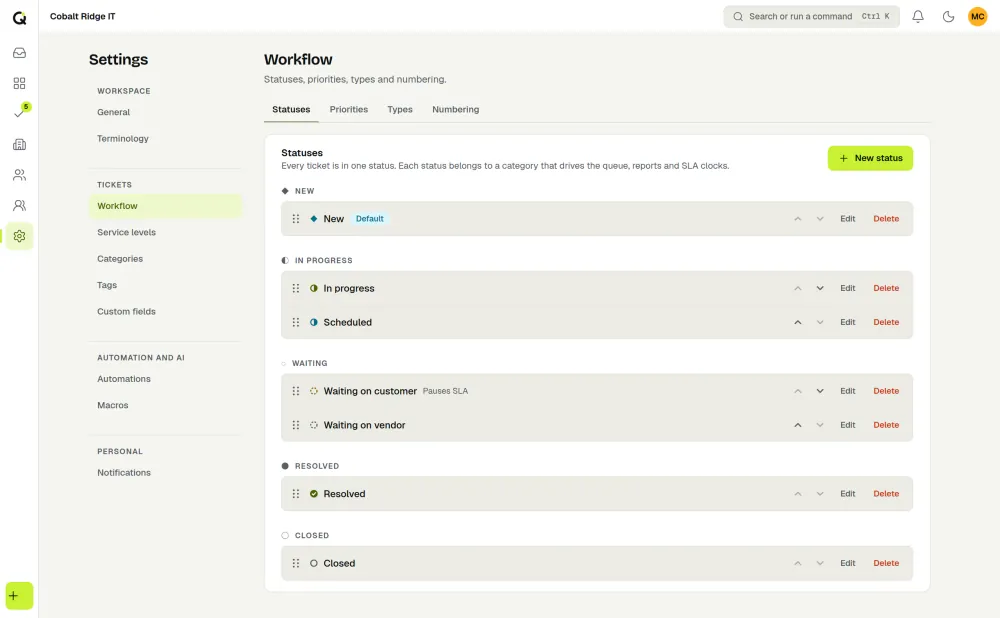
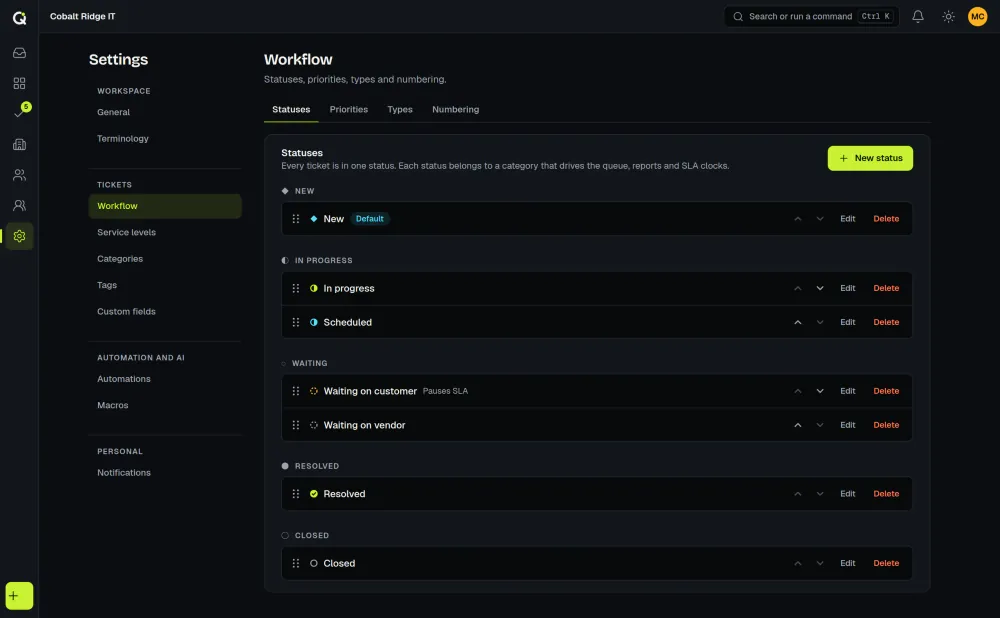
Mark any status as one that pauses the SLA, such as waiting on the customer. The clock stops there and resumes when the ticket moves on.
See every deadline
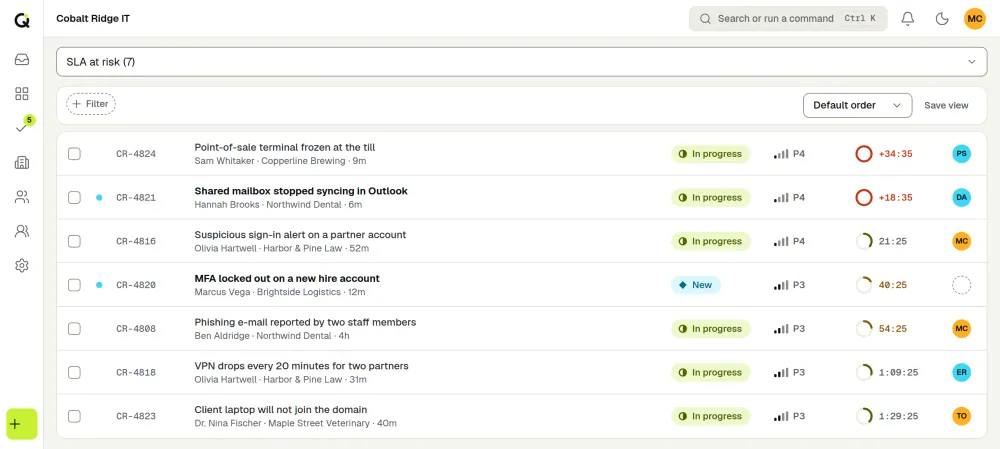
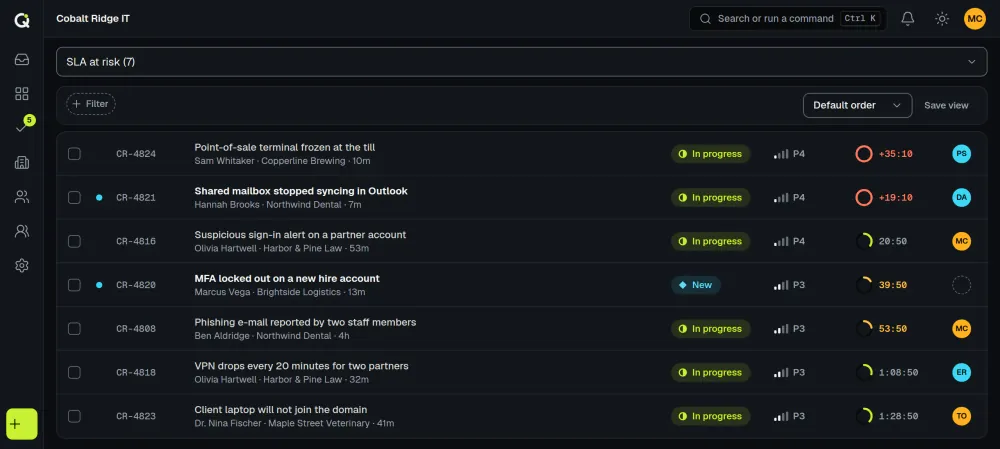
A beta client told us the visual SLA timer was key to making their first-response and resolution targets. It’s a countdown ring on each ticket that has an SLA, in the queue and on the ticket page, and it shows whether the clock is running, paused, met or breached. The time left updates live.
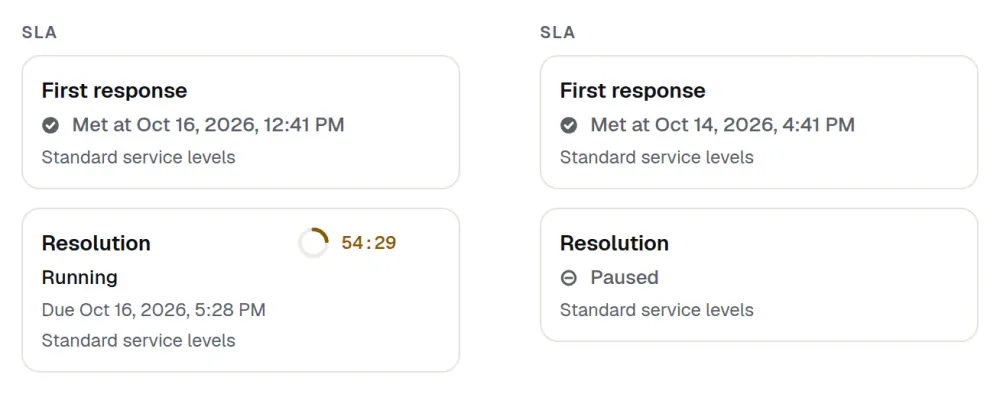
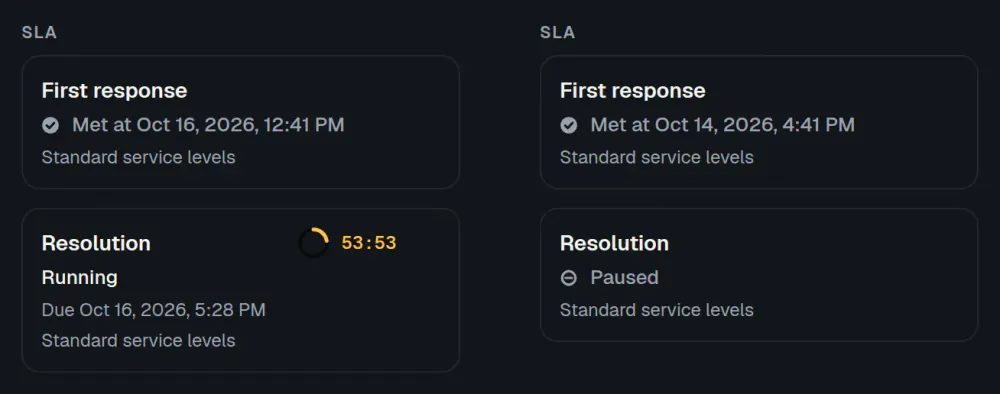
A saved queue view called SLA at risk lists open tickets that are close to their target time or past it, soonest first. The ticket page lists each clock, first response and resolution, with its due time and policy.
Report on your targets
The SLA performance report shows first response and resolution attainment against a 95% goal, breaches by priority and team, and the tickets at risk by assignee. You can also build your own from SLA metrics. See Reports.
Escalate before it breaches
Each target can have up to five escalation steps. A step fires when a chosen percentage of the target time has passed, and it does one of four things.
- Notify the assignee.
- Notify the team.
- Assign the ticket to a team, sharing it by round robin.
- Set the ticket’s priority.
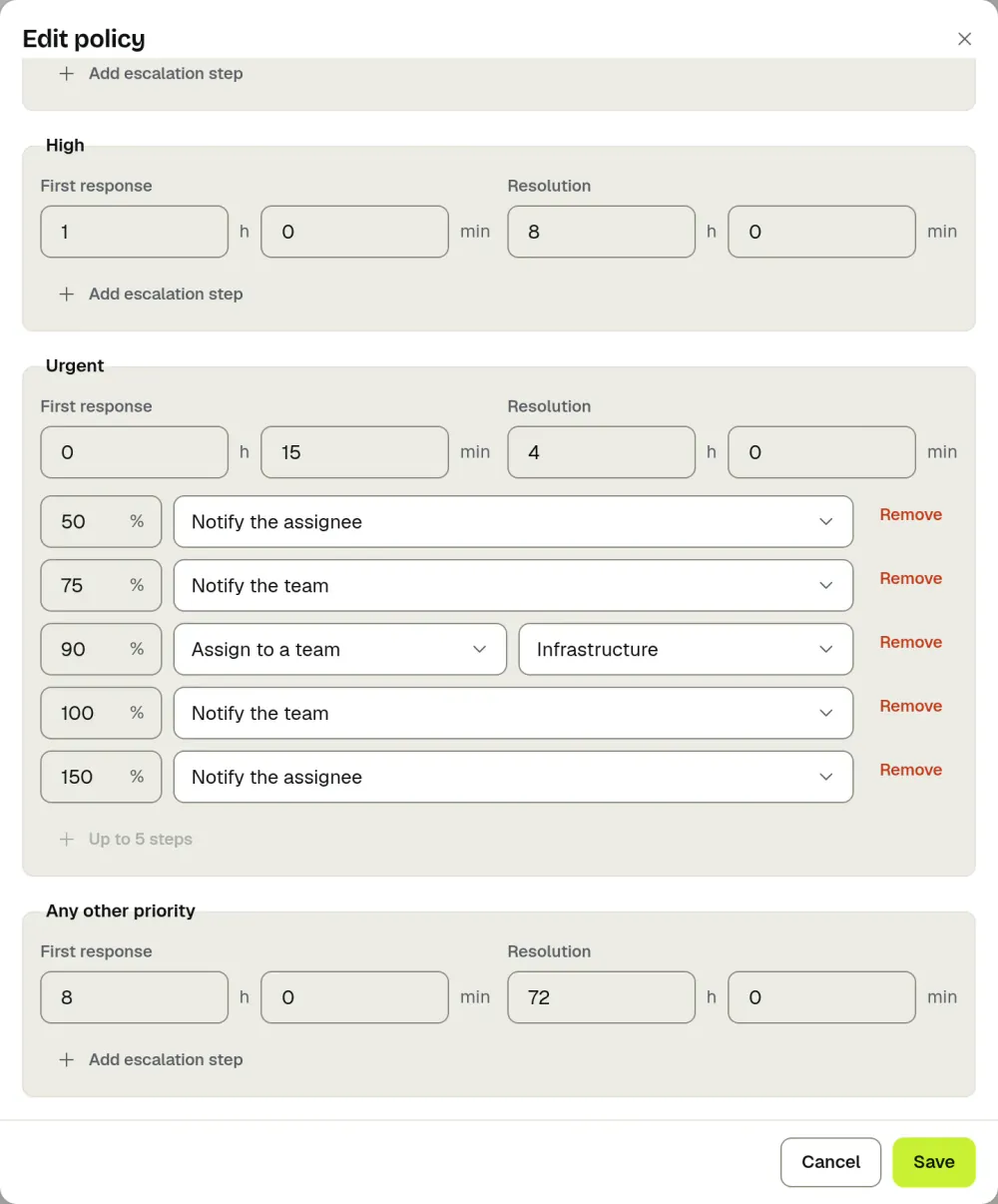
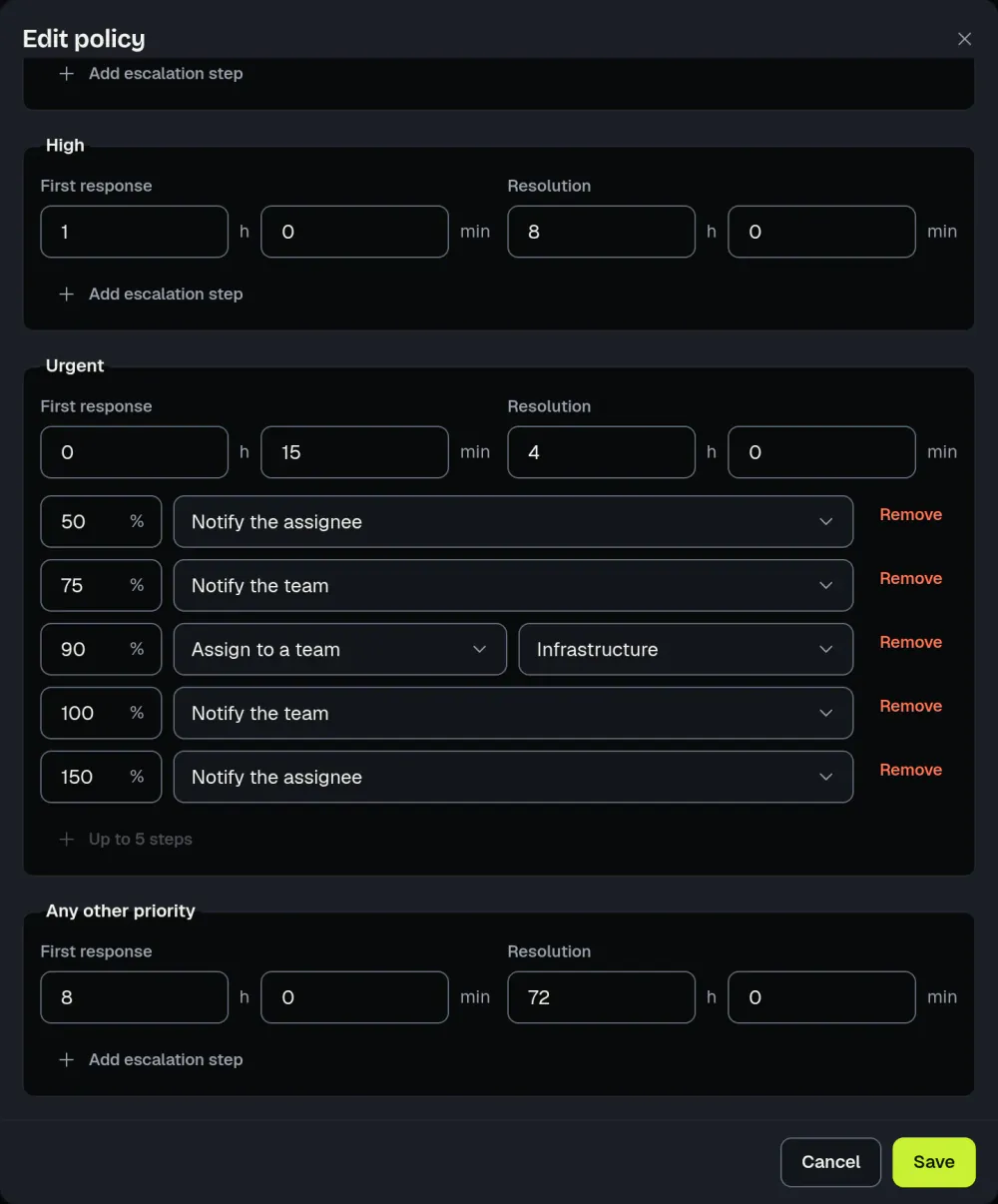
When a target is breached, the assignee (or, for an unassigned ticket, the team) is notified. Warnings and breaches also create events that webhooks and automations can act on, as sla.warning and sla.breached.
What it costs
Nothing extra. SLA management is in the one plan, which starts at $79.99 a month for 1 to 3 agents (see pricing). The internal IT help desk page shows how teams use it day to day.
How it works today
The one-step holiday set covers US federal holidays, so add other countries’ dates by hand. Escalation steps notify your people, reassign and change priority, but they don’t email the requester.