Knowledge base
Your team writes help articles, reviews them before they go live, and picks who reads each one: staff, all organizations or chosen organizations. Clients find published articles in a portal help center, agents see suggestions on tickets, and every workspace has its own private knowledge base.
Start 14-day trialSee pricingNo card required. Sign-up is for US businesses.
Write and organize articles
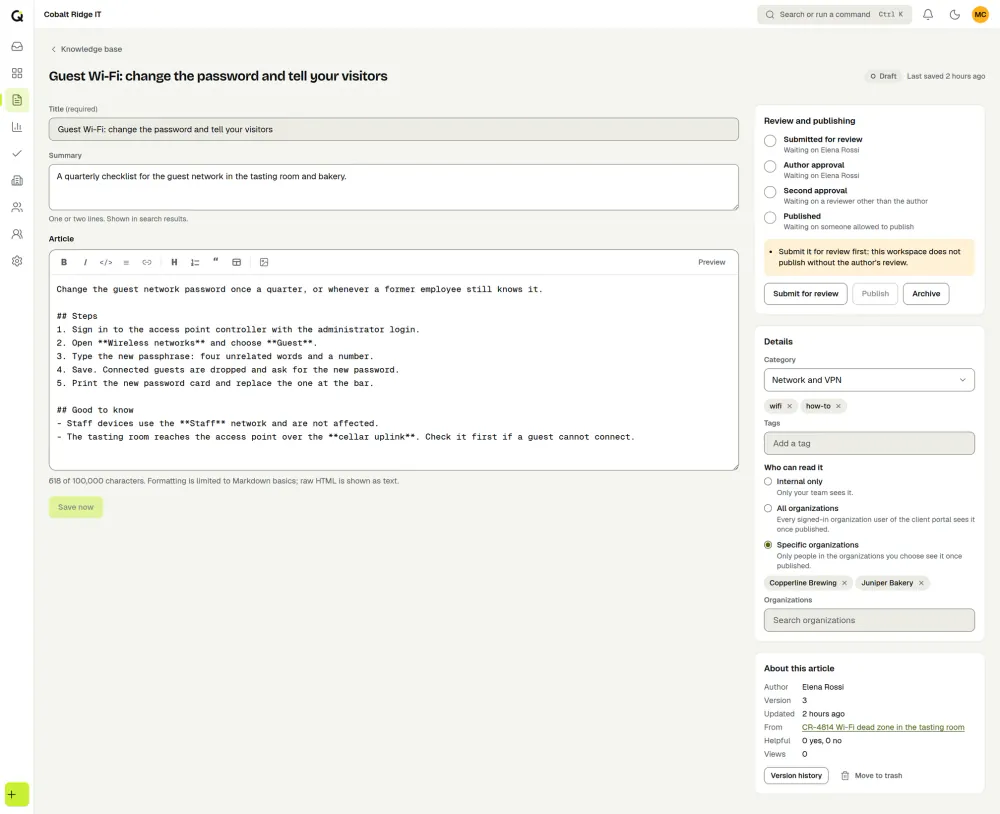
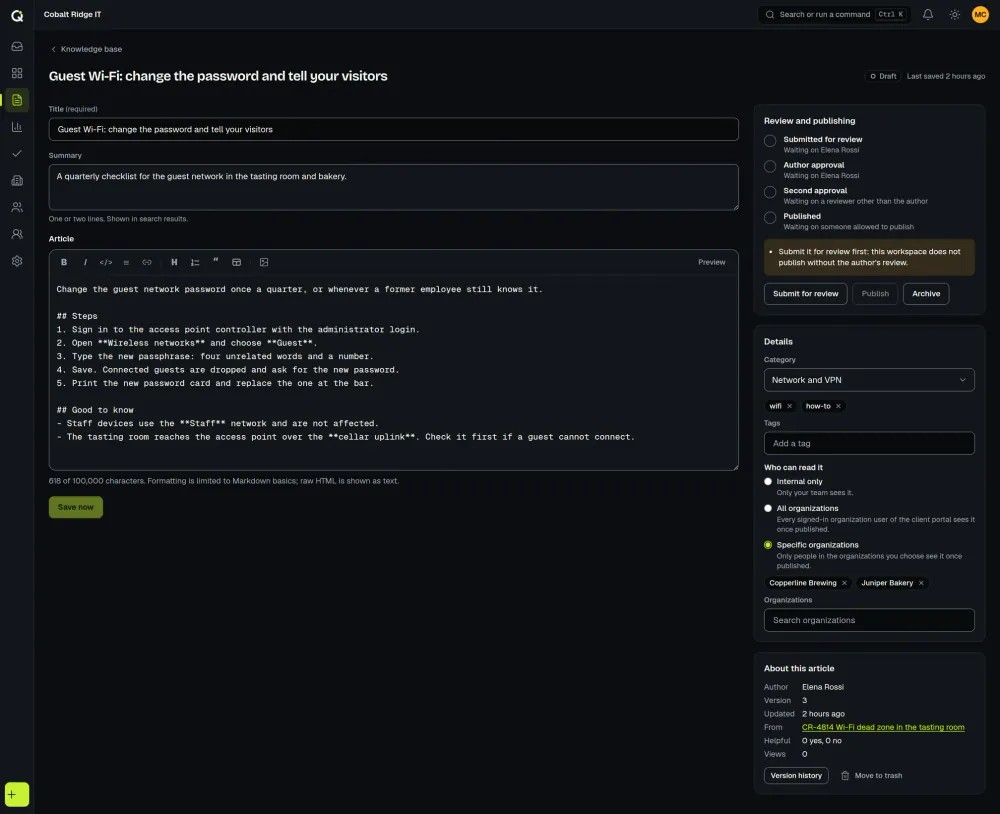
An article has a title, a summary, a body written in Markdown with a preview, a category and tags.
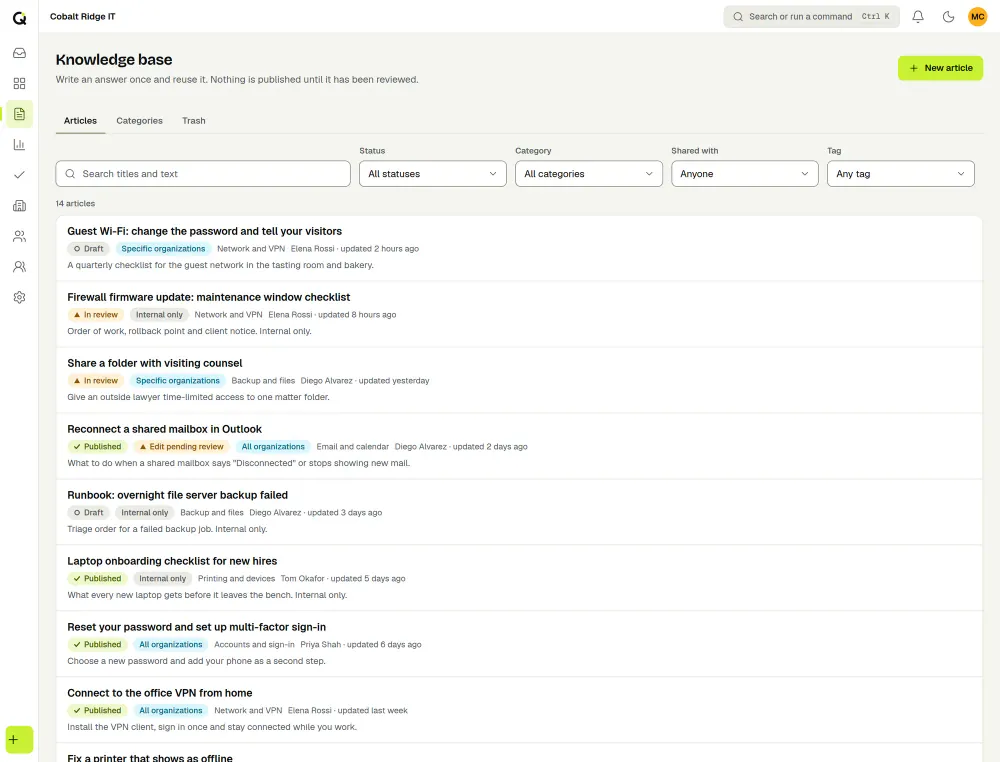
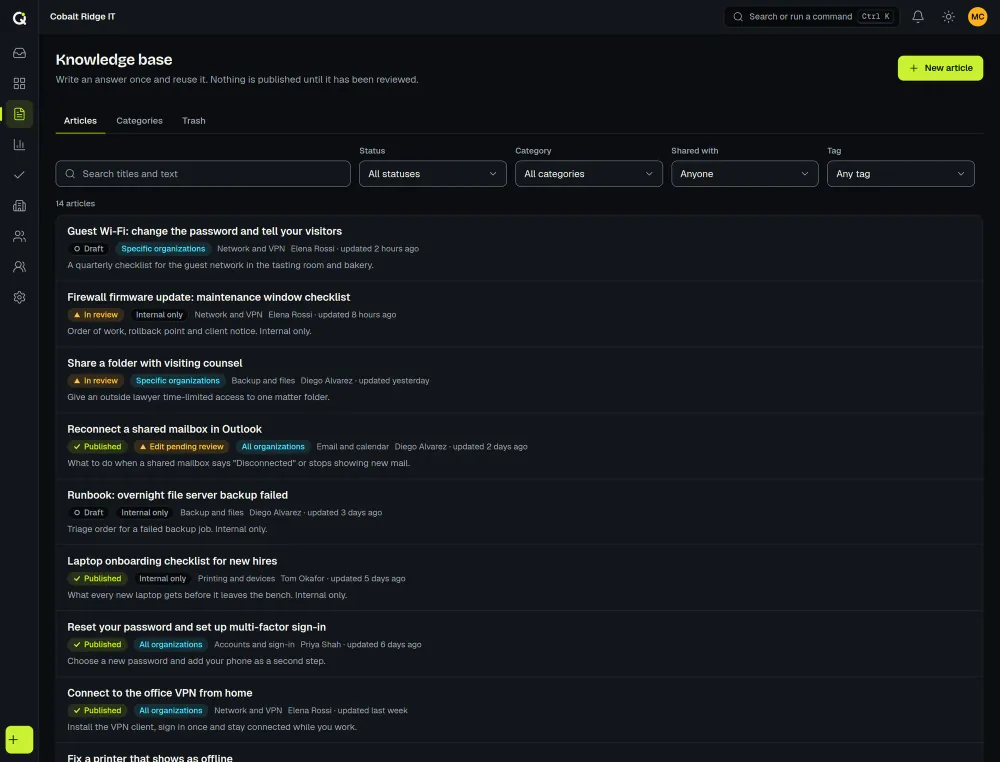
Every change is saved as a version, so you can compare versions and restore an earlier one, and a deleted article can be recovered from the trash. Search covers titles and article text, with filters for status, category, audience and tag.
Review before anything goes live
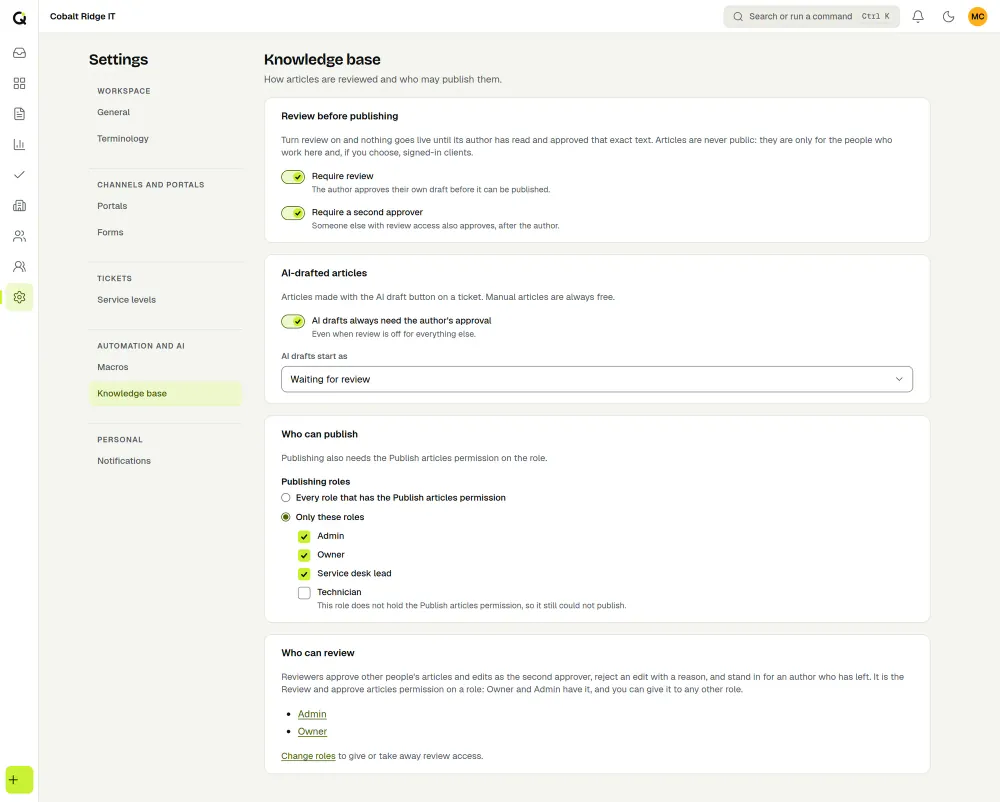
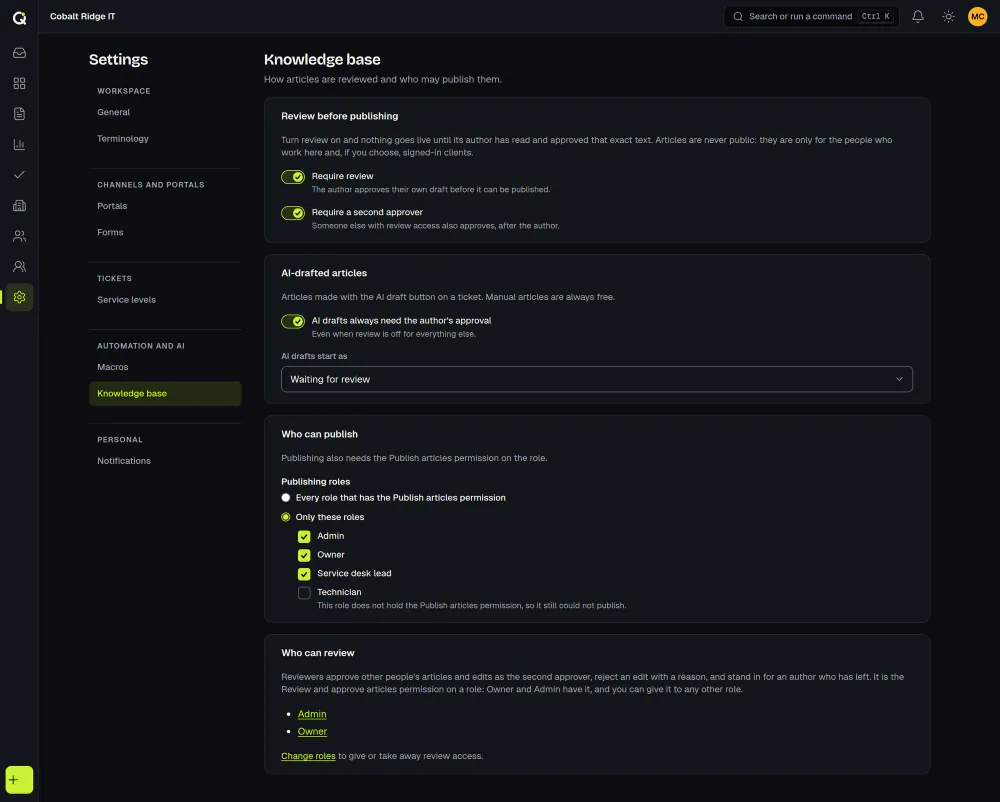
Your workspace sets the rules in Settings. You can require review, so that an article is submitted and approved before it can be published, and you can ask for a second approver after the author. You choose which roles may publish, unpublish and archive, and reviewing is a permission you can give to any custom role.
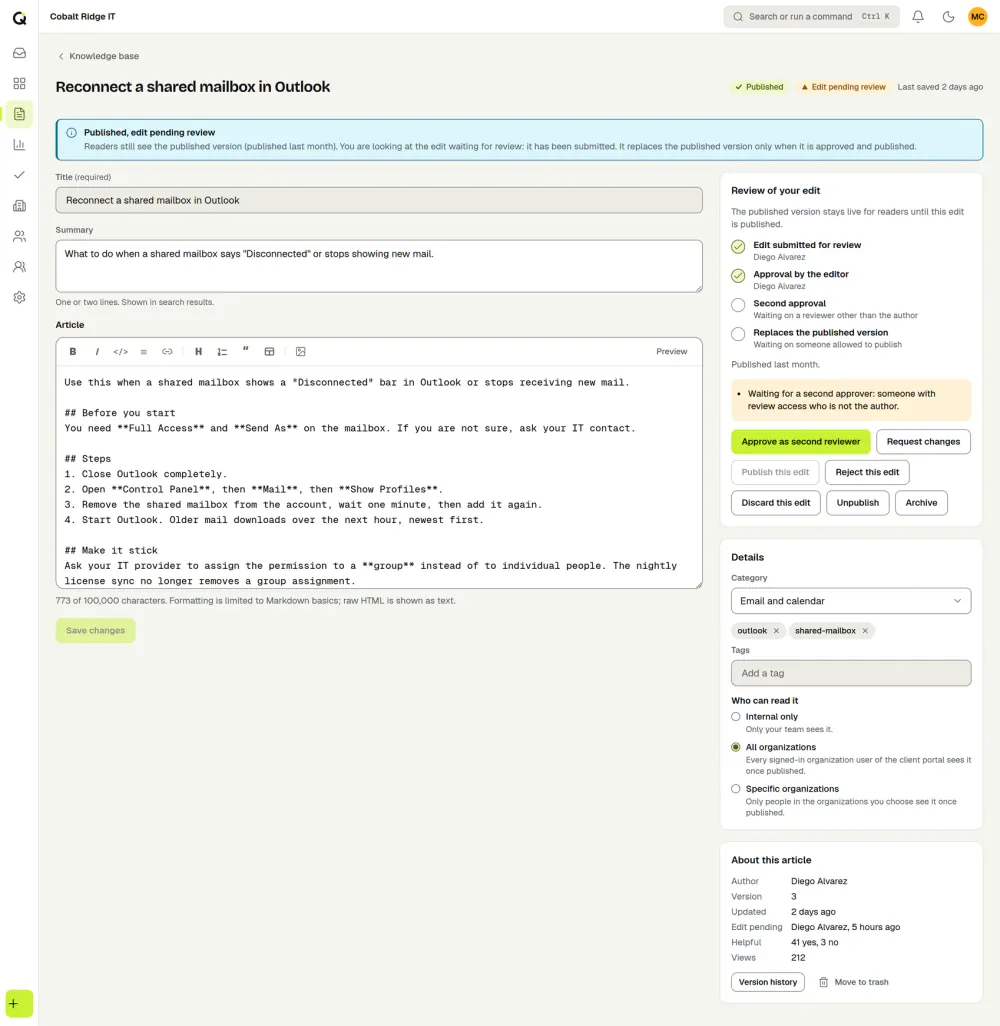
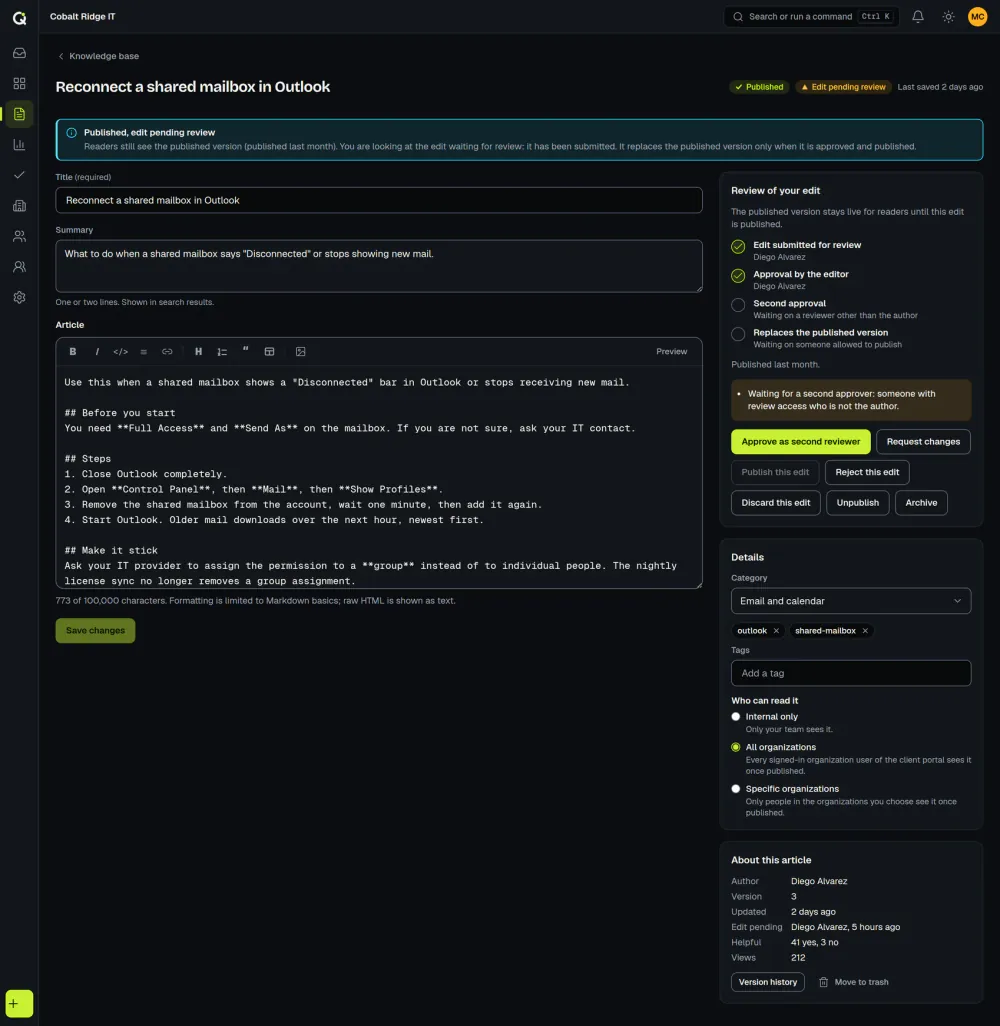
When someone edits a live article, the published version stays live while the change waits for review, and a reviewer can approve it or reject it with a reason.
Choose who sees each article
| Audience | Who can read it |
|---|---|
| Internal | Members of your workspace who may view internal articles. |
| All organizations | Signed-in users of your client portals, once the article is published. |
| Specific organizations | Only signed-in portal users who belong to the organizations you pick. |
A help center on the portal
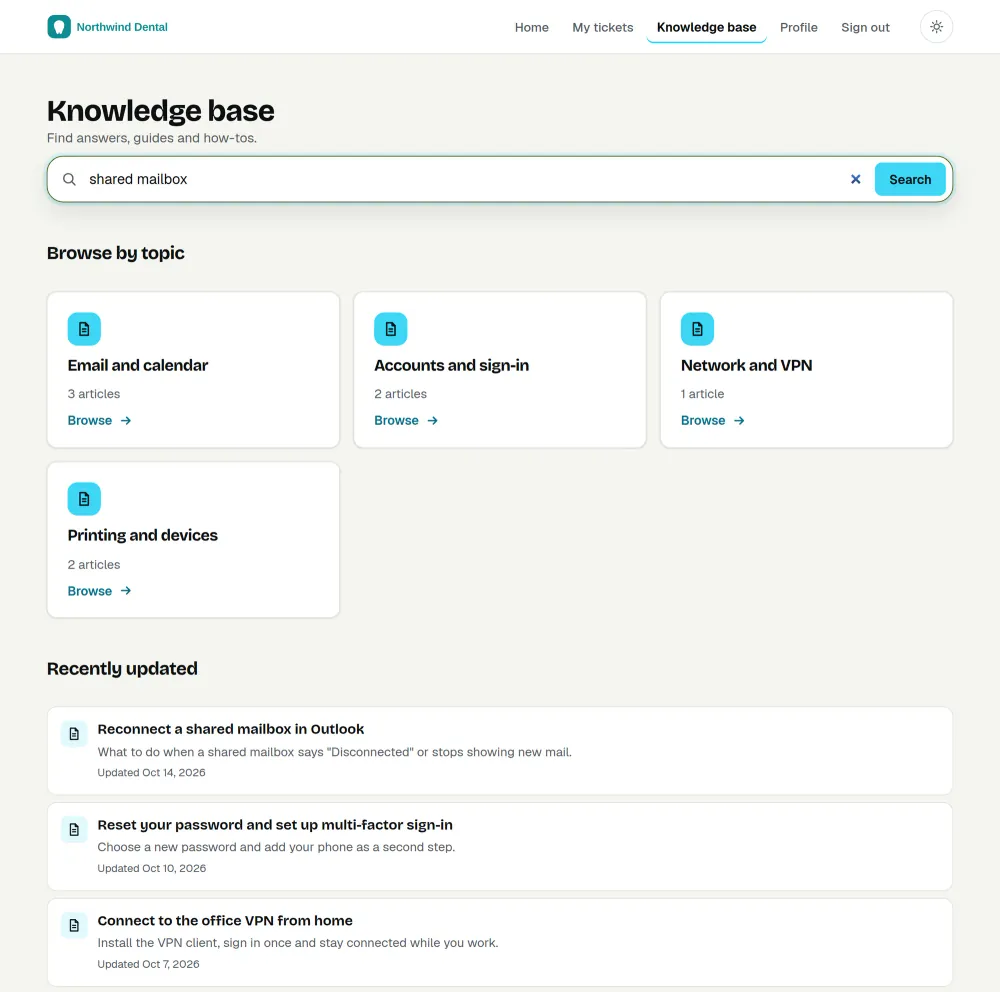
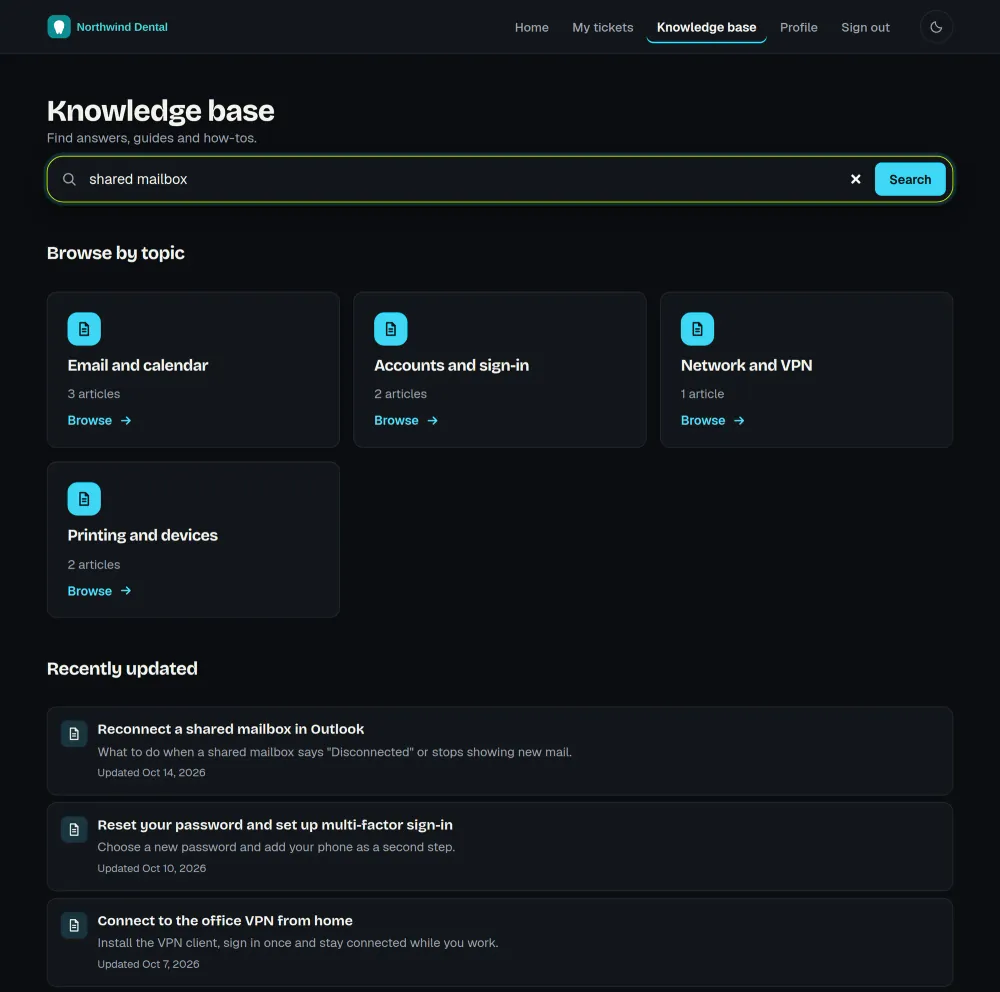
On a client portal, signed-in users can browse articles by category, search, read them and mark them helpful or not. While they describe a new request, the form suggests articles that match what they type. A client only ever sees published articles meant for them.
Help for agents on every ticket
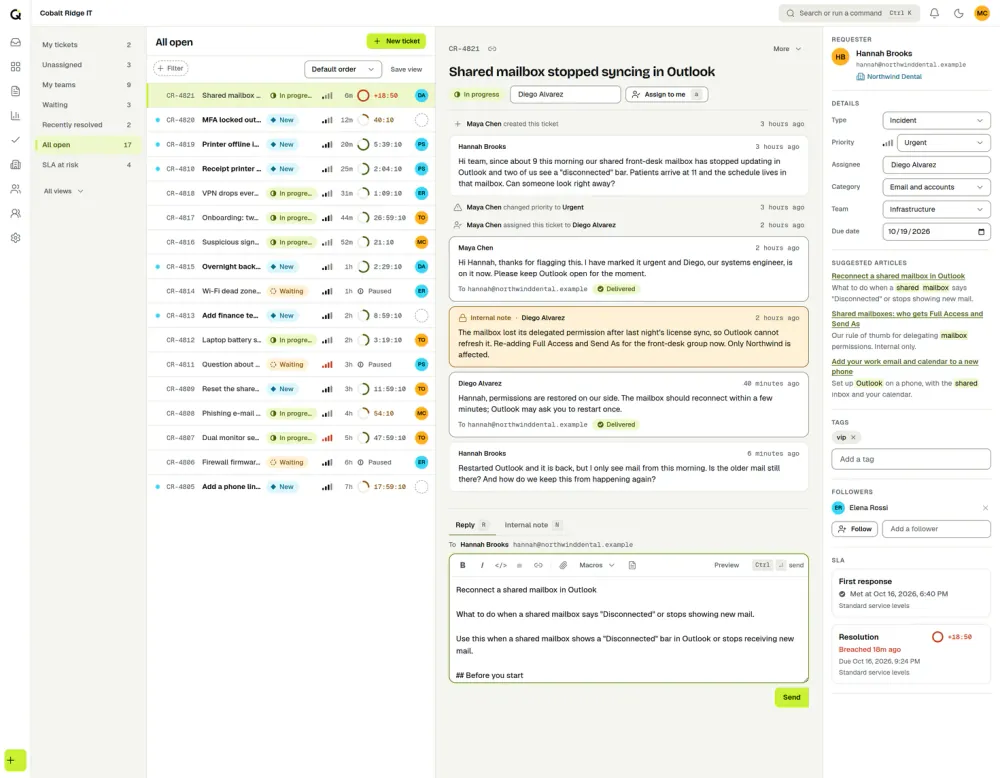
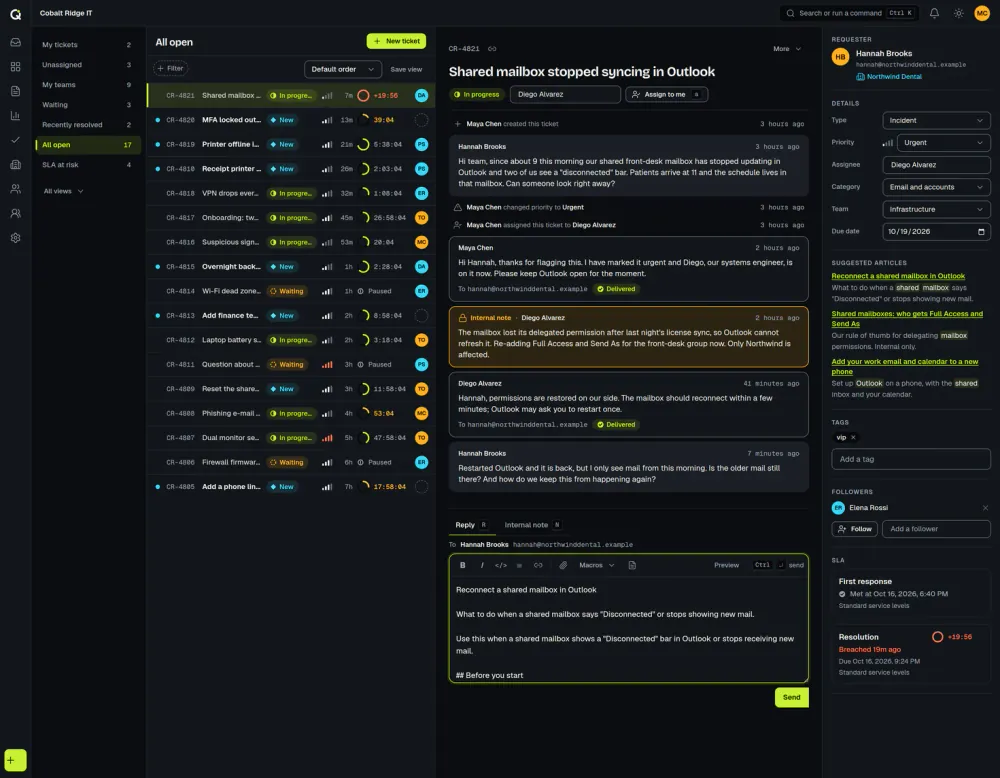
A ticket shows published articles that match its subject, and you can insert an article into a reply or note without retyping it. You can also create an article from a ticket: write it yourself at no charge, or use AI assist to draft one for 3 credits. The draft is saved as an article for your team to edit and review. AI runs only when a staff member clicks, and the ticket text it uses is sent to our AI provider for that request.
See how articles are used
The Knowledge base impact report shows articles published, views by day, the most viewed articles and the helpful rate by category. It is shown to people who may view internal articles. See Reports.
API and webhooks
With an API key you can read, search, create and publish articles under the same review rules as the app. Webhooks send kb.article.published, kb.article.updated and kb.article.archived events that carry article details but not the article text, so you fetch the text through the API. See the developer page.
What it costs
Nothing extra. The knowledge base is in the one plan, which starts at $79.99 a month for 1 to 3 agents, and clients and contacts are free (see pricing). The MSP help desk page shows how teams use it with clients.
How the knowledge base works today
Articles are for signed-in people only: the help center is for signed-in portal users, and no article is shared between workspaces. Custom portal domains are not offered yet, so the help center is served from your ActiveQ address. AI helps you draft articles but doesn’t answer questions from them. The workspace data export has the current text of each article, but not its version history or edits waiting for review.