Case and client request management for small law firms and accounting practices
For a small law firm or accounting practice, ActiveQ takes a client’s intake form, sends it past the right people one approval at a time, and opens a case with the details filled in, while the client follows progress in a portal with your firm’s name on it. Pricing is flat per group of agents, and clients are free.
Start 14-day trialSee pricingNo card required. Sign-up is for US businesses.
-
Step 1
Intake
Portal form
- Client
- Calder Dental Group
- Matter type
- Commercial lease dispute
- Other party
- Brightline Supply Co.
- Needed by
- Within 2 weeks
-
Step 2
Conflict check
Approved
Approver role: Conflicts partner
“No overlap with current or former clients.”
-
Step 3
Engagement letter
Waiting
Approver: Managing partner
Decides after step 2
-
Step 4
Case opened
Next
- Case
- LR-2026-0142
- Area
- Real estate
- Lead
- M. Reyes
- Review date
- Nov 3
Intake lands in five places
A prospective client emails one partner, calls the front desk, and fills in a web form that lands in a shared inbox. The conflict check happens in a hallway. The engagement letter waits on someone who did not know it was waiting. A month later nobody can say who approved what, and the client has emailed twice to ask where things stand.
Accounting practices see the same pattern at a different pace: a new-client questionnaire, an amended-return question, a payroll change, each arriving by whatever channel the client likes. Insurance agencies and real estate offices field certificate requests, policy changes and closing questions the same way.
What a case is
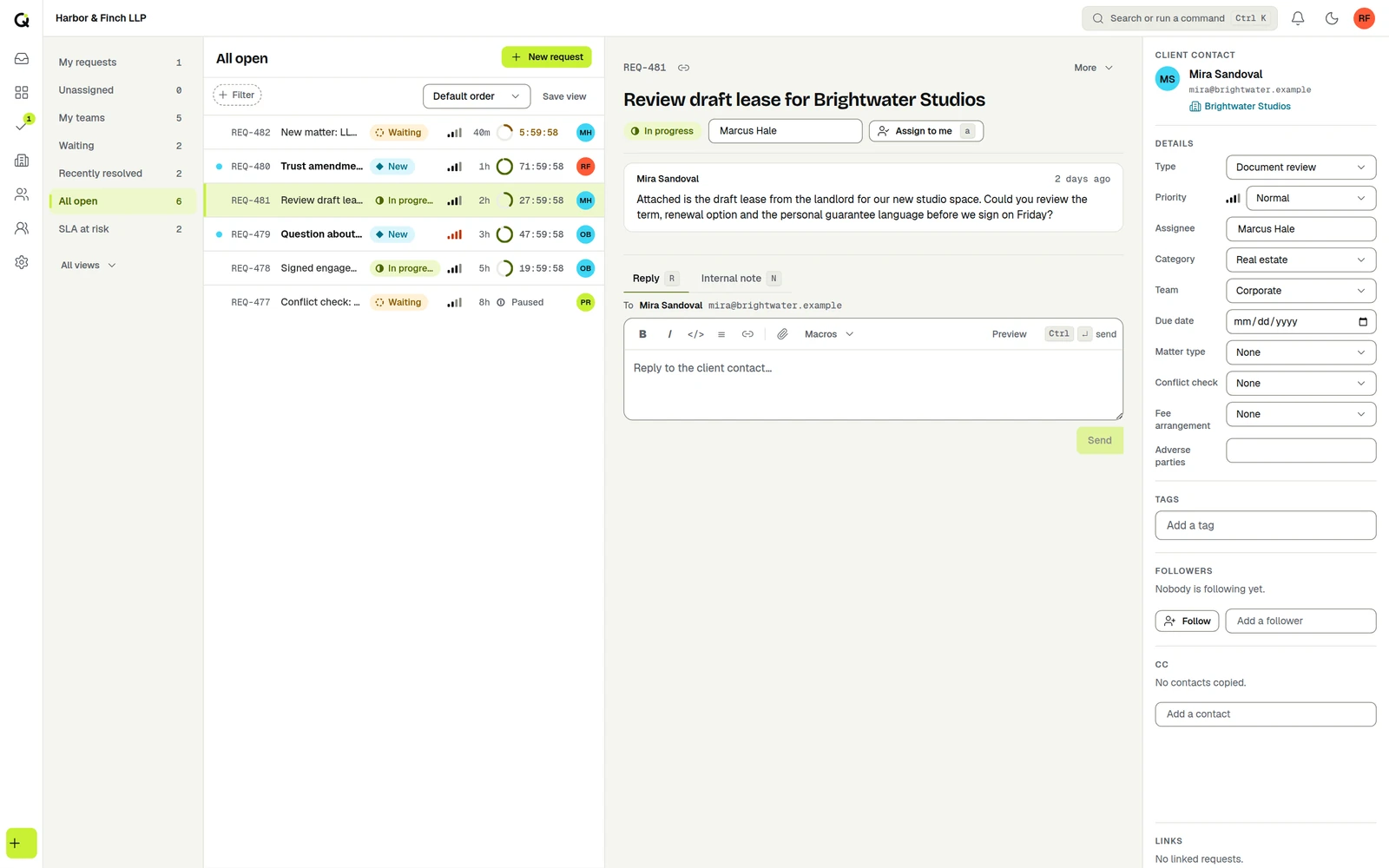
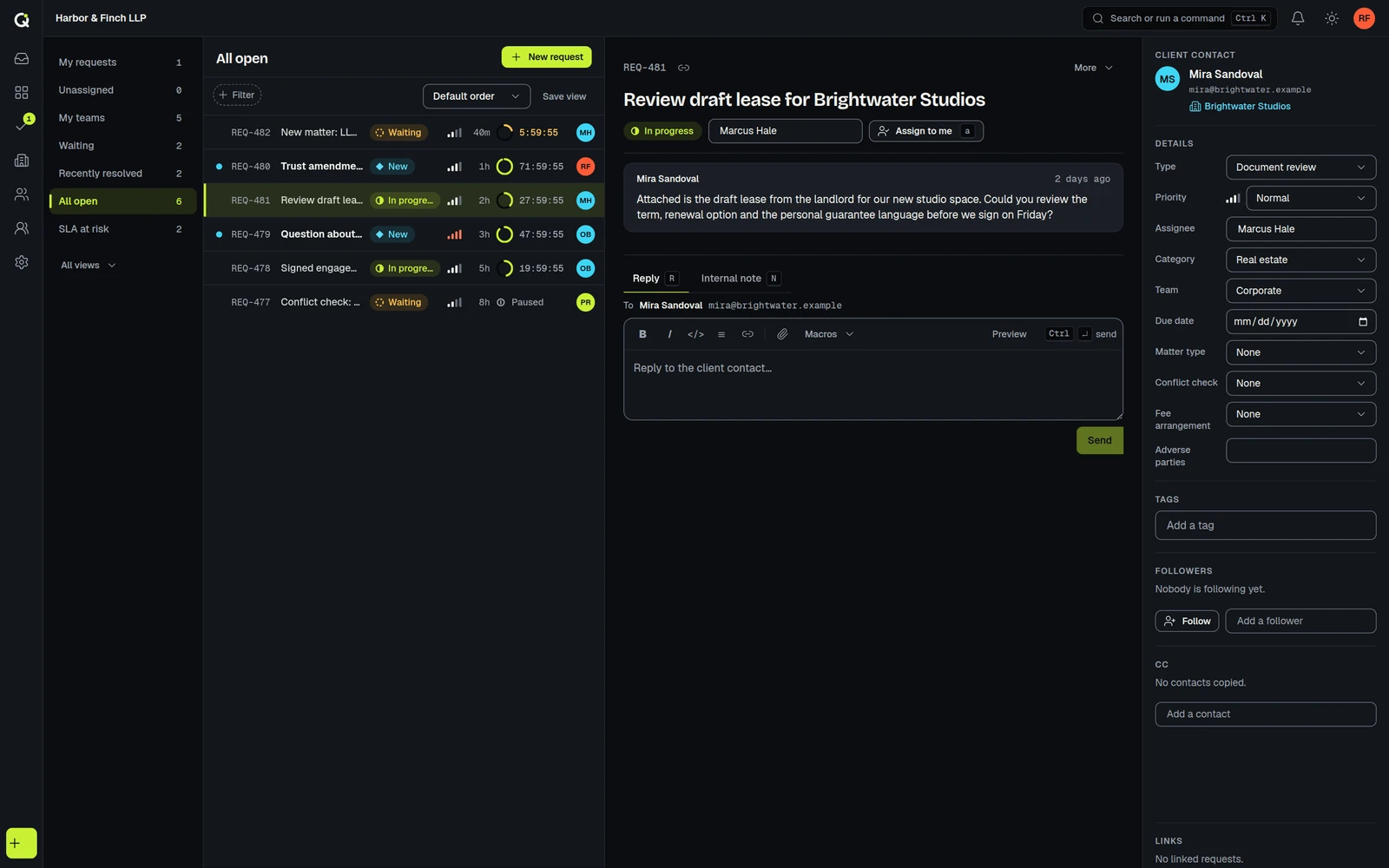
In ActiveQ a case, or a request if that suits your practice better, is the single record for one piece of client work. It holds the conversation, the custom fields you define, the approvals and the response clock. You choose the wording, so your team and your clients read “cases” and “clients” and never see “tickets” or “requesters”.
| Kind of practice | Work item | The people you serve |
|---|---|---|
| Law firm | Case | Client |
| Accounting practice | Request | Client |
| Insurance agency | Request | Customer or client |
| Real estate office | Request | Client |
The built-in wording presets are IT help desk, Client support, Service desk and Field work, and you can type any word you like for the work item, the organization and the people you serve, such as case or client. A preset is only a starting point.
A client intake, step by step
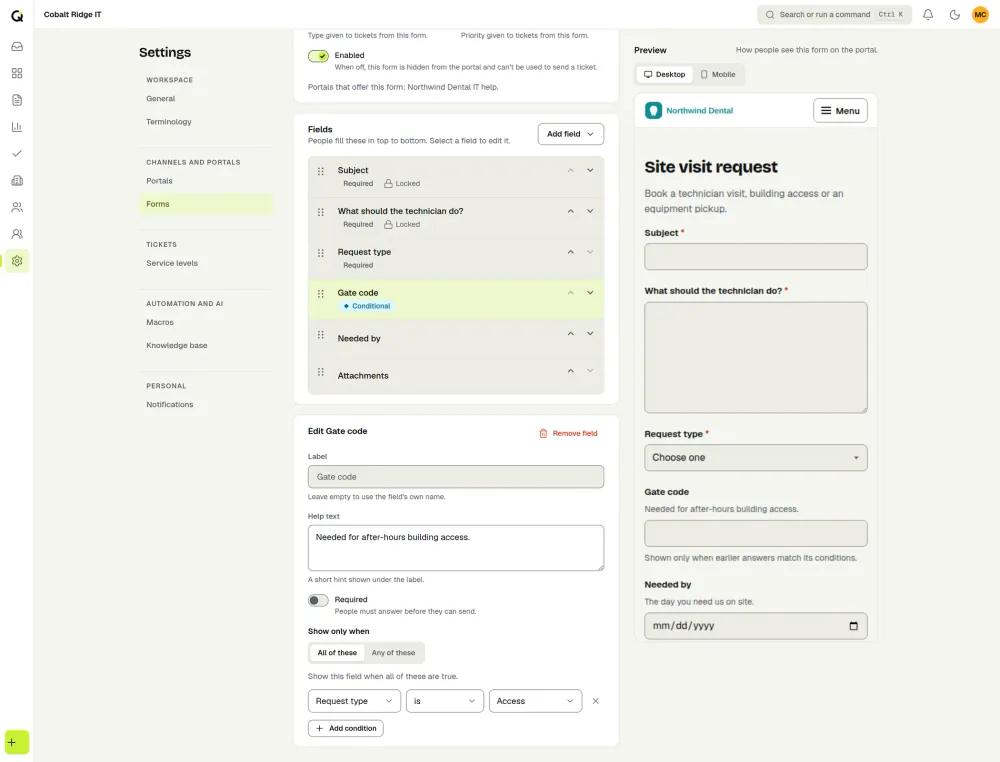
- The client submits the intake form. The form is yours: matter type, other party, how soon they need help. Questions can show or hide based on earlier answers, so a lease dispute asks different things than a tax question. Answers land in custom fields on the case.
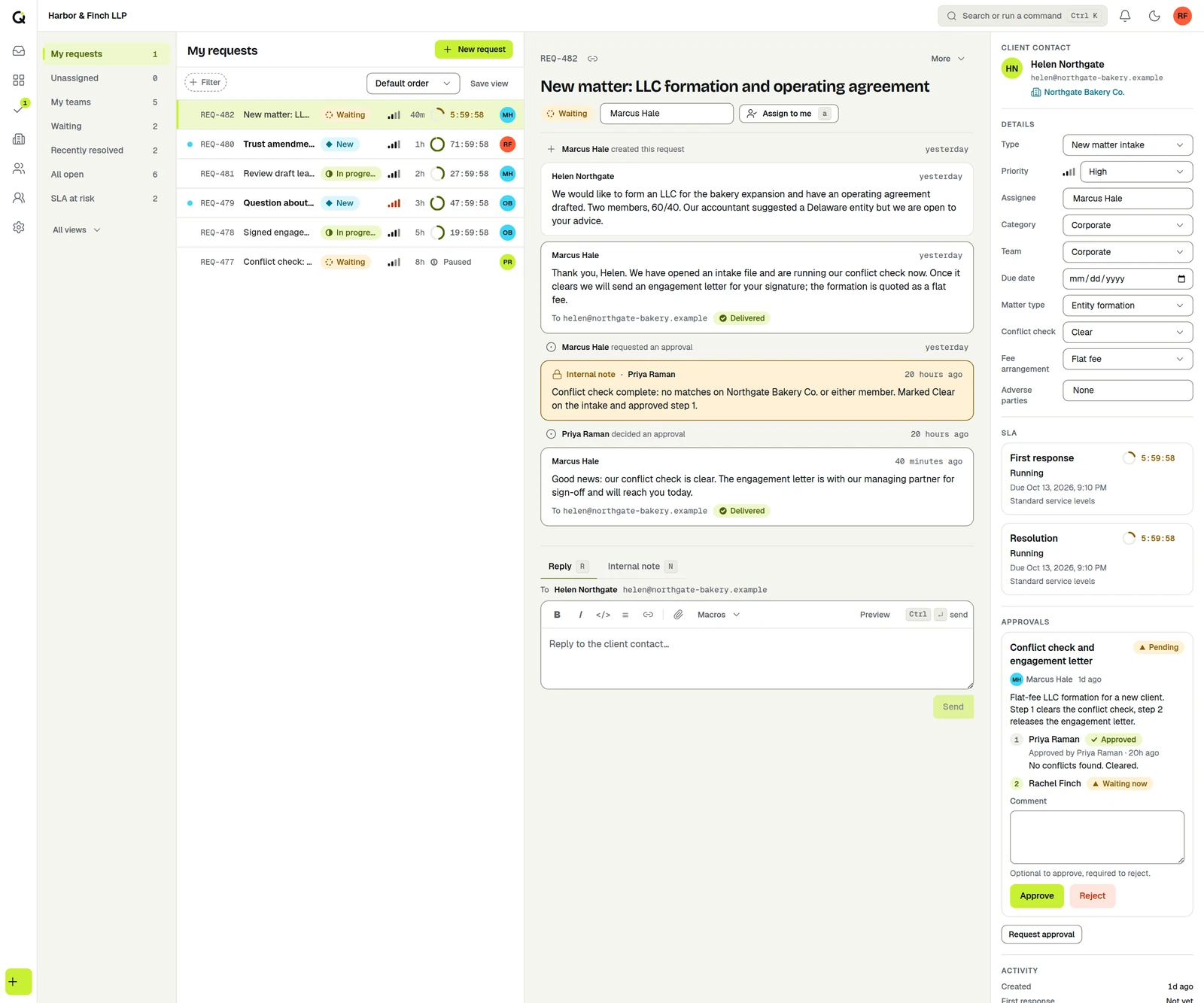
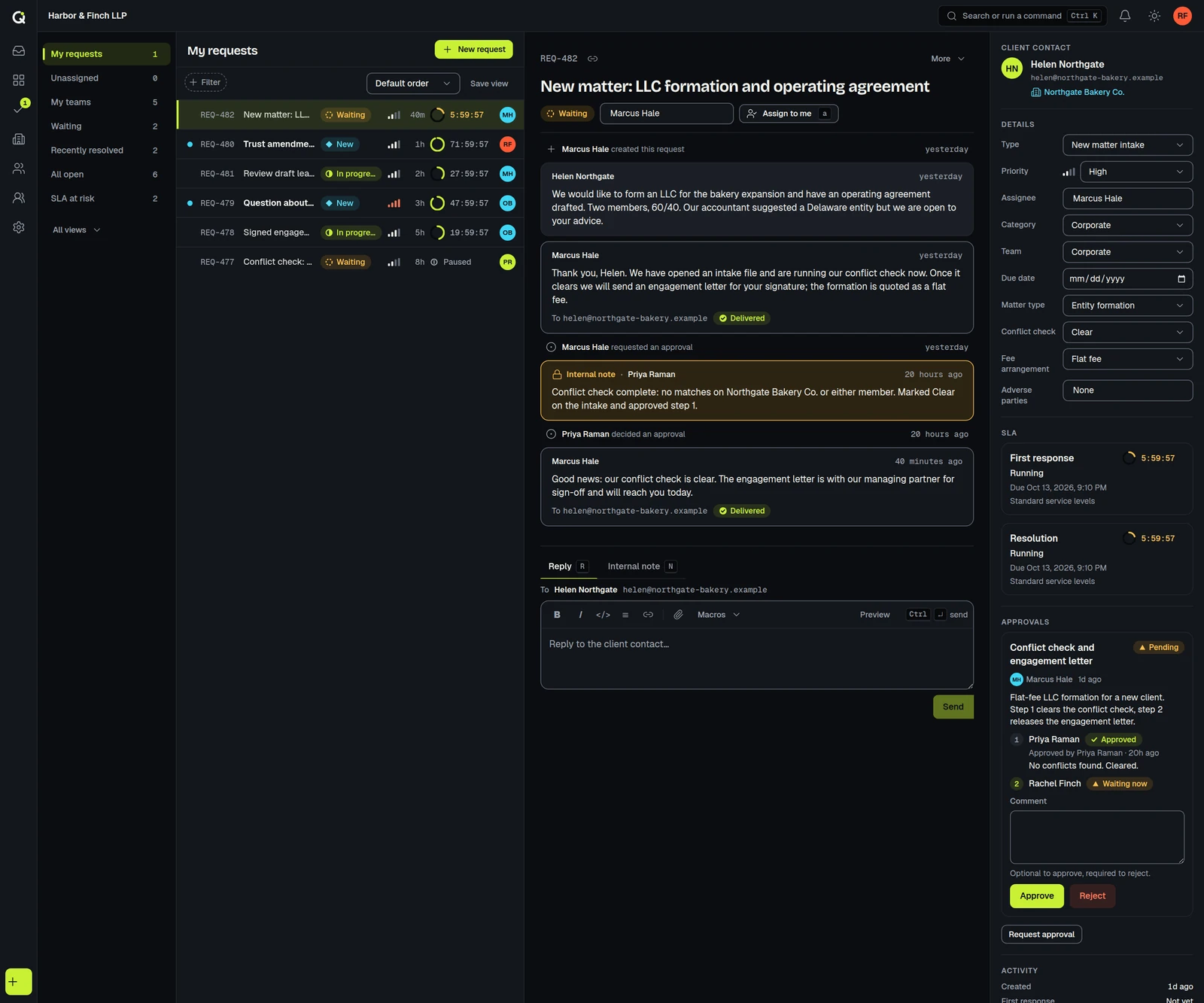
- A staff member requests the approvals. From the case, they build a chain of up to 10 steps. Each step is a named person or a role. Here that is the conflicts partner, then the managing partner.
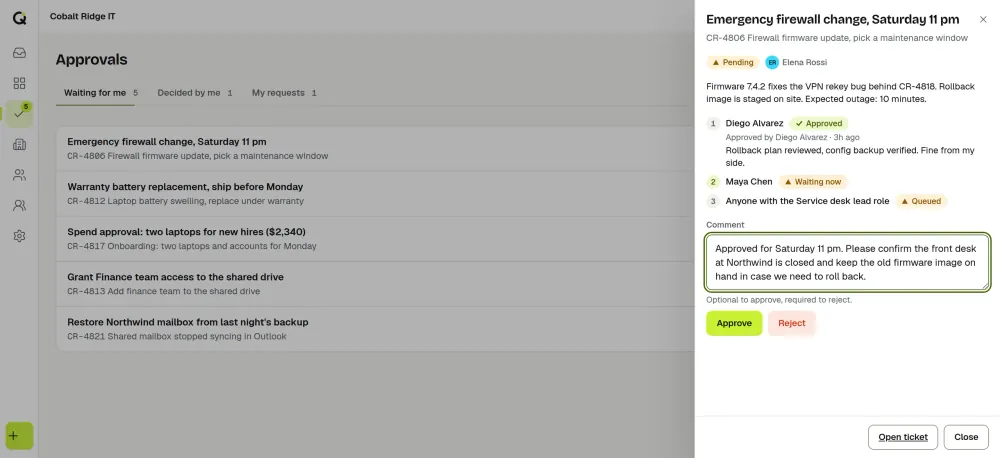
- Approvers decide in order. Each one approves or rejects and can add a comment. The next step opens only after the last one is approved. Every decision is recorded on the case’s timeline.
- An automation can react. Rules can run when an approval is approved or rejected: set the status, assign the case to a team, add a tag or a note, notify someone.
- The client sees progress. They sign in to the portal, read the case’s conversation and reply, instead of emailing to ask.
Your cases
- Received
- Conflicts
- Engagement
- Opened
Your case is open. I am your point of contact and will send the next steps today.
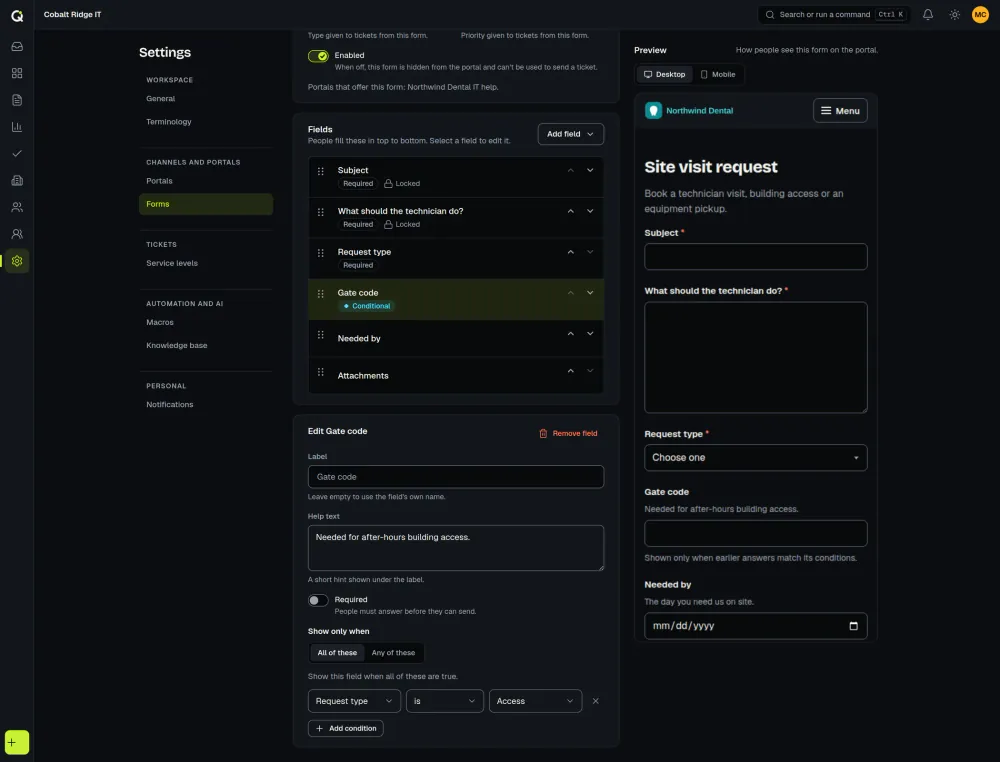
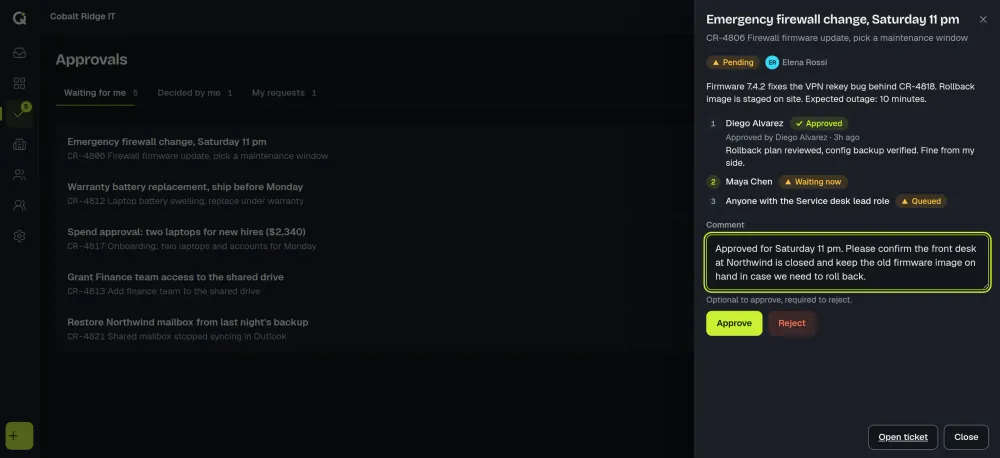
Two screens do most of the work in that flow: the form builder, where you design the intake form and the questions that appear only for some answers, and the approvals inbox, where each approver sees what is waiting for them and decides.
What it does today
Multi-step approvals
An ordered chain of up to 10 steps, each a person or a role, with a decision and a comment at every step. Automations can react to the outcome.
A portal with your name on it
Logo, accent color, forms and wording per client. Sign-in can be open, an emailed code, a magic link, a password or invite only. See client portals.
Custom fields and conditional forms
Text, number, date, choice, checkbox, link, person and organization fields on cases, contacts and organizations, and intake forms that show the right questions.
Response clocks that pause
Set response and resolution targets by priority, team or client. The clock can pause while you wait on the client. See SLA management.
AI assist you control
Staff can trigger summaries, triage suggestions, reply drafts and translation, and a person reviews every result. Clients never see AI buttons. Owners can switch AI off for the whole workspace or per feature.
Also in the desk
The rest is an ordinary help desk. There is a live queue with saved views, internal notes and macros for the replies you send every week, and presence that shows who else has a case open or is typing a reply. Mail to a support address becomes a case and replies thread back in, so email and the portal are your two channels. Custom roles and permissions decide what a bookkeeper, an associate or a partner can see and do, with an audit log of changes to cases and settings. Contacts and organizations import from CSV.
Pricing for a small firm
You pay for the people who work cases. Your clients, contacts and portal users are always free, and there is no per-case or per-client charge. Every plan starts with a 14-day trial that includes every feature and needs no card. The trial has 200 included AI runs and 50 free credits; a paid workspace gets 1,000 included runs a month (fair use), and credit packs start at $9. Prices are in US dollars before tax. See the pricing page for worked examples.
Your data
Each workspace is isolated at the database level, and what a person can see is checked against their role. The database is hosted in the United States (US East, N. Virginia). Read what is in place on the security page, or learn who runs ActiveQ. Sign-up and billing are for US businesses; your clients can use the portal from anywhere.
Using ActiveQ in a professional practice
ActiveQ tracks cases and client requests. It is not billing, trust accounting or document management software, and it does not write or send engagement letters. Clients can attach files to a case.
ActiveQ makes no claim to meet any legal, tax or professional-conduct rule, and it does not protect privilege for you. You decide what client information goes in, and whether ActiveQ is right for your obligations.
Related reading
- Client and employee portals: branding, forms and sign-in methods.
- SLA management: targets, pauses and escalation.
- Help desk software for MSPs: the same per-client portals for service providers.
- Ticket lifecycle and statuses: what each status means and when a clock should pause.