Connect ActiveQ to Zapier, Make and n8n
ActiveQ has no native prebuilt integrations yet, but it connects to thousands of apps through Zapier. The ActiveQ app for Zapier is in beta and is shared by private invite link: any ActiveQ customer can add it to their own Zapier account with the invite link in this guide, then approve the connection in their own ActiveQ workspace, with no API key to create or copy.
Make and n8n work through signed webhooks and the REST API.
What the Zapier app does
Zapier is a separate service that moves information between apps. The ActiveQ app for Zapier lets a change in ActiveQ start a Zap, and lets a Zap read or change things in ActiveQ. For example, a new high-priority ticket can send a message to your team, a row added to a sheet can create a ticket, or an approval decision can update another system.
It connects through the same API and webhooks that any developer can use. It does not add anything the API cannot do, and it acts with the role you choose when you approve the connection.
A private beta by invitation, not a directory listing
Zapier lets a company share an app with a private invite link. That is how the ActiveQ app reaches you today, as a beta. It is not in Zapier’s public app directory yet, and the app has not been through Zapier’s review, so Zapier may show a notice that it has not been reviewed when you accept the invite. Searching the directory without the invite will not find it. Once you have accepted the invite, ActiveQ shows up when you add an app to a Zap, with an Invite only tag. This guide will say so when a public listing exists.
- You need a Zapier account. ActiveQ does not provide one, and you pay Zapier for your own plan. Zapier’s plan decides how many Zaps and steps you can run. Using the ActiveQ app adds no charge from ActiveQ, and the API and webhooks are included in every ActiveQ plan.
- Nothing is shared until you approve. Accepting the invite adds the app to your Zapier account and sends no data. It does not give Zapier or anyone else access to your workspace. Access starts only when an administrator of your workspace approves the connection in ActiveQ.
Zapier is a trademark of Zapier, Inc. ActiveQ is an independent product, and this guide does not imply endorsement by Zapier.
Who can connect
Only people with the Manage integrations permission can connect Zapier, and it is held by the Owner and Admin roles by default. A workspace can also give it to a custom role in Settings, Roles. Anyone else who opens the approval screen is told to ask an Owner or Admin. The permission cannot be held by an API key or by a Zapier connection, so a connection can never connect or change other connections.
Connect it in Zapier
You connect from inside ActiveQ. There is no API key to create, copy or paste.
- In ActiveQ, open Settings, Integrations, Zapier and choose Connect. This opens the ActiveQ invite link for Zapier. Sign in to your Zapier account, or create one.
- Accept the invite in Zapier. This adds the ActiveQ app to your Zapier account only. Nothing is sent to Zapier yet.
- Make a Zap and, in a trigger or action step, search for ActiveQ. It shows an Invite only tag. Choose it, then choose to sign in.
- When Zapier asks for your workspace, type the name before
.activeq.app, such asacme. The Integrations page shows the exact text to enter and has a button that copies it. - Zapier sends you to your own workspace address,
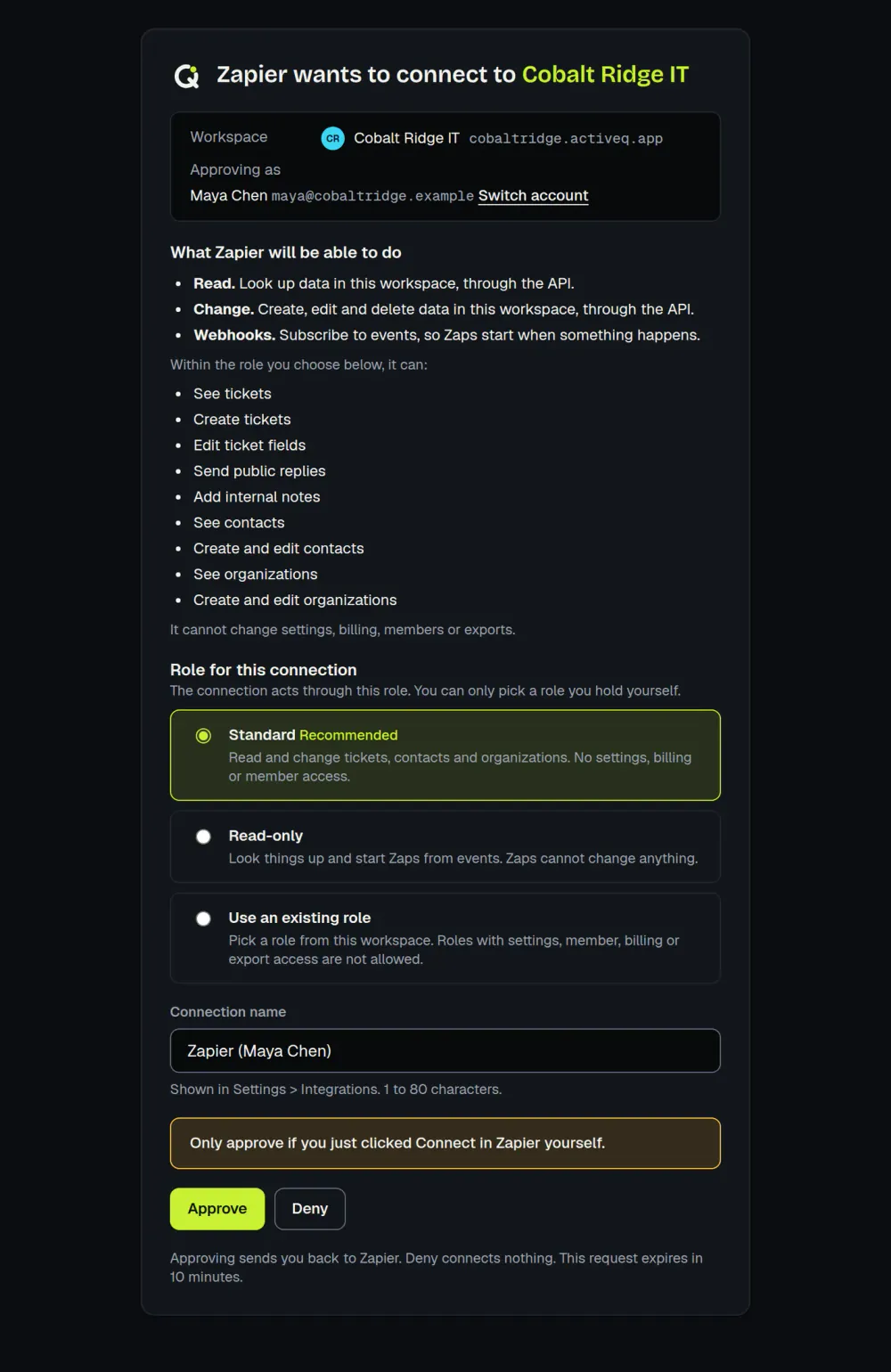
acme.activeq.app. Sign in to ActiveQ if you are asked to. A screen lists what Zapier will be able to do: read data, change data, and subscribe to events. - Choose the role for the connection (see below), give the connection a name if you like, and choose Approve. Choose Deny to stop and connect nothing. Approve only if you just clicked Connect in Zapier yourself. The approval request expires after 10 minutes.
- You return to Zapier with the connection made. Pick a trigger or an action, fill in its fields, test it, and turn the Zap on.
Each ActiveQ workspace you want to connect needs its own approval and its own connection in Zapier, and a workspace can have up to 10 Zapier connections. If the invite page says the invite is no longer valid, write to support@activeq.app.
Choose a role for the connection
A connection can do exactly what its role can do in the app, nothing more. You can only choose a role you hold yourself, so approving never grants more than you have. There are three choices on the approval screen.
- Standard. Reads and changes tickets, contacts and organizations, and subscribes to events. It includes creating and editing organizations and contacts, public replies, internal notes, status changes, assignment and requesting approvals. It is the right choice for most Zaps. It cannot touch settings, billing, members or exports.
- Read-only. Looks things up and starts Zaps from events, but a Zap cannot change anything.
- An existing role. Pick a staff role from your workspace. Roles with settings, member, billing, integration or export permissions are not offered.
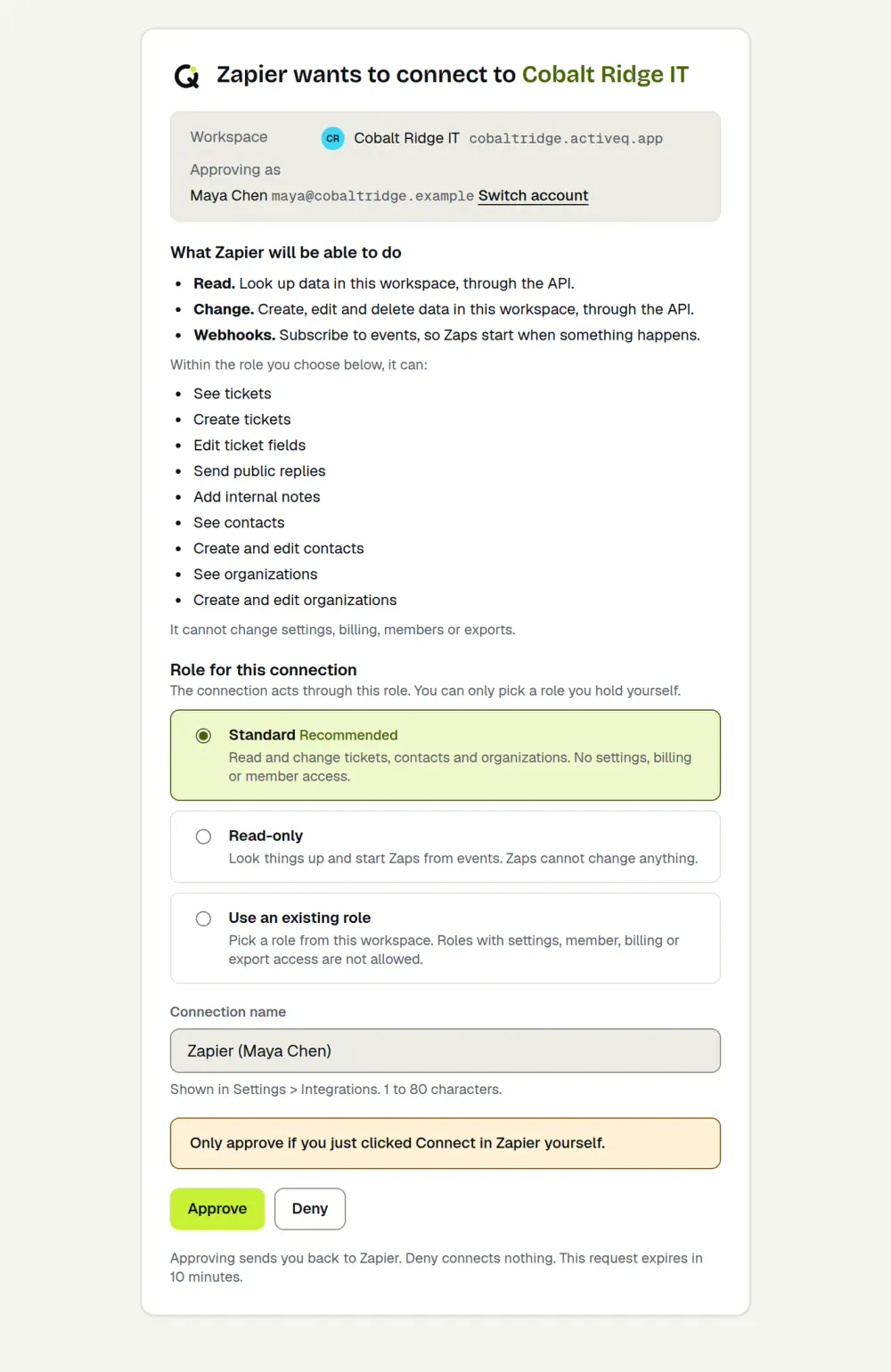
- Instant triggers need a role that sees all tickets. A trigger delivers an event as soon as it happens. ActiveQ only allows that when the connection’s role could see every ticket itself, so a role that sees only its own or its team’s tickets is refused with a message that says so. Such a connection can still run actions and searches.
- Internal notes need two things. The trigger for new comments leaves out internal notes unless you turn them on in the trigger, and that works only when the role may view internal notes on all tickets and an administrator has turned on internal notes for Zapier in Settings, Integrations. That workspace setting is off by default.
- Seats still apply. Everyone who sends a public reply, changes a ticket’s status or assigns a ticket must be an agent who holds a seat, including when a Zap does it through a connection. See the Terms (API section).
Triggers, actions and searches
Triggers are instant. ActiveQ sends them as signed webhooks, and the Zapier app checks the signature whenever Zapier passes it the original request. Labels use the standard names Ticket, Contact and Organization, even if your workspace has renamed them.
| Trigger | Starts the Zap when |
|---|---|
| New Ticket | A new ticket is created. |
| New Portal Request | A customer submits a request in the portal. |
| Updated Ticket | A ticket is changed. |
| Ticket Status Changed | A ticket moves to a new status. You can filter by status. |
| Ticket Assigned | A ticket is assigned to an agent. You can filter by agent. |
| Ticket Reopened | A solved or closed ticket is reopened. |
| New Ticket Comment | A reply or an internal note is added. Internal notes are included only if you choose so. |
| Tag Added to Ticket | A tag is added to a ticket. You can filter by tag. |
| SLA Warning | A ticket is close to missing an SLA target. |
| SLA Breached | A ticket misses an SLA target. |
| New Approval Request | An approval is requested on a ticket. |
| Approval Decided | An approval step is decided: one event for each step, not only the final outcome of the approval. |
| New Contact | A contact is created. |
| Updated Contact | A contact is changed. |
| New Organization | An organization is created. |
| Updated Organization | An organization is changed. |
| Name | What it does |
|---|---|
| Create Ticket | Creates a ticket. It can create the requester as a contact when none exists. |
| Update Ticket | Changes only the fields you fill in. An empty field never clears a value. |
| Create Ticket Reply | Adds a public reply. This emails the requester, like a reply from an agent. |
| Create Internal Note | Adds a note that only your team sees. |
| Add Tag to Ticket | Adds a tag by name, and creates the tag if it does not exist. |
| Create Contact, Update Contact | Creates or changes a contact. |
| Create Organization | Creates an organization. |
| Find Ticket | Finds a ticket by number, or the most recently updated ticket of a requester. |
| Find Contact | Finds a contact by email or by the start of a name. |
| Find Organization | Finds an organization by name. |
SLA and approval triggers have no list to read, so the Zap editor shows a fixed example record instead of one of your own. A real event still carries your ticket’s data.
Your custom fields appear as fields in the create and update actions. If Zapier retries a step after a timeout, ActiveQ applies a create only once. Two genuinely identical creates from the same Zap within 24 hours are treated as one, and the optional Unique ID field avoids that.
Permissions at a glance
These are the permissions the connection’s role needs. The Standard role has all of them. For an existing role, you set them in Settings, Roles.
| Zapier item | The connection’s role needs |
|---|---|
| Every ticket trigger, including SLA and approval triggers | View tickets, set to all tickets. |
| New Ticket Comment with internal notes turned on | View tickets, set to all tickets, and View internal notes, set to all tickets. |
| New Contact, Updated Contact | View contacts. |
| New Organization, Updated Organization | View organizations. |
| Create Organization | Manage organizations. The Standard role has it; a role that only views organizations does not. |
| Other actions and searches | The same permissions the app asks for the same change, for example Send public replies for Create Ticket Reply. The Standard role has them; the Read-only role has none of them. |
A connection whose role sees only its own tickets is refused when a Zap subscribes, but it can still read data, so its actions and searches work. If the role later loses what a trigger needs, ActiveQ switches that subscription off. A Read-only connection can start Zaps from events and find things, but a step that creates or changes something fails with a message that the connection does not allow it.
Manage the connection in ActiveQ
Settings, Integrations shows the Zapier connection and everything it does, so you stay in control from inside ActiveQ. Changing anything there needs the Manage integrations permission.
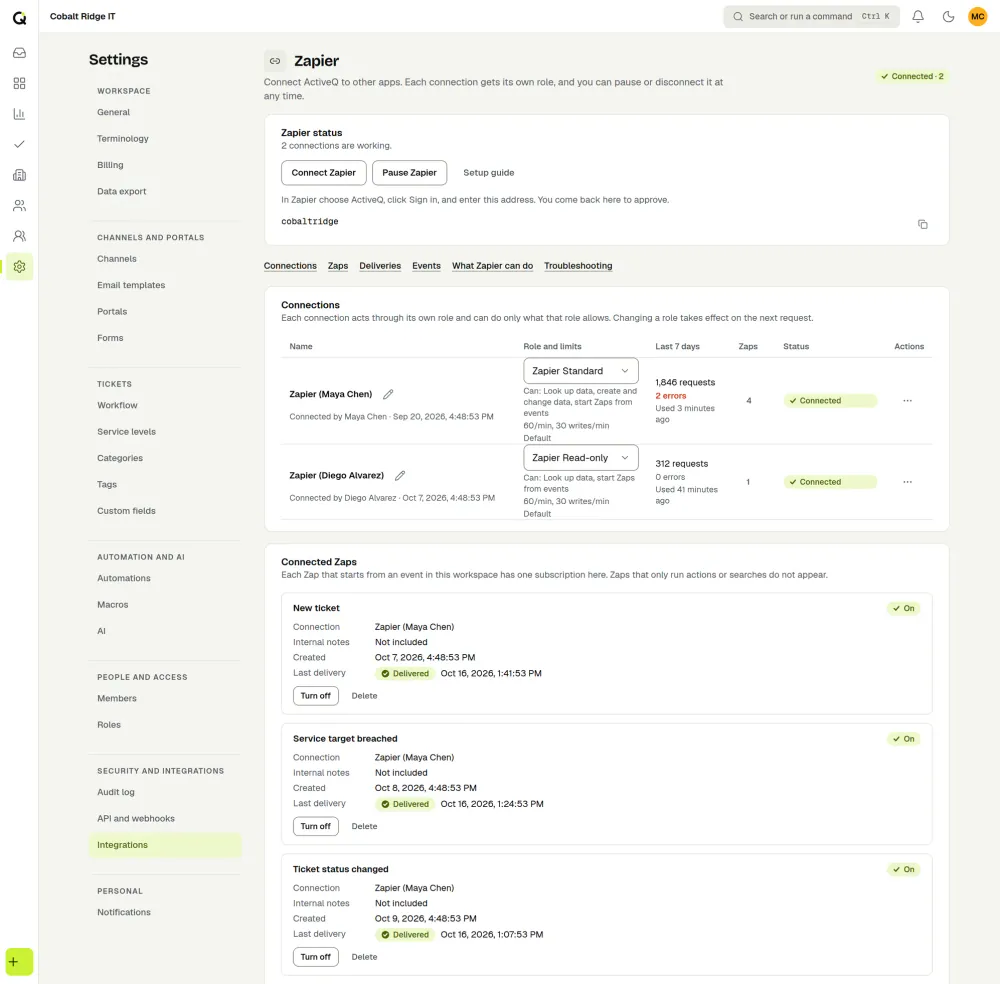
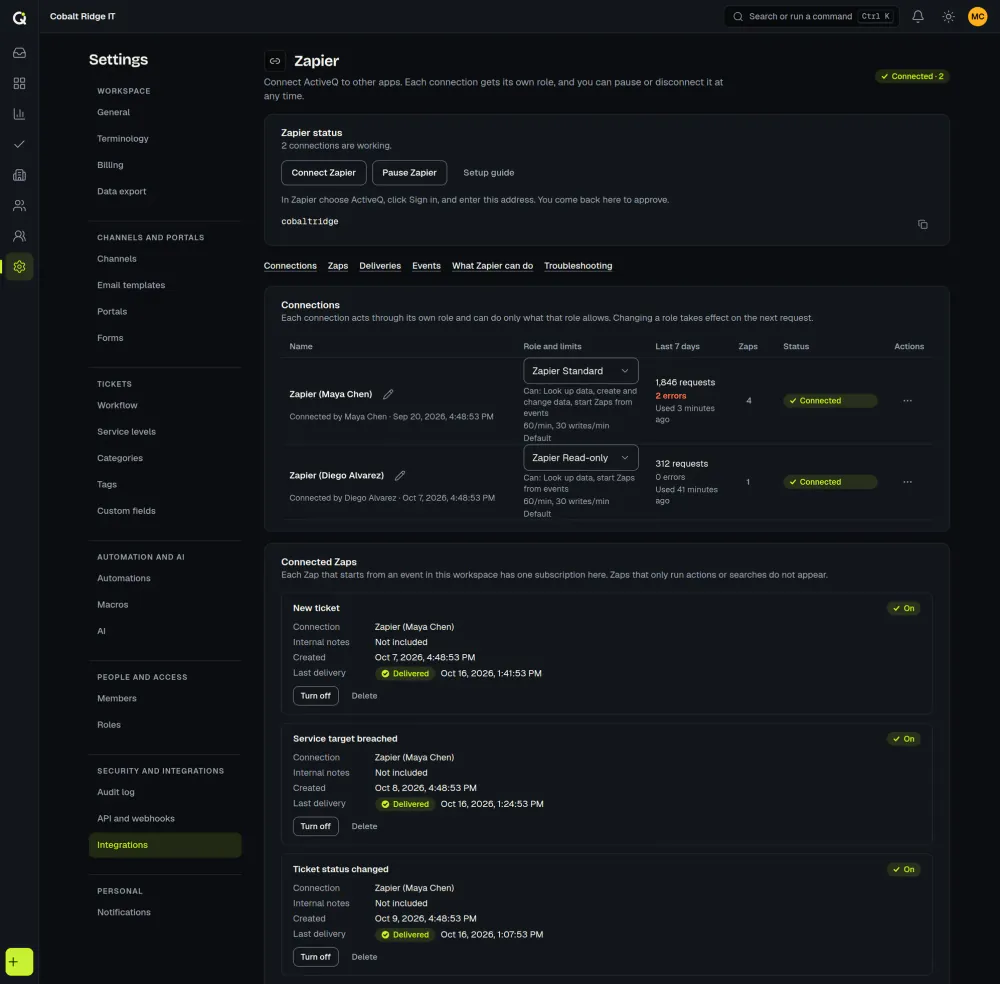
Each connection shows its name, role, status and when it was last used. You can rename it, change its role (this takes effect on the next request), or disconnect it. Disconnecting stops its Zaps at once, removes the subscriptions it made, and Zapier asks to reconnect. It cannot be undone, but you can connect again. Open a connection to see the Zaps (webhook subscriptions) it created and when each last delivered, and to turn one off, on again, or delete it.
Under Events you choose which events Zapier may send. Removing an event turns off the Zaps that use it, and allowing it again turns them back on. The setting Include internal notes in comment events is off by default.
Pause and resume works for the whole workspace. Pausing Zapier halts every Zap that uses it, with a clear message in Zapier, and drops events instead of queuing them; nothing is disconnected, and resuming puts everything back. The Activity list shows connections made, role changes, renames, pauses and disconnects, and the recent event deliveries with their attempts.
Limits
- API rate limits. By default each Zapier connection can make 300 requests a minute, of which 120 can be writes, and a workspace can make 600 a minute across everything while a connection is live. Subscribing and unsubscribing count as writes, and one Create Ticket can use up to 3 requests (find the contact, create the contact, create the ticket). Over the limit, ActiveQ answers 429 with a
Retry-Aftertime, and the Zapier app waits and tries again. - Busy workspaces. A workspace that runs many Zaps can write to support@activeq.app to ask for higher limits.
- Connections. A workspace can have up to 10 Zapier connections. A connection that nobody has used for a long time expires and has to be connected again.
- Subscriptions. Each connection can have up to 25 instant-trigger subscriptions, and a workspace up to 100. A subscription to the test event is limited to at most 2 per connection. They do not count toward the 10 webhook endpoints you can add yourself.
- Zapier’s own limits. Zapier counts the steps your Zaps run against your Zapier plan, and you pay Zapier for that plan. Check Zapier’s documentation for how its limits apply to you.
- A shared cap on the app itself. Zapier also limits how many calls a private app can make in a minute. The cap is counted across everyone who uses the app, not per customer, and it follows the Zapier plan of the account that owns the ActiveQ app, not your plan. Zapier’s documentation (read on October 14, 2026) says 100 calls every 60 seconds for owners on Free and Professional plans, and 5,000 for Team and Enterprise. When many customers run busy Zaps at the same moment, some runs can be held or delayed by this cap, whatever your ActiveQ limits are. Zapier sets these numbers and may change them.
- API keys. Developers’ keys have their own, lower default limits. See the developer documentation.
Troubleshooting
- Reconnect needed. If a connection is disconnected, has expired, or ActiveQ saw one of its sign-in tokens used twice (which can mean it was copied), the connection stops and Settings, Integrations shows Needs attention or Reconnect needed. Zapier then asks you to reconnect the account. Reconnect in the Zap and approve again in ActiveQ.
- Zapier is paused. A Zap that stops with “Zapier is paused for this ActiveQ workspace” is halted because an administrator paused Zapier. Resume it in Settings, Integrations, then turn the Zap on again if needed. Nothing was disconnected.
- “Integrations are unavailable right now”. This is a temporary state on our side. Connections are not affected and Zapier retries. Try again in a few minutes.
- 403: the role. The connection’s role cannot do that. For an instant trigger the message asks for a role that sees all tickets; with the Read-only role, steps that change things say the connection does not allow it. Change the connection’s role in Settings, Integrations.
- The workspace name does not work. Type only the name before
.activeq.app. If you are sent to a sign-in page for a workspace you do not belong to, go back and check the name. If the approval screen says the request has expired, go back to Zapier and choose Connect again. - “You can’t approve this”. You do not hold the Manage integrations permission. Ask an Owner or Admin to connect Zapier.
- 423: read-only, suspended or closed. A workspace in one of these states refuses changes, and Zapier stops that run instead of retrying it. Once the workspace accepts changes again, run the Zap again.
- The trigger stopped firing. If the connection was disconnected or paused, the event was removed from Events, or its role no longer sees all tickets, ActiveQ removes or switches off its subscriptions. Fix the cause, then turn the Zap off and on again.
- A subscription badge in Settings. In Settings, API and webhooks, each instant trigger appears in the endpoint list with the badge “Zapier (connection name)”. It is created by the connection, not by you, and it is removed when the Zap is turned off or the connection is disconnected. You can open its delivery log like any other endpoint’s. An administrator can disable, test, replay or delete it there, but cannot change its address, its events or its internal-notes setting.
- The signing secret was rotated. If the signing secret of a Zapier subscription is rotated, ActiveQ signs deliveries with the new secret and, for a short overlap window, the old one too. After the overlap window ends, a Zap that still holds the old secret ignores every event, because the signature no longer verifies. Turn the Zap off and on again to subscribe again and store the new secret. There is no automatic refresh.
- Names differ. Zapier shows Ticket, Contact and Organization even if you renamed them in ActiveQ. The data is the same.
If you connected with an API key before
The first version of the Zapier app (1.0.x) connected with an API key. Those connections keep working until that version is deprecated, which is planned for 30 days after the OAuth version is working, so you can switch when it suits you. To switch a Zap: open the Zap, change the ActiveQ step’s account to the new ActiveQ 2.0 connection (connect as described above), test the step, and turn the Zap on. The triggers, actions and searches keep their names, so the fields map across. You can then revoke the old key in Settings, API and webhooks.
Make and n8n
There is no ActiveQ app for Make or n8n, and no invite link for them. Both can work with ActiveQ in two ways. API keys are for this use and for developers building their own automations; you do not need one for Zapier.
- Receive events. Add a webhook endpoint in Settings, API and webhooks, and paste the address from the generic webhook module of Make or the Webhook node of n8n. ActiveQ sends signed POST requests with the events you choose, and you can try one with Send test. Addresses must be public HTTPS addresses.
- Read and write. Use the HTTP module or node with the REST API. A workspace owner or administrator creates a key in Settings, API and webhooks (it is shown once, and it acts with the role chosen for it, never more than its creator holds). Send the key in the
Authorization: Bearerheader, tohttps://<workspace>.activeq.app/api/v1/. Writes accept anIdempotency-Keyheader, so a retry is applied once.
Signed webhooks let you prove a request came from ActiveQ. The check needs the body exactly as it was received, so use the setting your platform has for the raw body, such as the Raw Body option of the n8n Webhook node. If your platform only gives you parsed JSON, the signature cannot be checked there, and you should keep the webhook address secret. The step-by-step guide to verifying webhook signatures explains every check. This function does them in a code step. Replace its three inputs with the fields your platform gives you.
import { createHmac, timingSafeEqual } from "node:crypto";

// rawBody: the request body exactly as received. signatureHeader: the ActiveQ-Signature header. secret: the endpoint's whsec_ secret.
export function verify(rawBody, signatureHeader, secret, nowSeconds = Math.floor(Date.now() / 1000)) {
  const parts = signatureHeader.split(",").map((p) => p.trim());
  const t = parts.find((p) => p.startsWith("t="))?.slice(2) ?? "";
  const candidates = parts.filter((p) => p.startsWith("v1=")).map((p) => p.slice(3));
  if (!/^[0-9]{1,12}$/.test(t) || Math.abs(nowSeconds - Number(t)) > 300) return false; // not plain digits, too old or too new
  const expected = createHmac("sha256", secret).update(t + "." + rawBody).digest();
  let ok = false;
  for (const c of candidates) {
    if (!/^[0-9a-f]{64}$/.test(c)) continue; // exactly 64 lowercase hex characters
    if (timingSafeEqual(Buffer.from(c, "hex"), expected)) ok = true; // check every candidate
  }
  return ok;
}
Deliveries are at least once, so also ignore an ActiveQ-Event-Id you have already handled.
Security
Accepting the invite sends nothing. Data goes to Zapier only after an administrator approves the connection in your ActiveQ workspace and someone adds it to a Zap, and each Zap receives what its trigger selects. The service you connect is yours to choose, and you are responsible for it. See the privacy policy.
The sign-in is OAuth with PKCE. You approve on your own workspace address after signing in to ActiveQ, and Zapier holds the connection’s access token in your Zapier account. ActiveQ stores only hashes of tokens, tokens are short-lived and renewed automatically, and a token that is used again after it was renewed stops the connection. Tokens travel only in request headers, never in a web address, and there is no key to paste anywhere. See security.
A connection acts with its role. It cannot do more than the role allows, it can never be given settings, billing, member or export permissions, and administration actions are not available to it. A subscription created by a connection can only send to Zapier’s webhook address; each delivery is signed, and the role is checked again before every delivery. To stop all of it, disconnect: a disconnected or expired connection stops working on the next request, and the subscriptions it created are removed. Pausing stops it without disconnecting.
Beta status and scope
The Zapier app is a beta shared by private invite link. It is not in Zapier’s public directory, it has not been through Zapier’s review, and there is no ActiveQ app for Make or n8n. ActiveQ is an independent product and has no partnership with Zapier, and it does not pay for or include a Zapier plan. Member, email, satisfaction survey and knowledge base events are not available as Zapier triggers. Deliveries are at least once and not ordered, so a Zap can see the same event twice, and the signature check happens in your code or in the Zapier app.