IT SLA guide: response and resolution targets
A service level agreement (SLA) in IT support is a promise about how quickly a request gets a first reply and how quickly it gets resolved. This guide explains the two clocks, how to choose targets, when to pause them and how business hours change the result.
Response time and resolution time
Most support SLAs run two clocks on every request. They answer different questions, and a team can meet one while missing the other.
- First response time
- The time from when a request is created to the first reply from a person. It tells the requester that someone has it. Decide in advance if an automatic acknowledgement counts. Most teams say it should not, because the requester still has no human answer.
- Resolution time
- The time from when a request is created to when it is resolved. It measures how long the problem stayed a problem. Decide whether a request counts as resolved when the fix is delivered or when the requester confirms it.
Both terms are defined in the glossary. A related idea is the operational level agreement (OLA), an internal promise between teams, such as how fast the network team picks up a request handed to it, that supports the SLA a customer sees.
Choosing targets by priority
Targets usually differ by priority, and priority is usually set from two questions: how many people are affected (impact) and how soon it matters (urgency). A single unreachable laptop is low impact. A site-wide outage is high impact and high urgency.
| Priority | Example meaning | Example first response | Example resolution |
|---|---|---|---|
| Urgent | A service is down for many people | 15 minutes | 4 hours |
| High | A service is degraded, or one person is fully blocked | 1 business hour | 8 business hours |
| Normal | A standard request or a workaround exists | 4 business hours | 3 business days |
| Low | A question or a nice-to-have | 1 business day | 5 business days |
Pick targets from what your team can meet today, then tighten them as you learn. A target that is missed every week stops meaning anything. Fewer priorities are easier to apply consistently than many.
When to pause the clock
A pause rule stops the clock while the next move belongs to someone else. Without one, a request that waits two days for the requester to reply looks like a missed target even though your team did nothing wrong. Write the rules down so everyone applies them the same way.
- Waiting on the requester. The clock pauses while you wait for information or confirmation only they can give.
- Waiting on a third party. Some teams pause for a vendor, others do not, because the requester still sees an unresolved problem. Decide, and state it in the agreement.
- Scheduled work. If the requester agrees to a later time for the fix, the clock can run to that time instead.
- Not a pause. Waiting on another team inside your own company usually should not stop the clock, since the requester cannot see or influence it.
Business hours, holidays and time zones
A target can count every hour of the day (calendar hours) or only the hours a team is working (business hours). Business hours are the usual choice for non-urgent work. Urgent incidents are often measured in calendar hours, but that only means something if someone is available to respond at night.
Here is a worked example. A request arrives on Friday at 4:30 pm. The target is 4 business hours, and business hours are 9 am to 5 pm, Monday to Friday. Friday contributes 30 minutes, leaving 3 hours 30 minutes, so the target falls on Monday at 12:30 pm.
Holidays close the schedule for the day, and the schedule needs a time zone. Agree on the time zone with each client if you serve clients in different places.
Warnings and escalation
A breach you learn about afterwards is less useful than a warning before it. A common pattern is to alert the assignee when 75 or 80 percent of a target has elapsed, alert the team lead at a later point, and review breaches regularly to find the cause.
Setting this up in ActiveQ
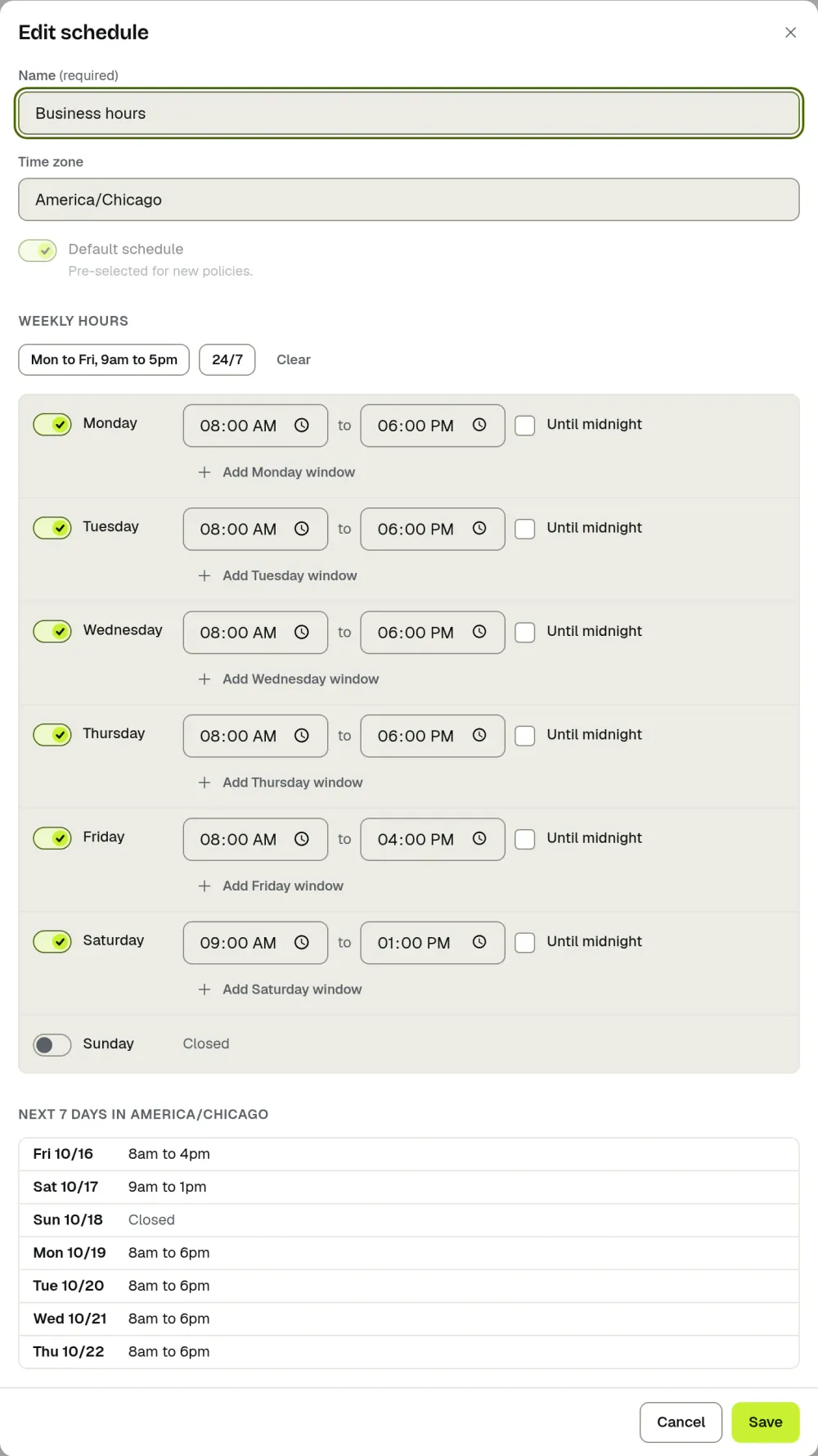
SLA settings are under Settings, then Service levels, which has three tabs: Policies, Business hours and Holidays.
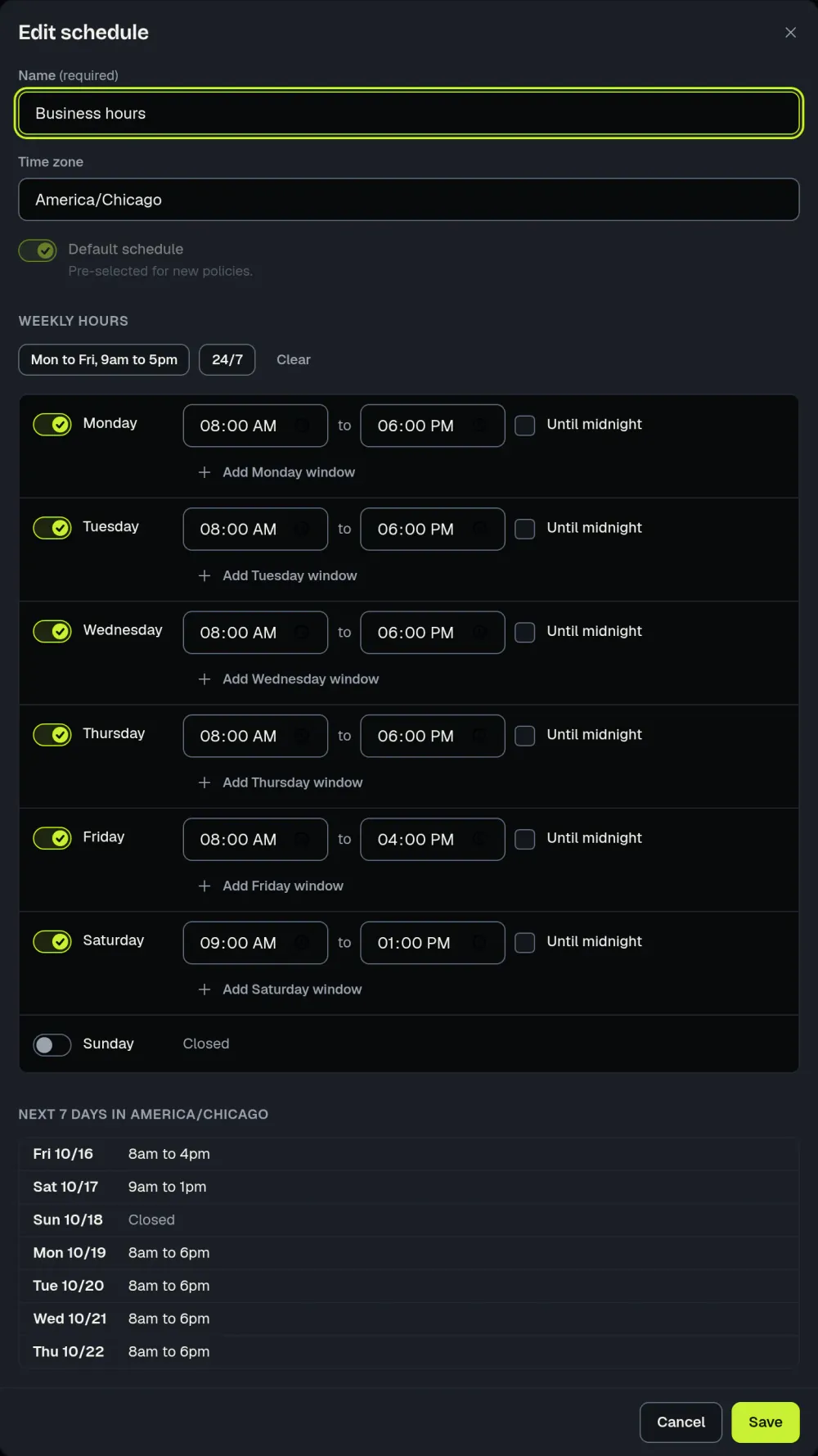
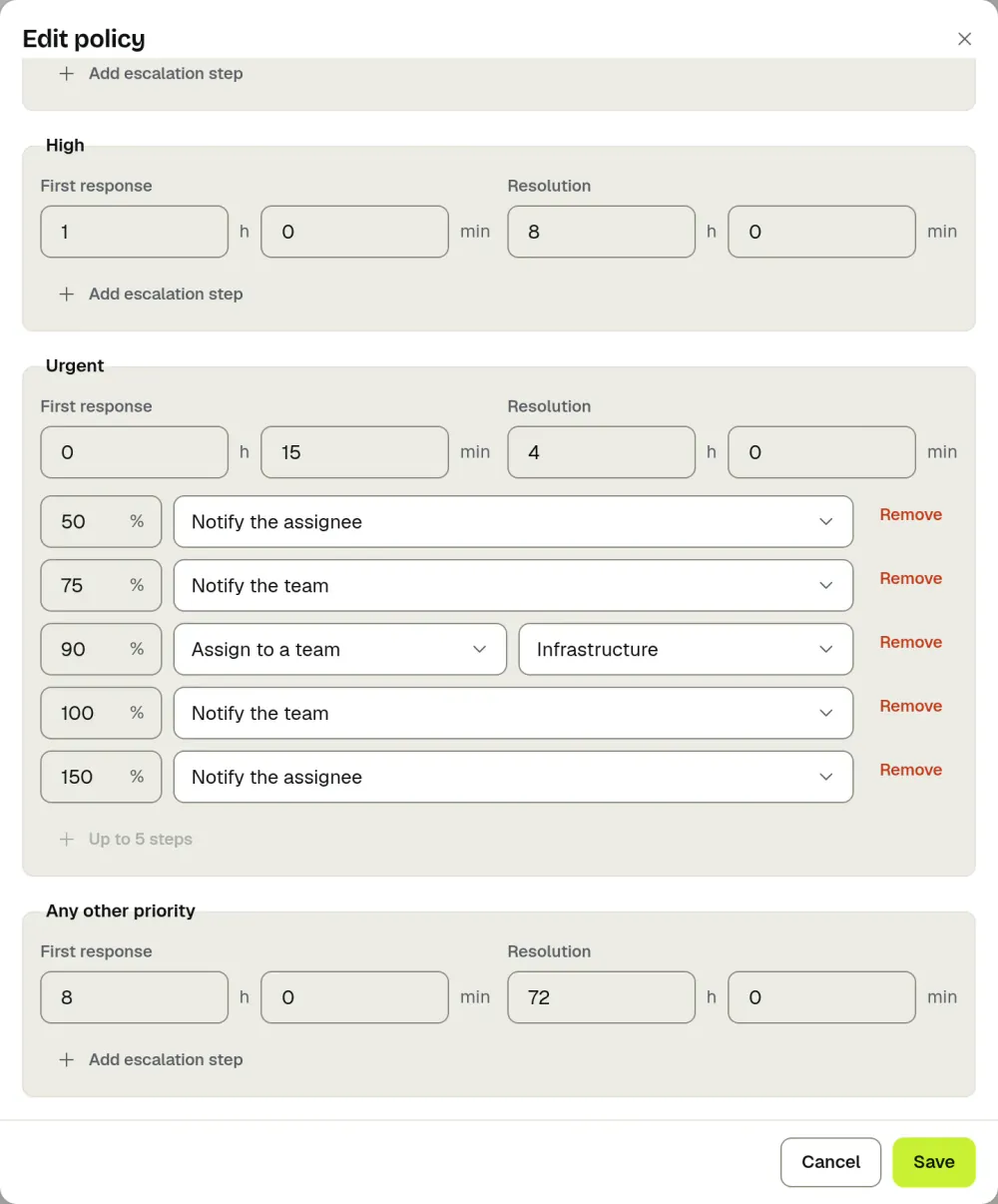
A policy has a schedule (or calendar hours) and, for each priority, a first response target and a resolution target in hours and minutes; “Any other priority” covers priorities with no row of their own. One policy is the default, and a policy can also be assigned to a team or to a client organization (on the organization, under Service level). The Business hours tab holds a schedule’s time zone and weekly windows, with presets, and shows the open hours for the next seven days. A schedule is closed all day on its holidays: add a date, or add the US federal holidays in one step.
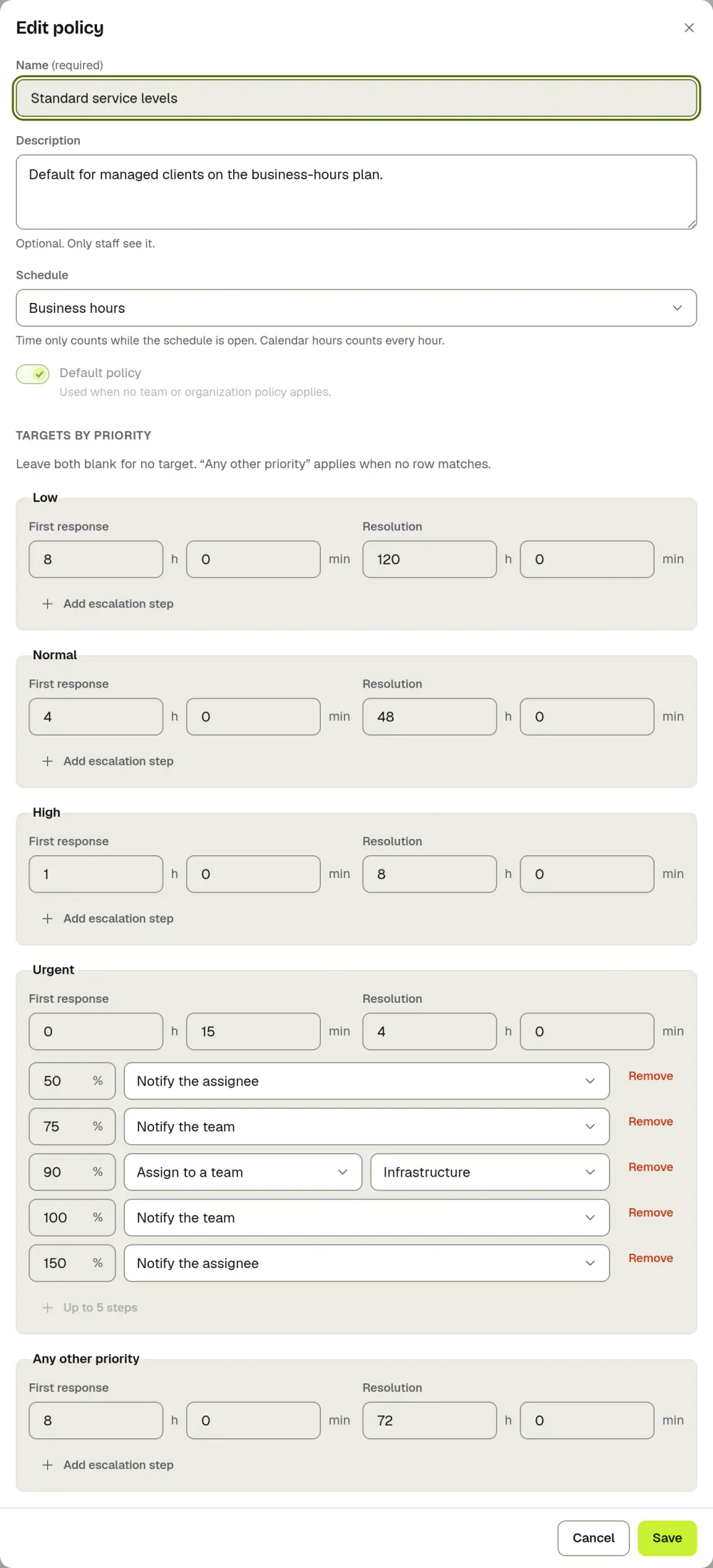
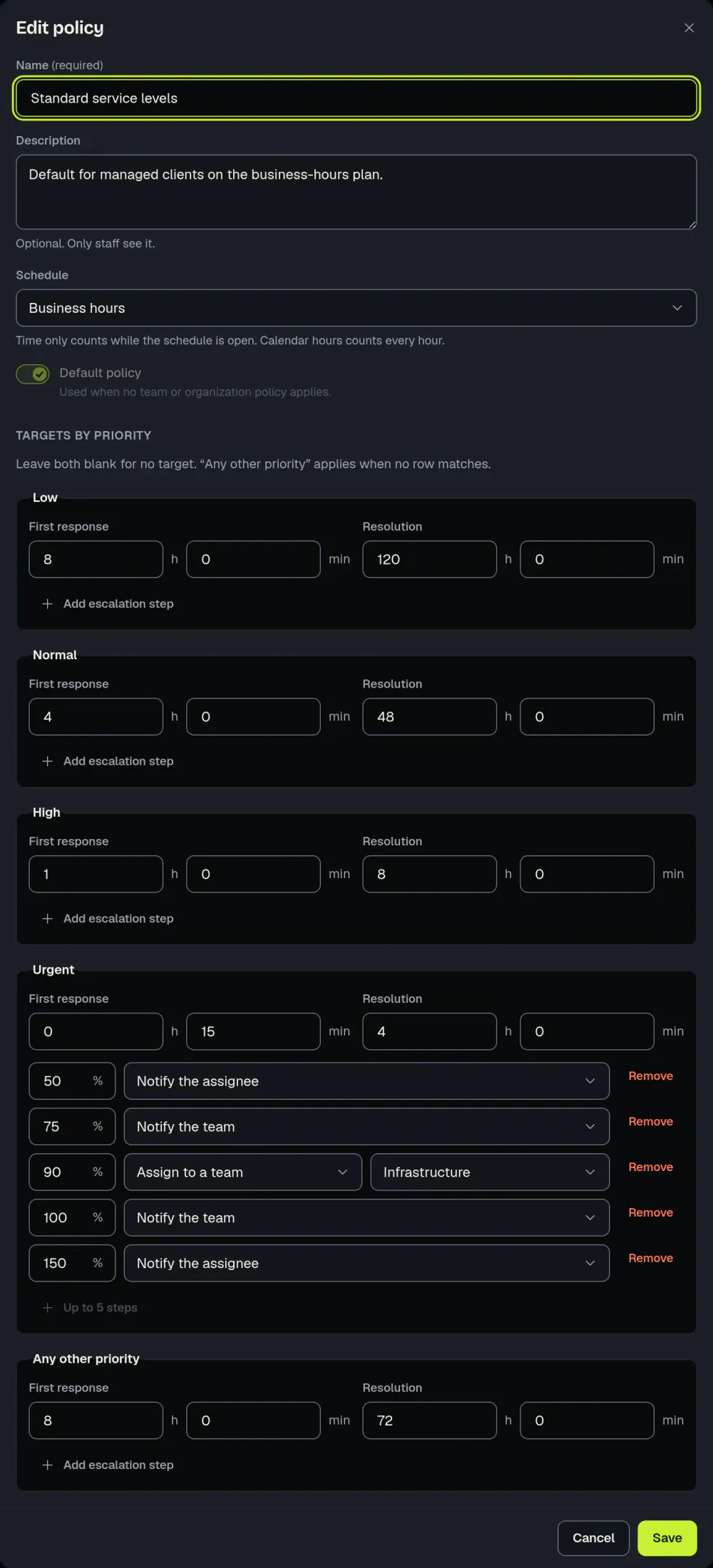
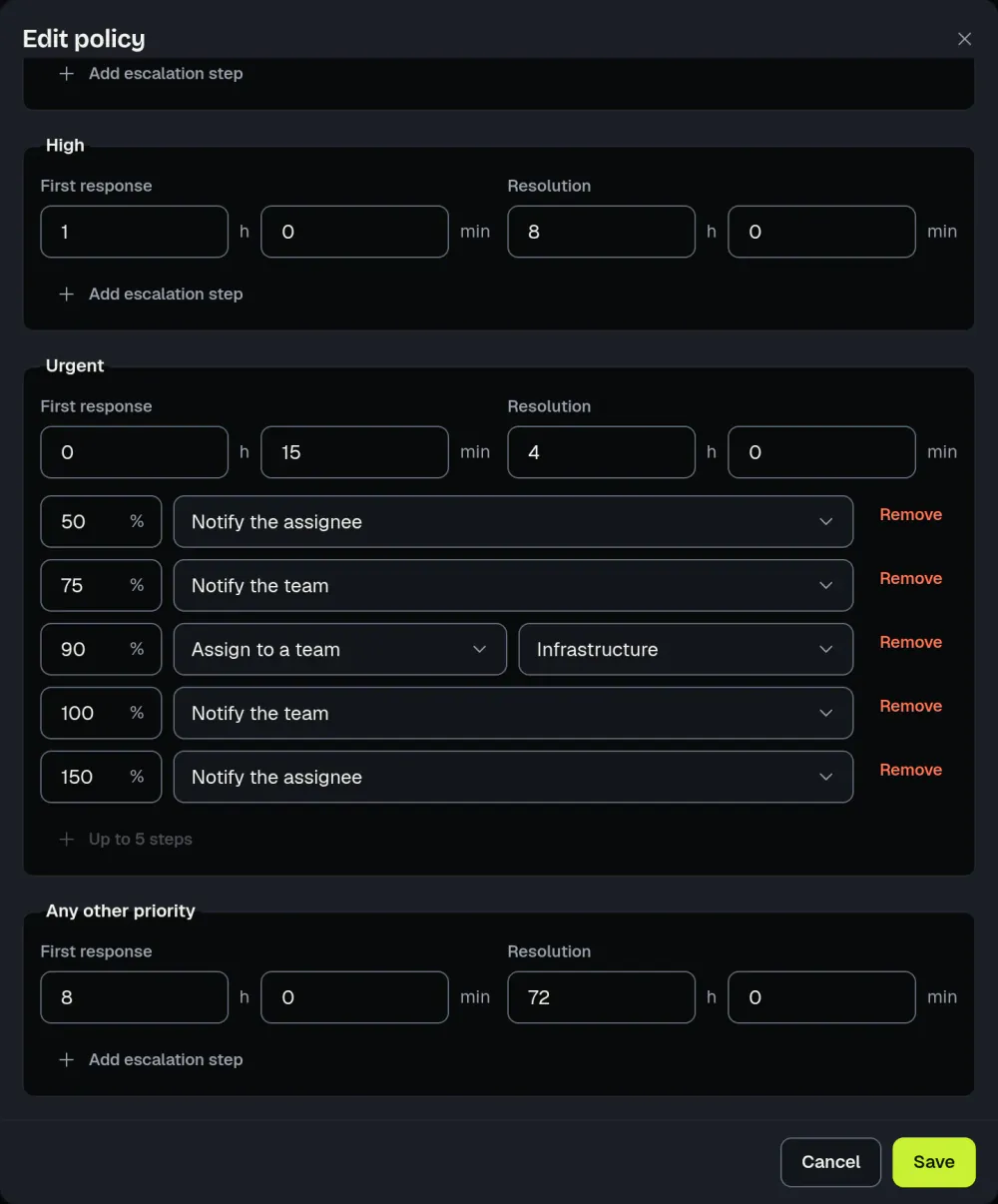
To pause the clock, turn on “Pauses SLA” for a status under Settings, then Workflow. While a ticket is in that status, its clock is paused. A policy can also have escalation steps, each set at a percentage of the target, with one of these actions: notify the assignee, notify the team, assign to a team, or set the priority. Each ticket shows a live countdown, so a breach is visible before it happens. The SLA management page shows how policies and countdowns work in the product, and the shared inbox guide covers how mail becomes tickets.
For the arithmetic in detail, see business-hours SLA math; for status rules, ticket lifecycle and statuses. To see how often you meet your targets, the SLA performance report in Reports shows attainment and breaches.