Ticket triage: a practical guide for small IT teams
Ticket triage is the first sorting of a new request: what kind it is, how urgent it is, who should take it and whether anything is missing. Done in a minute or two with a short set of rules, it keeps urgent work from being buried and stops requests from sitting with nobody.
What triage decides
Every new request needs the same four answers before real work starts, and writing them down as a routine, rather than leaving them to whoever happens to look, is what keeps triage dependable when the team is busy or someone is out. First, the type: is something broken (an incident), is someone asking for something expected (a service request), or is it a piece of internal work (a task)? The glossary explains why the two main types are handled differently. Second, the priority, which depends on how many people are affected and how soon it matters; a short matrix takes the guesswork out, and the priority matrix guide has one. Third, the owner: a person or a team, and who covers when that person is away. Last, completeness. Can work start now, or does the requester need to supply a detail first? Asking at once is faster than finding out halfway through.
A triage routine that fits in two minutes
This suits a team of one to ten technicians. Change the wording to match your categories, but keep the order.
- Look for urgent items first: anything that affects many people or blocks someone completely gets handled before the rest of the queue.
- Check for duplicates. Several people reporting the same outage should become one record that everyone is attached to, not five separate pieces of work.
- Set the type and category from a small list. If a category has to be explained, it is probably two categories or none.
- Set the priority from impact and urgency, not from how politely or loudly the request was written.
- Assign it to a named person or to a team that shares a queue. An unowned request is the most common cause of a missed deadline.
- Ask for missing details in the first reply. One clear question (which device, since when, what message appeared) saves a round trip later.
Who should do triage
A rotating triager works well for teams of three to eight: one person per day or per week sorts everything new, and builds a picture of the whole queue while doing it. Self-service from a shared queue, where technicians pick up unassigned work themselves, needs discipline about taking the oldest or most urgent item, not the most interesting one. Automatic routing with review, where rules assign by category, team or client and a person checks anything that does not fit, scales well as volume grows, but only after the categories are stable.
Common triage mistakes
- Too many priorities. Four levels are enough for most teams. With seven, people stop agreeing on the difference between them.
- Priority by seniority. If the most senior requester always gets the highest priority, the levels lose their meaning for everyone else.
- Re-triaging in silence. If a request turns out to be bigger than it looked, change the priority and say why in an internal note, so the next person sees the reasoning.
- Letting triage become a bottleneck. If one person has to approve every assignment, the queue stalls when they are away. Anyone on the team should be able to triage.
How triage works in ActiveQ
A new workspace starts with the priorities Urgent, High, Normal and Low, the types Incident, Request and Task, and the statuses New, Open, Waiting on customer, Resolved and Closed. In Settings you can rename and add to the statuses and types, and rename, recolor or add priorities (each on a level from 1 to 4).
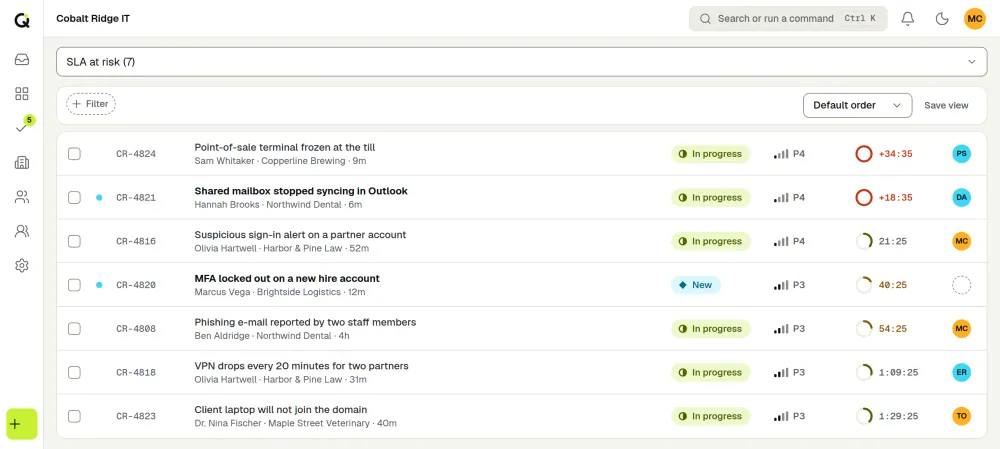
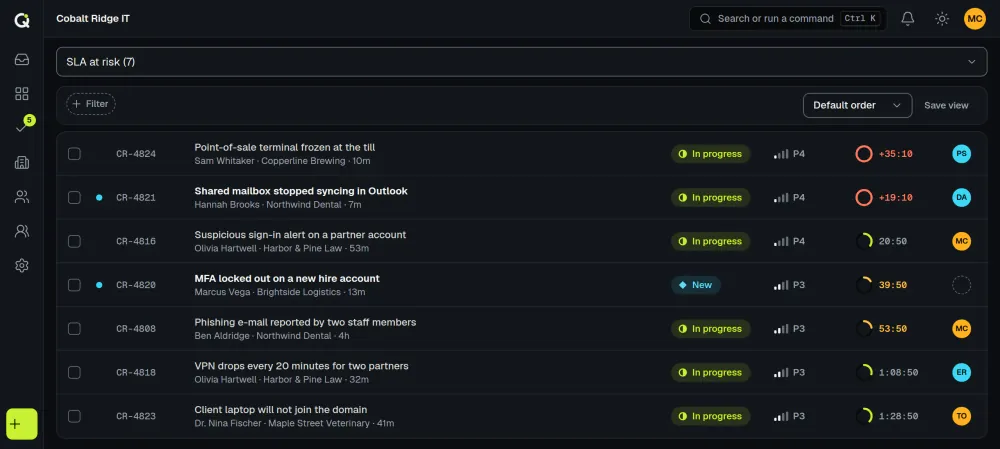
The queue has built-in views for unassigned tickets, waiting tickets, all open tickets and SLA at risk, so the triager can work from Unassigned while the rest of the team watches SLA at risk. A mailbox can set the team, the organization, the type and the priority that new email tickets start with, so mail for one client lands in the right place, and a team can share new tickets by round robin when the work is evenly spread. Automations can act on events such as a new ticket, and internal notes record why a priority was changed.
A staff member can also ask AI assist to suggest a category, priority, sentiment and language. Nothing changes until the person clicks Apply, and they can change any value.
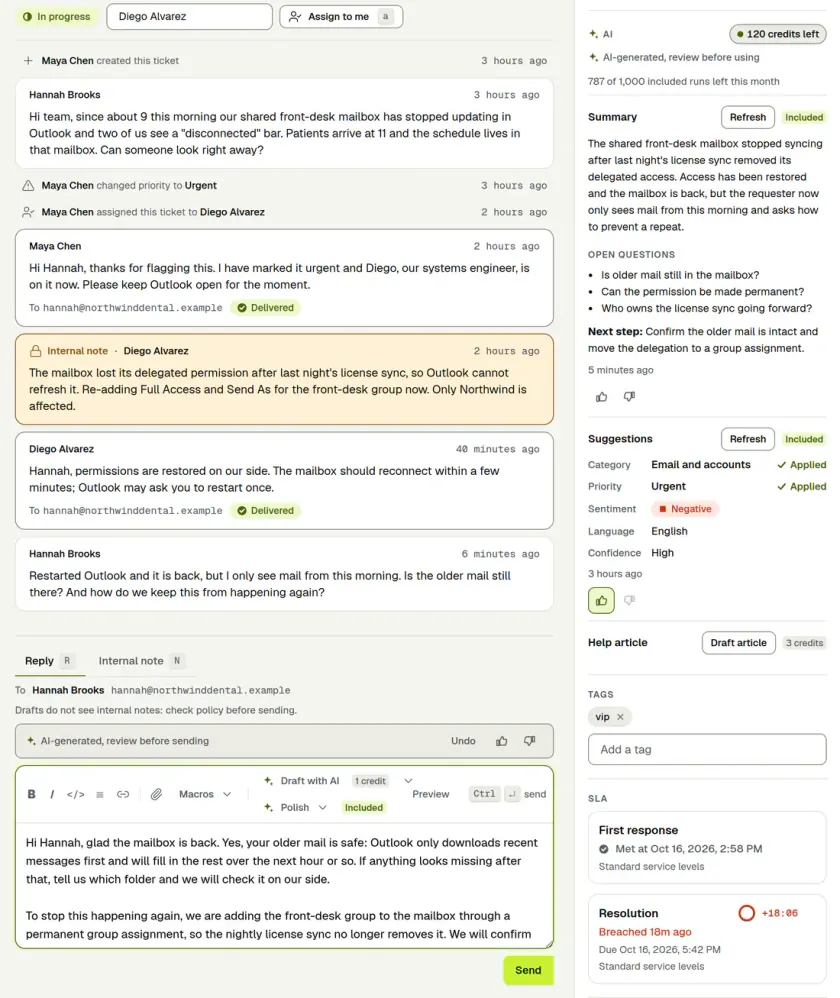
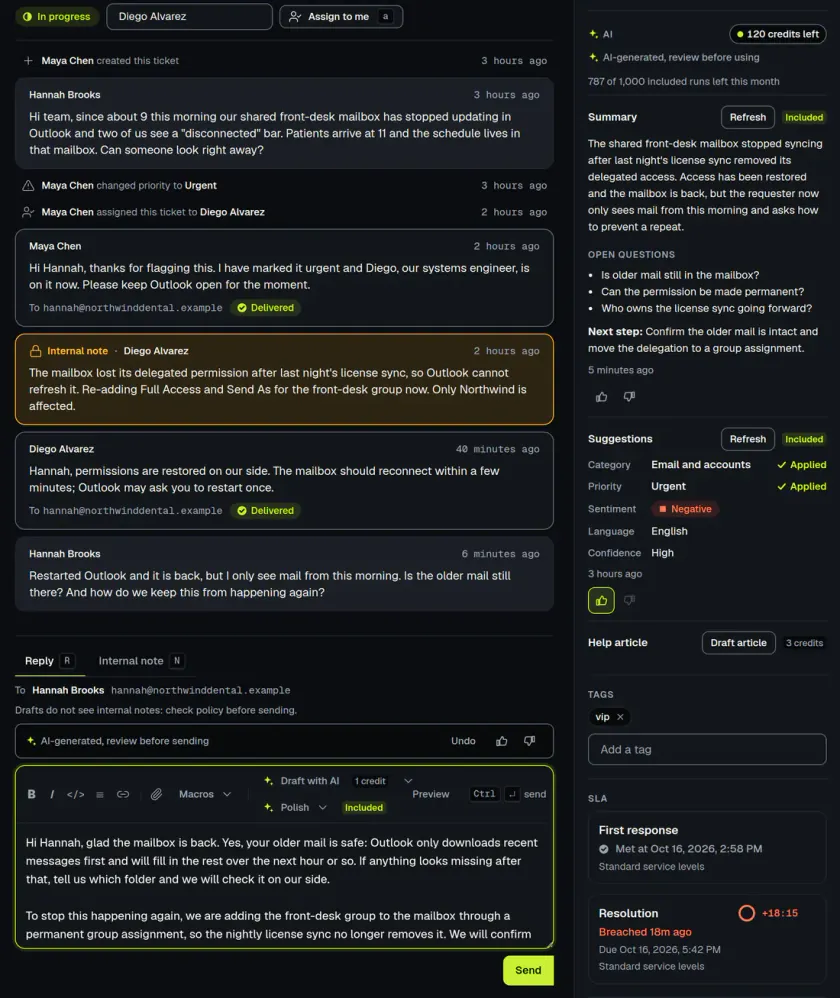
Priority drives the clock as well. Each priority can have its own first response and resolution target, and the ticket shows a live countdown. The IT SLA guide covers how to choose those targets, and the internal IT page shows how teams run the queue day to day. After triage, a ticket moves through statuses; see ticket lifecycle and statuses.